

Live now
Index readings from the same feed the Sahi terminal runs on. Open the live Trader Cockpit to see this guide applied to today’s numbers.
- NIFTY — —
- BANKNIFTY — —
- SENSEX — —
Open the Cockpit in About Two Minutes
How do I open the Cockpit and read one screen of it in about two minutes?
The Trader Cockpit is one screen on which you put several of the app’s tools side by side: the option chain, Open Interest, the Put Call Ratio, the straddle, implied volatility and more. You choose the symbol and the expiry once, in the toolbar, and every box on the screen follows. The boxes are called widgets, and an arrangement of them is a layout. Below are six steps. They take about two minutes, and nothing you do here changes any market or places any order.
The Screen Was Redesigned on 19 October 2026
The Cockpit now has one toolbar, 40 px tall. The second row of quick controls and the status bar at the foot are gone, and their facts (the symbol, the expiry, whether the market is open and how current the figures are) sit in that one toolbar. The widgets fill the window exactly, Fit replaces Tidy up, and the View menu holds the display choices. The pictures in this guide were taken before the redesign and are marked for a retake; where a picture and the text differ, trust the text (pictures not retaken).
Your First Five Minutes
- Open the Cockpit and look at Market desk. A browser with nothing saved opens on Market desk at once: the Simple option chain, PCR chart, Build-up movers, the Index watchlist and Key levels. A strip under the toolbar, headed Start with a layout, offers 5 other layouts. You can ignore it; it closes on your first change to the layout.
- Check how current the figures are. The toolbar says Market open with the time left to the 15:40 close, or Market closed, and beside it the time of the data. After the close it reads, for example, Market closed · Closing data 19 Oct, 15:40 IST.
- Change the symbol once. Press the symbol in the toolbar, or press / and type a name. Every widget follows. Ctrl K opens the command palette, which finds symbols, widgets, layouts and actions in one box.
- Press T if the layout looks ragged. Fit packs every widget into even rows that fill the screen. Ctrl Z takes it back.
- Remember that nothing here is a forecast. The levels name where positions and prices stand. They do not say where the price goes.
-
Open the Cockpit
Open Trader Cockpit. On the rail it is the button named Cockpit. It opens on the symbol you last looked at and its nearest expiry. The first time in a browser it opens on Market desk and saves it; later it opens on the layout you left. There is no welcome page to answer: the layouts strip sits under the toolbar and never covers the widgets.
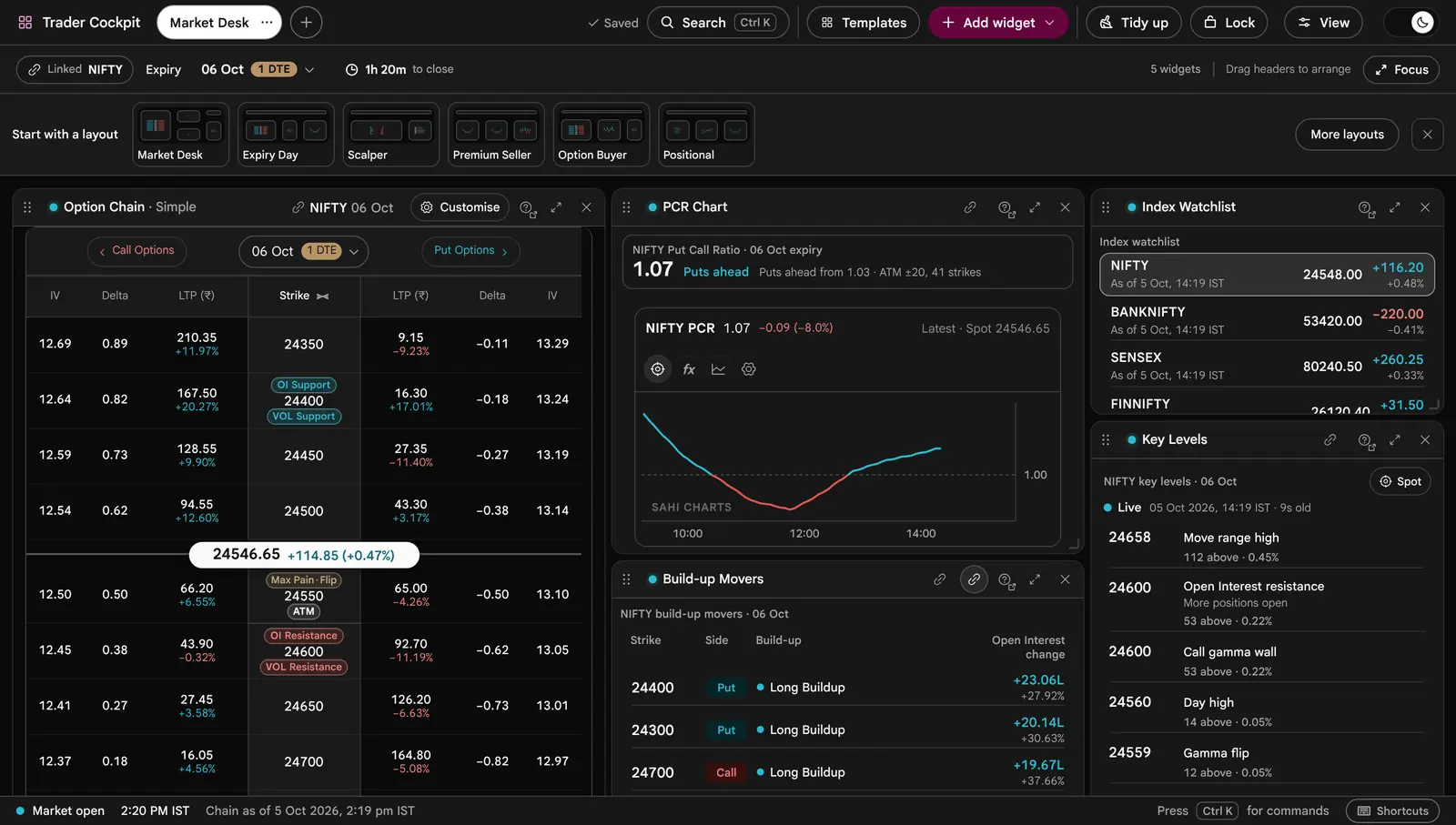

Look at: the strip under the bar: six small drawings (the first, Market desk, is the layout that is open), More layouts at the right and the dismiss button beside it. The two rows above it are the earlier bar; the Cockpit now has one toolbar. (Picture taken before the Cockpit was redesigned on 19 October 2026: picture not retaken.) -
Pick another layout if you want one
Press a drawing in the strip. The widgets of the open layout are replaced at once, in place, and the strip goes away; Undo reset in the toolbar takes it back. More layouts opens the full gallery. Every ready-made layout is listed in Part B. The strip is for the first visit only: pressing a layout, the dismiss button or Add, or making any change to the arrangement, closes it for good.
-
Read the strip
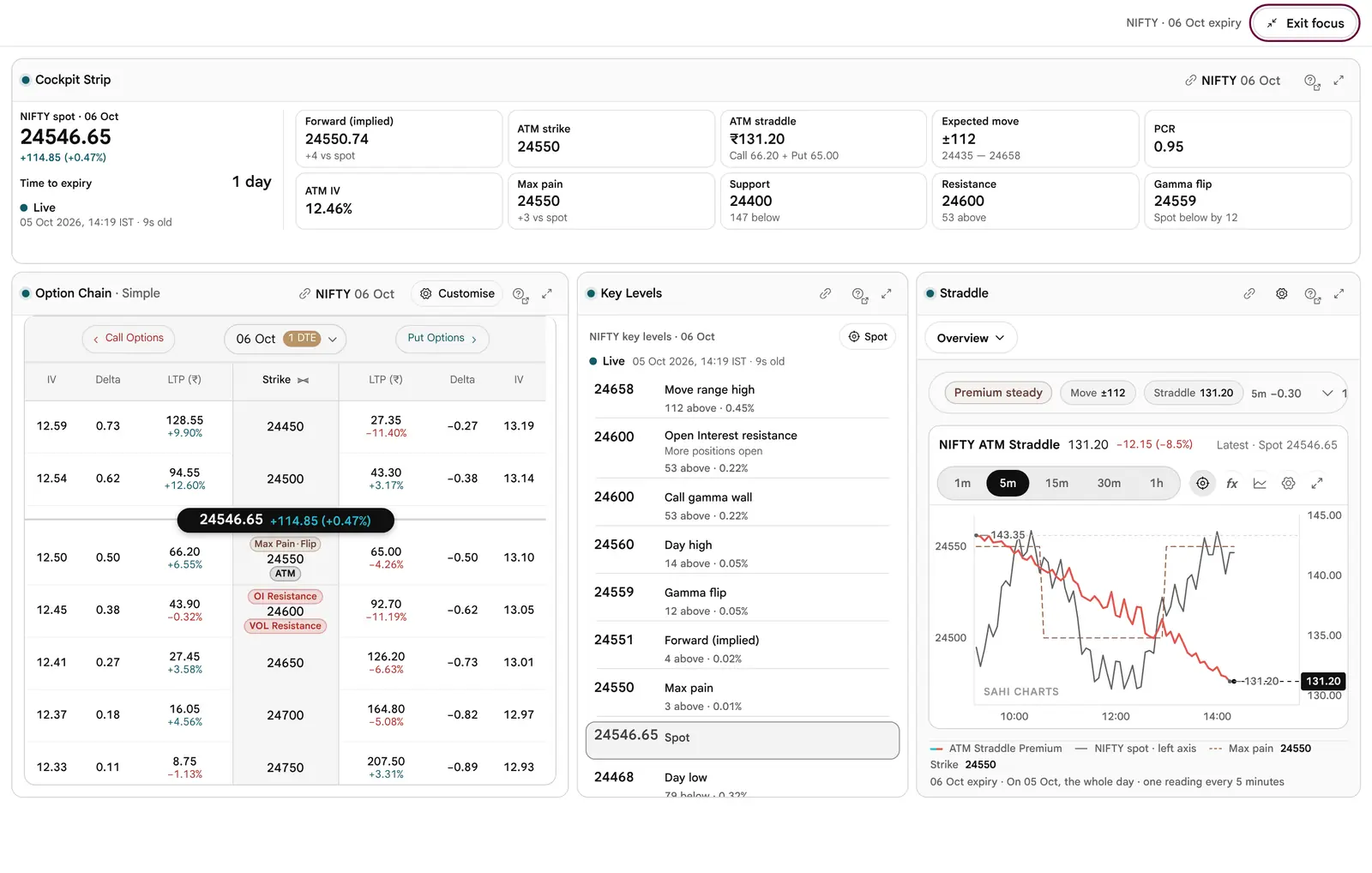
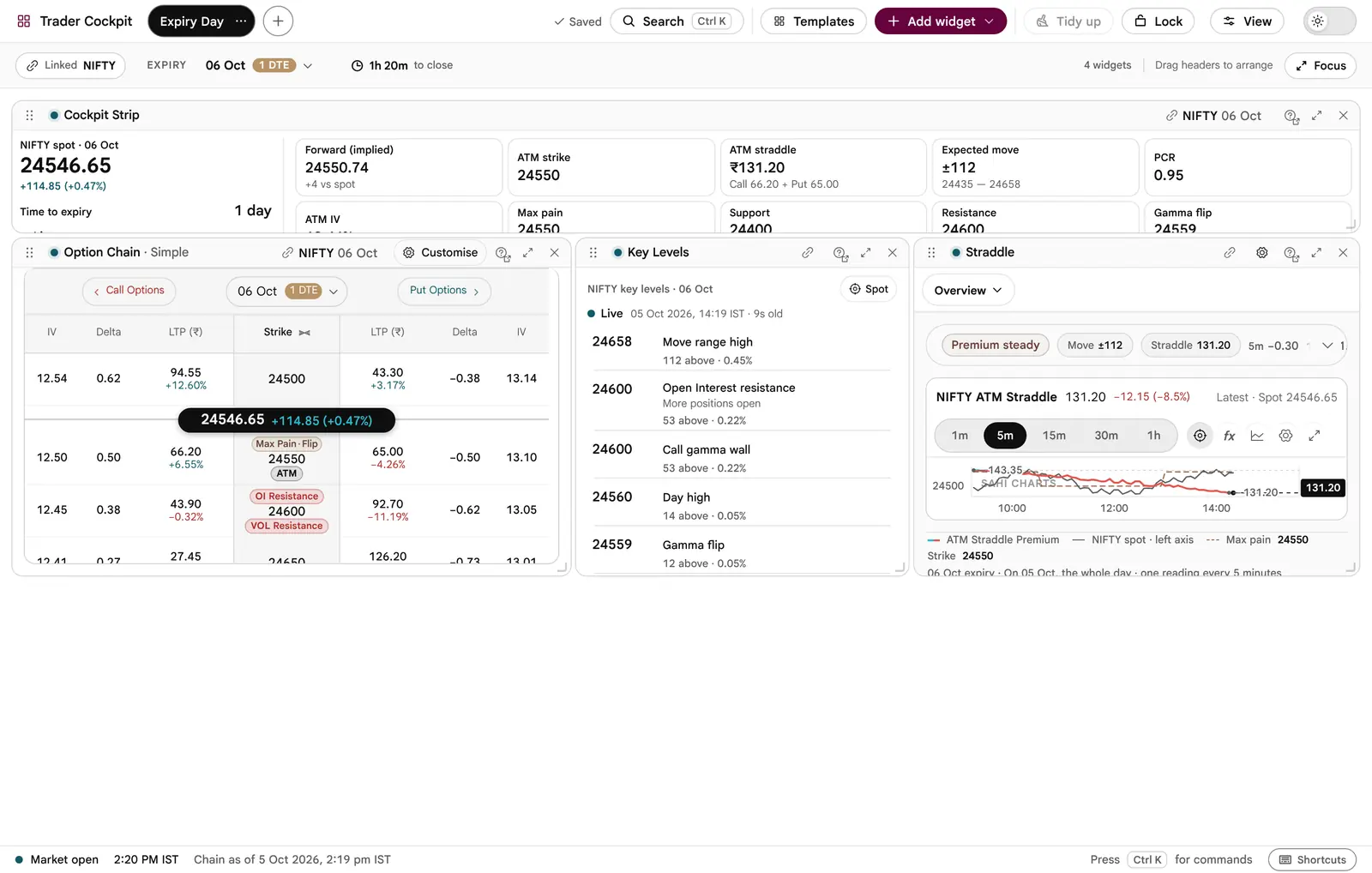
On Expiry day the Cockpit strip sits across the top: spot with its change and the data line, then the expected move, the ATM straddle, the Call wall and the Put wall, the Put Call Ratio with its scope (Whole expiry) and more. The strip, cell by cell.
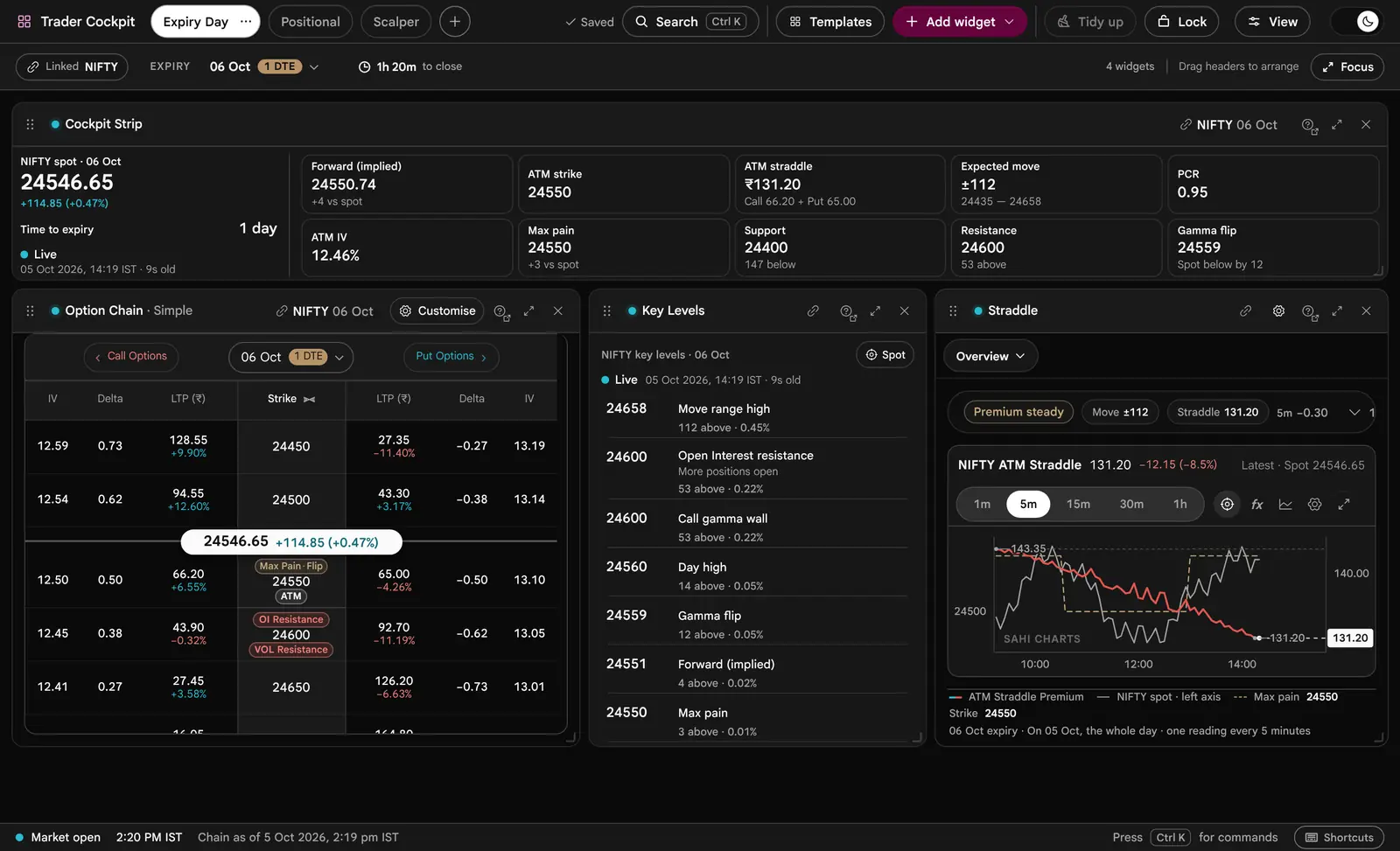
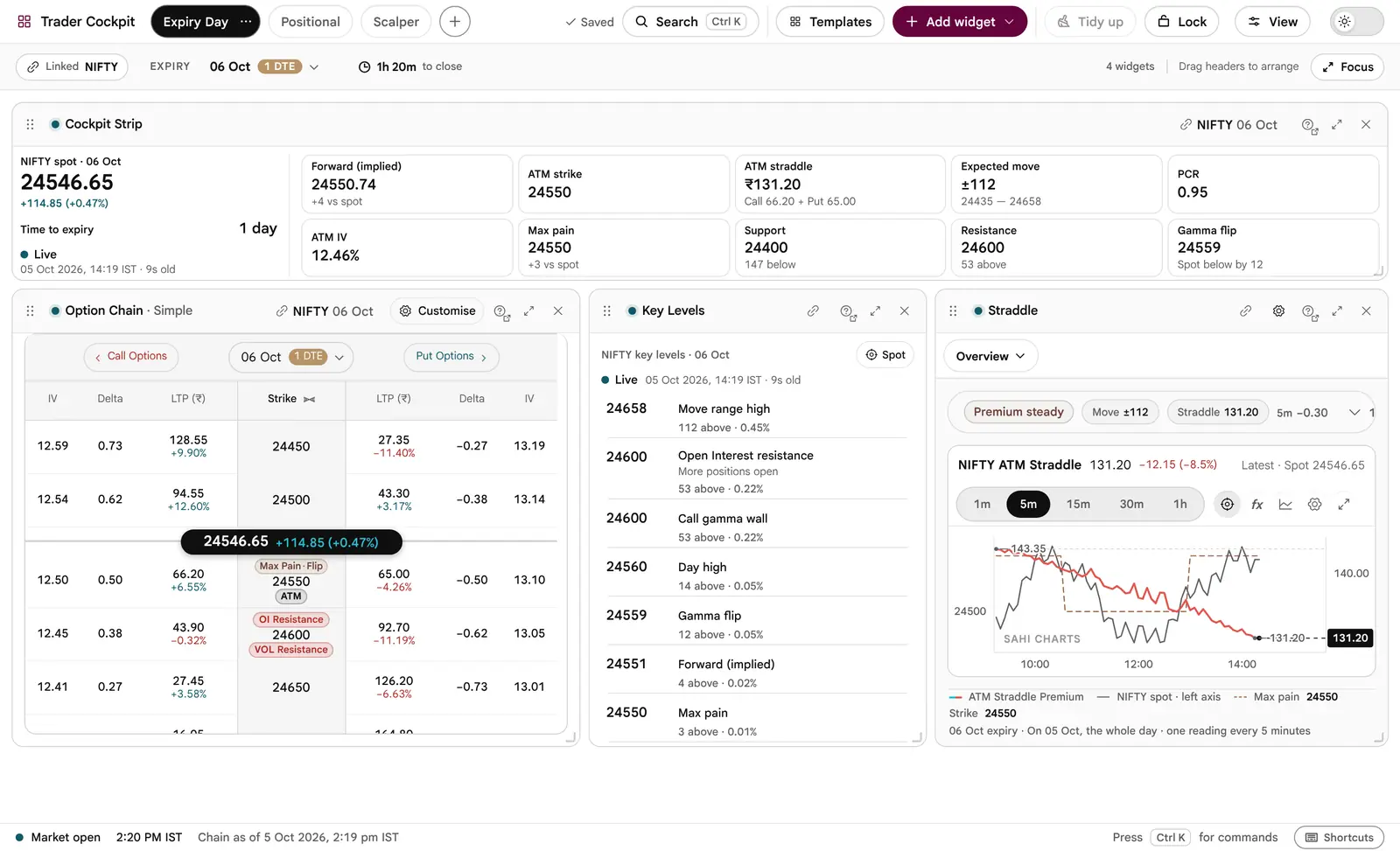
Look at: the strip across the top and the three widgets under it. This picture still shows the earlier two-row bar and the status bar along the bottom; both are gone, and the widgets now fill the window to its foot. (Picture taken before the Cockpit was redesigned on 19 October 2026: picture not retaken.) -
Read the toolbar
After the layout tabs come the symbol and the expiry (with its days to expiry), the two choices that matter, and then the market status with the data time. On the right are Search, Undo and Redo when there is something to take back, Add, Fit, Lock and View. Every control, in Part A.
-
Arrange one widget
Press and hold a widget’s grip (the six dots at the left of its header) and drag. A dashed box shows where it will land. Drag any edge or the bottom-right corner to resize it; where two widgets share an edge, what one gains the other gives up. The Size button in the header offers Small, Medium, Large, Full width and Full height. To read one widget at full size, press M or double-click its title; Esc brings it back. A change you regret is one Ctrl Z away. The grid, Fit and resizing.
-
Add what you miss
Press Add (or Ctrl + Alt + A), type a word, and press Enter or a card. The panel stays open beside the canvas so that several can be added in a row. Or press Ctrl K and type +pcr. The panel and all 28 widgets.
Which Parts to Read
New to the Cockpit: read What it is, the screen, the ready-made layouts, the common mistakes and the glossary. Already trade options: go to the strip and Key levels, strike follow, the command palette, the keys, the routines and the limits.
What the Cockpit Is, and When to Use It
What is the Cockpit, when is it better than the single pages, and what will it not do?
The Desk Analogy
Picture a trader’s desk. On a small desk one screen shows one thing at a time, so you keep switching. On a larger desk you set out the few things you need together: the price ladder, the chain, the Open Interest bars. The Cockpit is that larger desk. It adds no new market data. It lets you set out the app’s own tools together and keep the arrangement.
Each tool of the app (the Option Chain, Open Interest, the Put Call Ratio, the Straddle, Gamma Exposure, Implied Volatility, the Strategy Builder and the Options Scanner) has a page of its own. In the Cockpit the same tool can sit in a box. It is not a copy with fewer features: the box mounts the real page, fixed on one of its views, and the page keeps its own Customise panel. Inside a widget the page has no cards of its own: the widget’s frame is the only border, so more of the box shows figures. The Cockpit also has a few small readings made only for it: the Cockpit strip, Key levels, the Index watchlist, Mini price, Trader notes and others (all 28).
The Single Pages and the Cockpit
| You want to | Use | Why |
|---|---|---|
| Study one tool in depth: every column, every window | The tool’s own page | It has the whole screen, and its own guide explains it |
| Watch two or three readings change together through the session | The Cockpit | One symbol and one expiry feed every box, and the screen stays as you left it |
| Compare the chain with Open Interest, straddle decay or gamma levels | The Cockpit | Seeing them side by side saves switching pages |
| Build a multi-leg strategy and read its payoff | The Strategy Builder page, or the Strategy desk layout | The builder needs width; the layout gives it most of the screen |
| Scan many underlyings for something that moved | The Options Scanner page | The scanner looks across underlyings; the Cockpit follows one |
| Check the market on a phone | The Cockpit’s tabs, or the single pages | One widget fills the screen at a time |
What the Cockpit Does
- It follows one symbol and one expiry in every widget. There is no per-widget symbol.
- It keeps up to 12 named layouts in this browser: where each widget is, how big it is, which layout is open and whether the screen is locked. Undo and redo take back up to 50 changes to a layout, on a phone too.
- It fills the window: the rows stretch on a tall screen and shrink on a short one, down to 24 pixels, before anything scrolls. Fit (T) packs the layout to the screen.
- It says whether the market is open, counts down to the 15:40 close, and gives the time of the data in every reading made for it.
- It lets you pick a strike in one widget and see it marked in two others (strike follow).
- It works from the keyboard, from one table of keys: the command palette (Ctrl or Cmd K, or /), layout keys, Fit (T), Lock (L), maximise (M), undo and redo, and arrow keys to move a widget and Shift with the arrow keys to resize it (every key).
- It loads a widget only when it is needed. On the desktop grid a widget mounts as it comes near the visible canvas, is shown once it has settled, and then keeps its state; on a phone only the open tab’s widget is mounted (the phone view).
What the Cockpit Does Not Do
- It places no order, sets no alert and sends no notification. It is for reading.
- It has no account. Layouts live on this device, in this browser’s storage, and nowhere else. Sahi hands out no files, so there is no file export. To take a layout to another browser, copy it as text from the View menu and paste it there (where layouts are kept).
- It reads no futures price. The figure it calls Forward (implied) is worked out from option prices (see the strip).
- It does not forecast. Every level and every word on it describes where positions or prices stand now.
The Screen at a Glance
What are the parts of the screen, from top to bottom?
The Cockpit sits inside the app’s own shell: the rail on the left and the market header across the top are the app’s, and they are the same on every page. The Cockpit itself is what is under the header: one toolbar, and the canvas of widgets below it, which fills the rest of the window.
| Part | What it holds | Read more |
|---|---|---|
| The toolbar | One row, 40 px tall: the title, one tab per layout and a + for a new one; the symbol, the expiry with its days to expiry, and the market status with the data time; then on the right Search (Ctrl K), Undo and Redo (only when there is something to take back or do again), Add, Fit, Lock and View. Below 1366 px wide the words give way to icons; the row never wraps | Part A, Part B |
| The layouts strip | On a first visit only, headed Start with a layout: small drawings of six layouts, More layouts and a dismiss button. It closes on the first change to the layout | Ready-made layouts and the first visit |
| A one-line notice | Only when saved layouts could not be read: it says that Market desk is open and that a copy of the old data is kept in this browser, with a Dismiss button | Where layouts are kept |
| The canvas | The widgets, each in a frame, on a 12-column grid whose rows fill the window exactly; the Add widget panel opens at its right edge | Part B, Part C |
There is no status bar any more. Its facts moved: the market status and the data time are in the toolbar, the keyboard shortcuts are under View (and on ?), and the palette is on Search.


The Frame Around Every Widget
Every widget sits in the same frame, with a header 32 px tall (26 pixels with the slim title bar from View). From the left: the grip (six dots) you drag by; the title, with a small dot that is lit while the NSE derivatives session is running; a plain chip naming the symbol and expiry every widget follows (press it to change the symbol). On the three widgets that take part in strike follow, a small crosshair toggle sits inside the chip. Then the buttons at the right, always in the same places: Customise on a widget that is a whole tool, Size, Help (the ?, which opens the tool’s guide, or this guide’s card for a widget made only for the Cockpit, in a new tab), Maximise and Remove. Two widgets, Index watchlist and Trader notes, do not follow the shared symbol, so they have no chip. Double-clicking the empty part of the header maximises the widget, as the button does. As a widget narrows, the labels give way first and the title last.
On a touch screen Help, Maximise and Size fold into one ⋯ menu, so that every button in the header stays large enough for a finger (40 to 44 pixels), whatever the density or title bar.


The question each topic answers (4 topics)
The Toolbar, Control by Control
What does each control on the toolbar do, and when is it greyed?
The toolbar is the one row above the canvas, 40 px tall. On the left are the layouts; in the middle the symbol, the expiry and the market status; on the right Search and the actions that change the open layout, ending with View. Below 1366 px wide the words on Search, Fit, Lock and View give way to their icons (the tooltip still names each), and the row never wraps onto a second line. On a phone the toolbar is a different, shorter row (see Reading It on a Phone).
| Control | What it does | When it is off or hidden |
|---|---|---|
| Layout tab | Opens that layout. The open tab is outlined. Double-click a tab to rename it. Left and Right arrow, Home and End move between tabs | — |
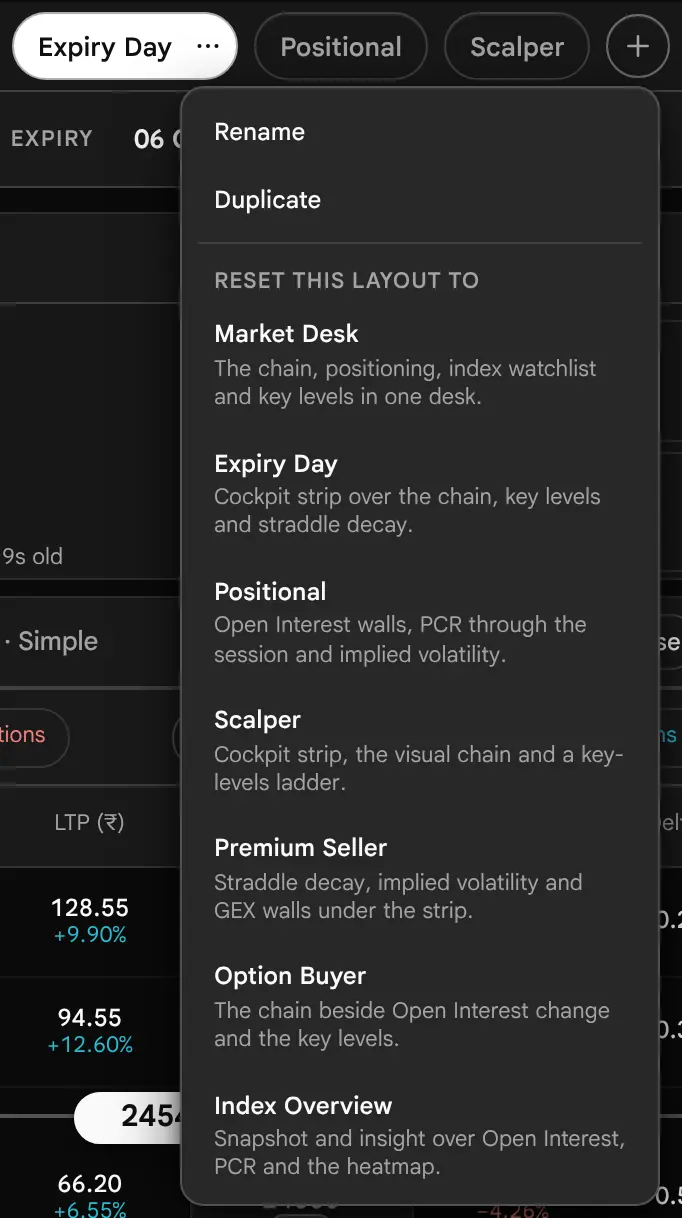
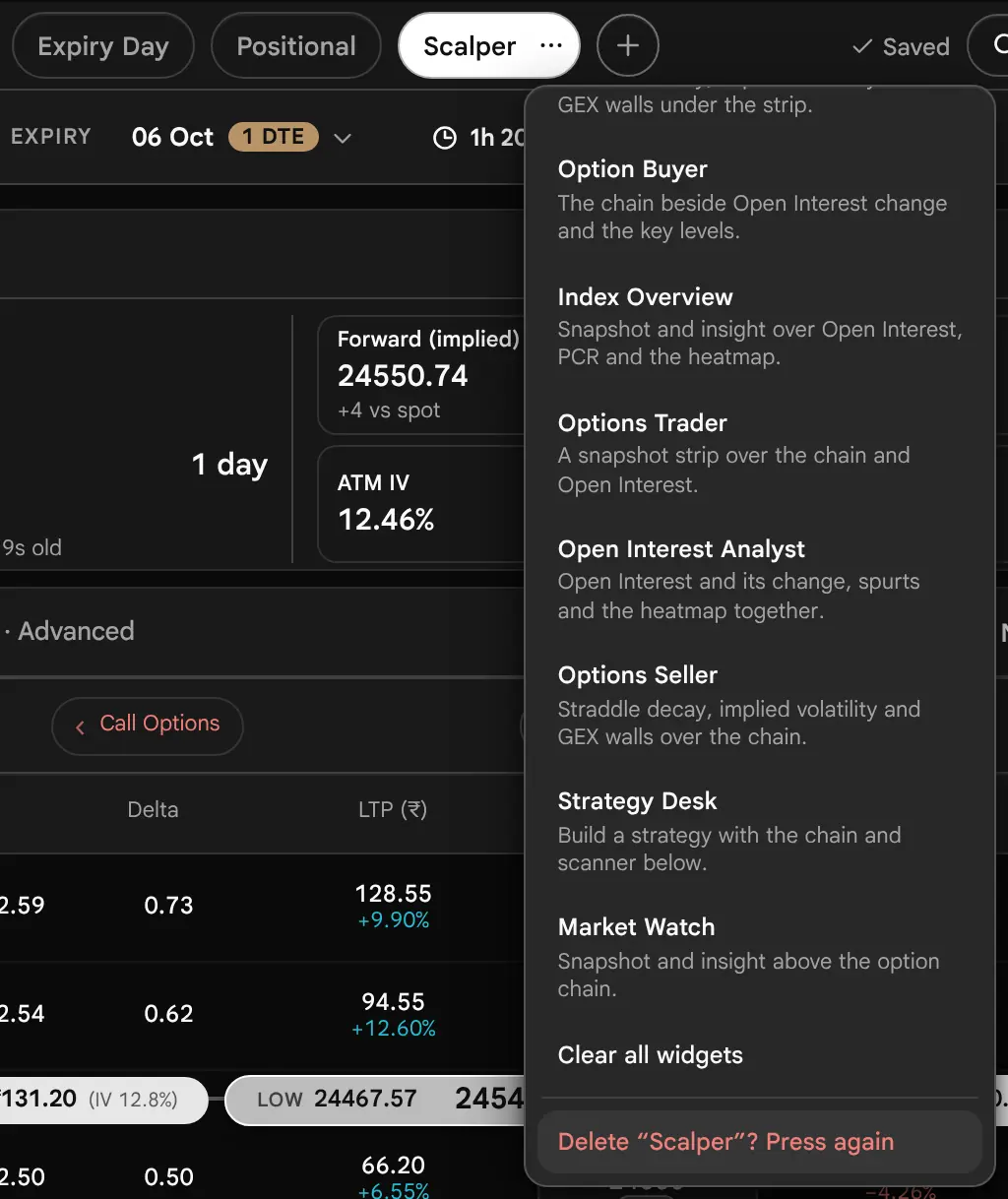
| The three dots on the open tab | Opens the layout’s menu: Rename, Duplicate, Reset this layout to a ready-made layout, Clear all widgets, Delete layout (Part B) | Duplicate is greyed at 12 layouts; Delete is greyed when only one layout is left |
| + | A new layout: Blank layout, All layouts (the gallery with previews), or one of the ready-made layouts under Start from | Greyed at 12 layouts; its tooltip then reads Up to 12 layouts |
| Symbol | The symbol every widget reads, with a caret. Press it to open the symbol picker (symbol and expiry) | — |
| Expiry | The open expiry with its days to expiry; a menu of the symbol’s expiries | A dash, and no menu, when the expiries could not be loaded |
| Market status | A dot, Market open with the time left to the close (or Market closed), then the time of the data: Data and the time during the session, Closing data and the time after it (the clock and the data time) | Below 1280 pixels wide only the data time is shown; the tooltip keeps the whole line |
| Not saved | A small note that appears if the browser refuses to store the layout, or if the stored layouts were written by a newer release of the page and are left alone. It says the layout lasts until this tab is closed | Shown only when saving fails (saving) |
| Search (with the key Ctrl K, or Cmd K on a Mac) | Opens the command palette: symbols, widgets, layouts and actions in one box (the palette) | — |
| Undo and the word, Redo and the word | Undo puts the layout back as it was before the last change; the word names the change: fit, clear, reset, remove, add, move or resize. Redo does an undone change again. Up to 50 changes (undo and redo) | Hidden until there is something to undo or redo on the open layout. Ctrl Z and Ctrl Shift Z do the same |
| Add | Opens the Add widget panel, a 380 px panel at the right of the canvas (Part C). Ctrl Alt A opens and closes it | The key does nothing while the layout is locked or Focus mode is on. On a phone, Add is at the right of the bottom bar |
| Fit | Packs every widget into even rows that fill the screen, giving up height before width (Part B). T does the same, and Undo fit takes it back | Greyed when the layout is locked, empty (Nothing to fit yet) or already fitted (Already fitted to the screen). Not offered on a phone |
| Lock / Locked | Freezes the arrangement: the grips, the resize edges, the Size menu and the remove buttons disappear. One switch for every layout, kept with them. L does the same and says Layout locked. Press L again to unlock. | — |
| View | Density, title bar, gap between widgets, Auto-fit, Focus mode, All layouts, Copy layout as text, Paste a layout, and Keyboard shortcuts (the View menu) | All layouts and Paste a layout are greyed at 12 layouts |
Gone from the earlier screen: the second row (Linked symbol, Expiry, the countdown, the widget count with Drag headers to arrange, and Focus), the Templates and Tidy up buttons, and the status bar at the foot. Templates are now All layouts (in View, in the + menu, or Shift T); Tidy up is now Fit; Focus mode is in View or on Ctrl Alt F.
What Lock Does and Does Not Do
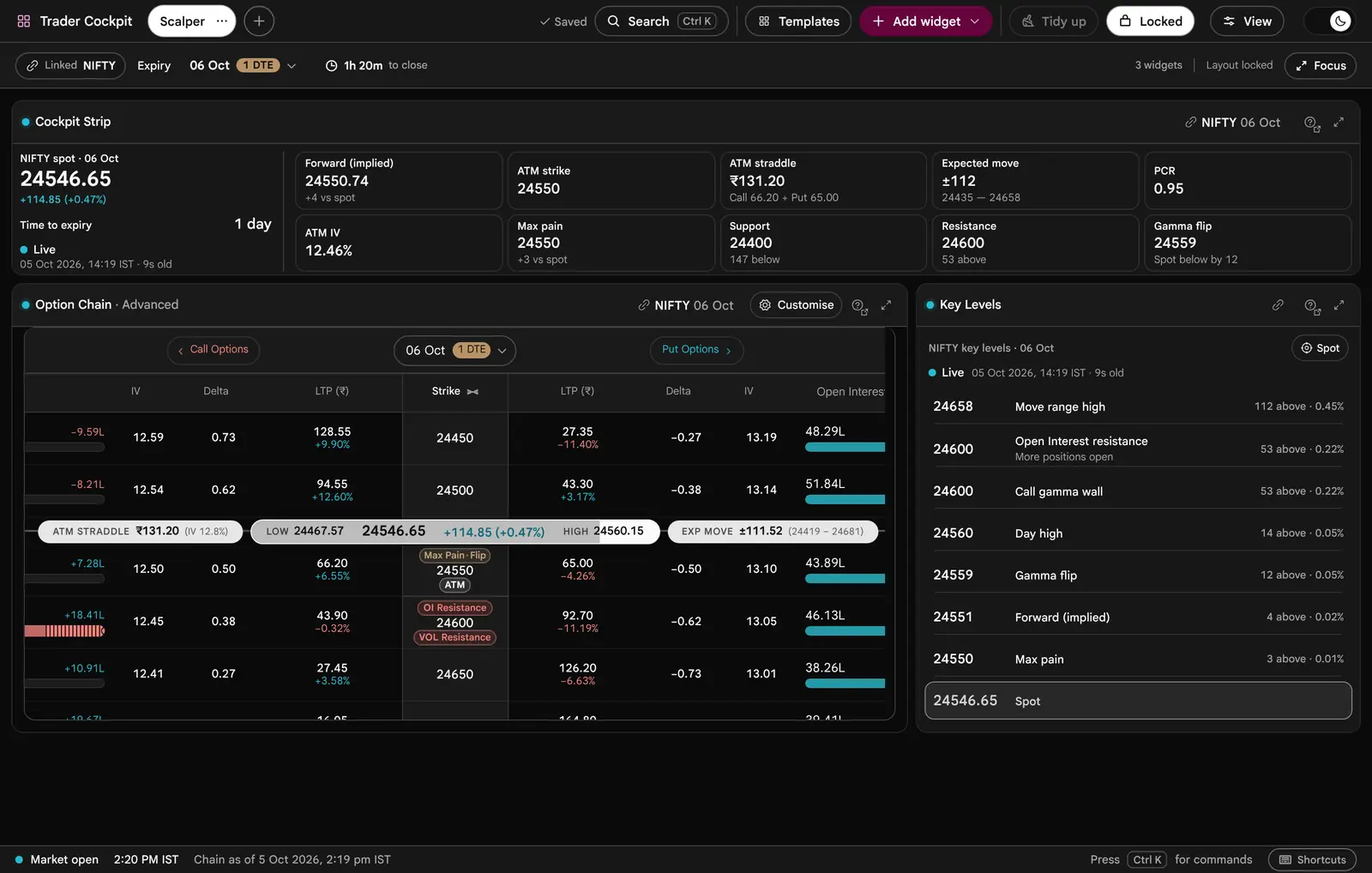
Lock is meant to stop an accident, so it removes the things that cause one: dragging, resizing from any edge, the Size menu, the remove button on each frame, the Delete key, and Fit. The toolbar then reads Locked. It does not lock everything. The Add widget panel still adds a widget (it was tried with a locked layout before the redesign; not re-checked since), and the layout menu can still rename, reset, clear or delete a layout. Maximise still works. The Ctrl + Alt + A shortcut is switched off while locked, the command palette’s Add rows say Unlock the layout to add widgets., and T says Unlock the layout to fit it.

Symbol and Expiry
How do I change the symbol or the expiry for every widget at once?
The Cockpit has one symbol and one expiry. Both sit in the toolbar after the layout tabs, and every widget reads them. A widget cannot show a different symbol from the one beside it. This is deliberate: it keeps every number on the screen about the same underlying and the same series. Because the choice is always shared, the toolbar no longer labels it Linked.
Changing the Symbol
- Press the symbol in the toolbar (the symbol and a caret), or the chip in any widget’s header. Both open the symbol picker.
- Press /: the command palette opens on symbols only. Type a name such as banknifty and press Enter. Ctrl K opens the same palette on everything, and @ limits it to symbols (the palette).
- Typing any other letter with nothing focused opens the symbol picker with that letter already typed, as everywhere in the app. The letters T, L and M are the Cockpit’s own keys and do not.
- On a phone the one-row header holds the symbol button and the expiry chip; the symbol button opens the same picker.
- Plain digits 1 to 9 switch workspaces, 0 opens Implied Volatility, and minus opens the Cockpit. Ctrl + Alt + 1 to 9 switch Cockpit layouts.
Symbols are written in capitals (NIFTY, BANKNIFTY, RELIANCE). The list is the app’s own list of index and stock underlyings.
Changing the Expiry
The Expiry menu lists the expiries of the open symbol (06 Oct, 13 Oct and 27 Oct in the pictures), and the open one carries its days to expiry. Choosing one re-points every widget. If the list cannot be loaded, the control shows a dash instead of a menu and the widgets say No expiries available for this index (states). The Expiry menu in the toolbar and the expiry choice inside a widget are one and the same setting: change it in either place.
The Market Status and the Data Time
What does the market status say, what does the countdown count to, and how current are the figures?
After the expiry the toolbar carries one status line: a dot, whether the market is open, and how current the figures are. It is the only place on a desktop that says so; there is no status bar below the canvas any more.
| Time (IST) | The toolbar says | The data time says |
|---|---|---|
| 9:15 until 15:40, on a trading day | Market open and the time left, for example Market open · 1h 20m to close | Data and the time of the chain, for example Data 19 Oct, 11:02 IST |
| Before 9:15, after 15:40, weekends and holidays | Market closed | Closing data and the time of the last reading, for example Closing data 19 Oct, 15:40 IST |
| Any time, when the chain carries no time | As above | Data time not reported |
The countdown shows hours and minutes while an hour or more is left, and minutes and seconds under an hour (for example 10m 00s to closes to close). Hover over the status and the tooltip adds Closes 15:40 IST during the session, or Outside the NSE derivatives session, with the data time. The toolbar no longer names the phases of the session (before the open, the closing auction, derivatives closing): before 9:15 it simply says Market closed. It reads the reader’s own clock against the app’s session times, so a wrong clock on the device gives a wrong countdown. The close, 15:40, is the app’s setting for the derivatives close from 3 August 2026; we could not confirm it from an exchange document (not verified). Holidays come from a list inside the app (not verified).
Every Key: One Table
Which keys does the Cockpit use, and when are they switched off?
The Cockpit keeps all of its keys in one table. The same table decides what each key does, prints the Keyboard shortcuts dialog and is tested key by key in the app’s own tests, so the dialog and the key handler cannot drift apart. The tables below are read from that table when this guide is built, so they use the app’s own words. Open the dialog with ? or with Keyboard shortcuts at the foot of the View menu.
- Search and commands (Ctrl K, or Cmd K on a Mac). Opens the command palette (Part D), in Focus mode too: on a desktop the toolbar stays mounted in Focus mode and handles every key, so Ctrl K is always the palette there, never the symbol picker. / opens the palette on symbols.
- Layout keys. Ctrl + Alt + 1 to 9 (and 0 for the tenth) switch to the layout in that position, left to right. Layouts 11 and 12 are reached with ], from the tabs or from the palette. [ and ] step to the previous and next layout while no widget has focus. A key with no layout in that position does nothing.
- T, L and Shift T. Fit to screen, Lock, and All layouts (the gallery). Each says what it did in a short message at the right of the toolbar: Fitted to the screen. Ctrl Z undoes it., Layout locked. Press L again to unlock. or Layout unlocked. They are single letters, so they act only when focus is not in a field, a menu, a list or a dialog.
- Undo and redo (Ctrl Z; Ctrl Shift Z or Ctrl Y). Up to 50 changes, on the layout that is open. On a phone an attached keyboard undoes with Ctrl Z; the Undo and Redo buttons under the header work on any phone.
- M. Maximises the widget that has focus; with none it takes the one touched last, and with a widget already maximised it restores it. It never opens search.
- Focus mode (Ctrl + Alt + F, or Focus mode in View). The toolbar keeps its place but steps the arranging controls aside: the layout tabs become the open layout’s name, and Undo, Add, Fit and Lock give way to an Exit focus button. The symbol, the expiry, the market status, Search and View stay. The widgets cannot be moved, resized or removed while Focus is on. Press Exit focus, or Ctrl + Alt + F again, to leave. It is for desktops; a phone has no Focus mode.

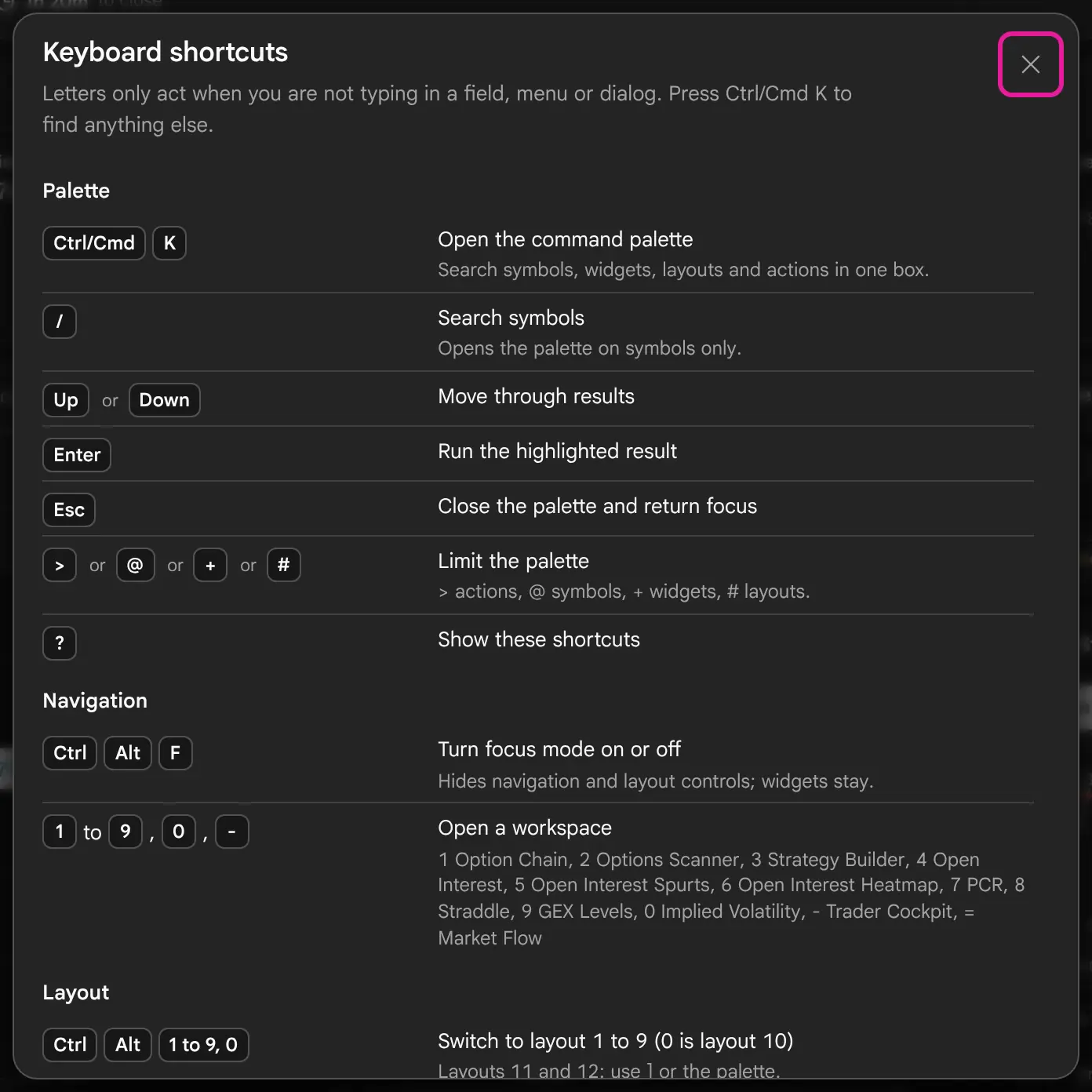
Palette
| Key | What the app says it does |
|---|---|
| Ctrl/Cmd + K | Open the command palette. Search symbols, widgets, layouts and actions in one box. |
| / | Search symbols. Opens the palette on symbols only. |
| Up or Down | Move through results |
| Enter | Run the highlighted result |
| Esc | Close the palette and return focus |
| > or @ or + or # | Limit the palette. > actions, @ symbols, + widgets, # layouts. |
| ? | Show these shortcuts |
Navigation
| Key | What the app says it does |
|---|---|
| Ctrl + Alt + F | Turn focus mode on or off. Hides navigation and layout controls; widgets stay. |
| 1 to 9, 0, - | Open a workspace. 1 Option Chain, 2 Options Scanner, 3 Strategy Builder, 4 Open Interest, 5 Open Interest Spurts, 6 Open Interest Heatmap, 7 PCR, 8 Straddle, 9 GEX Levels, 0 Implied Volatility, - Trader Cockpit, = Market Flow |
Layout
| Key | What the app says it does |
|---|---|
| Ctrl + Alt + 1 to 9, 0 | Switch to layout 1 to 9 (0 is layout 10). Layouts 11 and 12: use ] or the palette. |
| ] or Ctrl + Alt + ] | Next layout. Plain ] moves between layouts only while no widget has focus. |
| [ or Ctrl + Alt + [ | Previous layout |
| T | Fit to screen. Every widget in even rows, the screen filled. Undo puts it back. |
| L | Lock or unlock the layout |
| Shift + T | All layouts |
| Ctrl/Cmd + Z | Undo the last layout change |
| Ctrl/Cmd + Shift + Z or Ctrl + Y | Redo |
Widgets
| Key | What the app says it does |
|---|---|
| Ctrl + Alt + A | Open or close Add widget |
| M | Maximise or restore the focused widget. Acts on the widget in play; with none it does nothing (it never opens search). |
| [ or ] | Focus the previous or next widget. While a widget has focus. |
| Esc | Restore a maximised widget |
| Delete | Remove the focused widget. Undo is on the bar. |
| Arrows | Move a widget. On its move handle. |
| Shift + Arrows | Resize a widget. On a focused widget or its move handle. |
When the Keys Are Off
- Typing. While focus is in a text box, a menu, a list or a dialog (the palette, Customise or the symbol picker), the Cockpit’s plain keys do nothing, so typing a name never moves a widget. Fields and dialogs keep their own keys.
- A phone. An attached keyboard supports search, workspace navigation, layout switching, Add widget, undo and help. The palette itself is a desktop control: on a phone Ctrl K opens the symbol picker instead. Focus mode and the widget keys of the grid are desktop controls.
- Locked. Ctrl + Alt + A, Delete and Shift with the arrows (resize) do nothing, and T says Unlock the layout to fit it.
- Focus mode. T says Leave focus mode to arrange the widgets., and Ctrl + Alt + A does nothing.
- The widget keys. Delete, Shift with the arrows, and [ and ] between widgets act only when a widget’s frame itself has focus, not a button or a box inside it. Click the frame’s title or Tab to it first. The plain Arrow keys, which move a widget, and Shift with the arrows, which resize it, also work on the widget’s grip once you Tab to it. Esc restores a maximised widget from wherever focus is, unless a dialog, a menu or a text box wants the key first.
The question each topic answers (5 topics)
- How do I make, name, copy, remove and switch layouts, and how many can I keep?
- How are widgets placed and sized, how does the layout fill the screen, and how do I arrange it with a mouse or a keyboard?
- What is in the View menu, and which of its choices belong to a layout?
- Which ready-made layouts does the Cockpit offer, who is each for, and how do I use one without losing my own?
- Where does my layout live, what survives a reload, and how do I take it to another browser?
Layouts
How do I make, name, copy, remove and switch layouts, and how many can I keep?
A layout is a named arrangement of widgets. A browser with nothing saved opens on one layout, Market desk. You can keep up to 12. Each tab in the toolbar is one layout; Ctrl + Alt + 1 to 9 switch between the first nine.
Make a Layout
Press + at the end of the tabs. The menu offers Blank layout (an empty canvas, named Layout 2, Layout 3 and so on), All layouts (the gallery, with a preview of each), and, under Start from, every ready-made layout. A layout made from a ready-made one takes its name; if that name is taken it becomes Scalper 2, Scalper 3. The new layout opens at once. A layout can also be pasted in as text (the View menu).

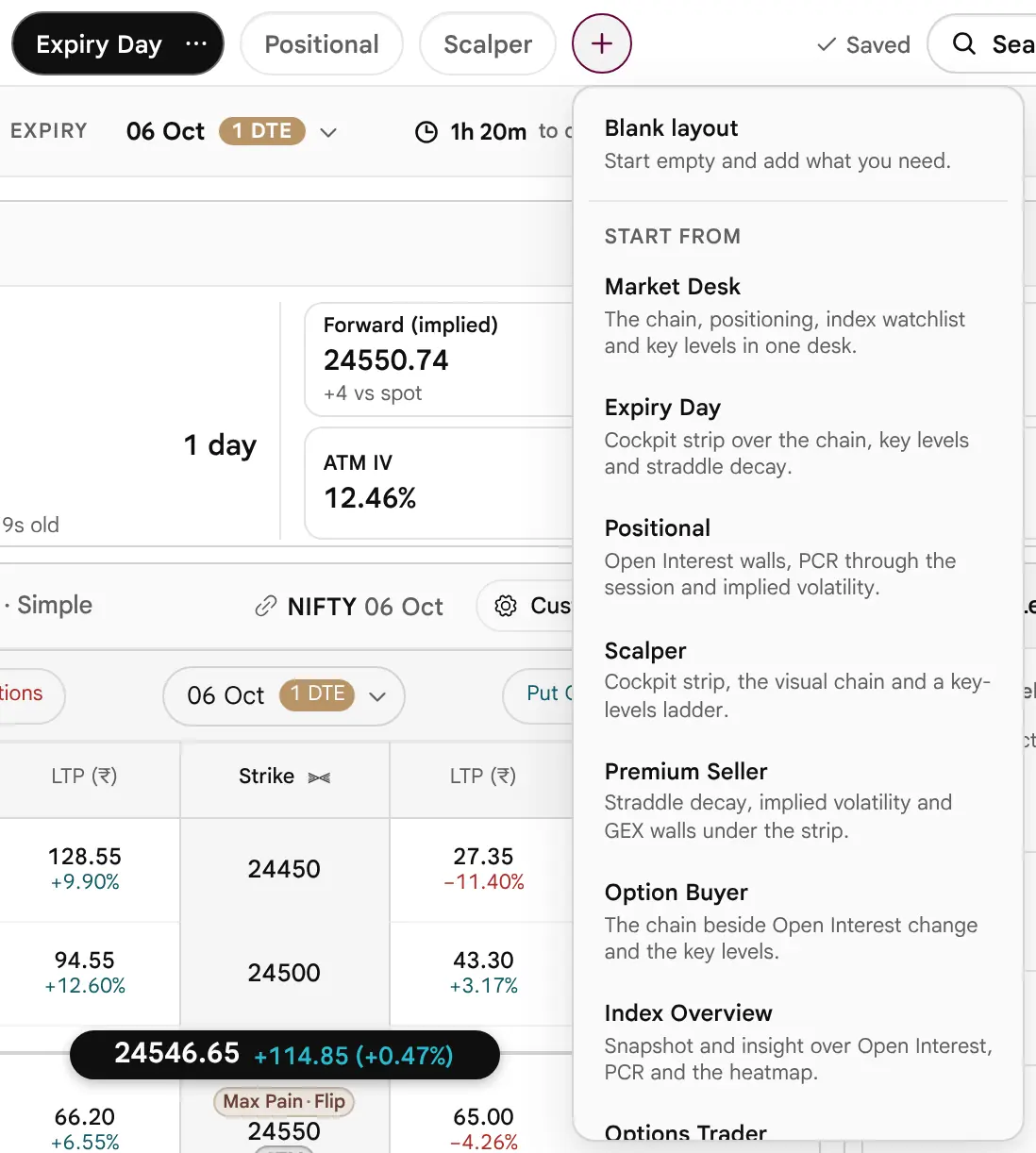
Rename, Duplicate, Reset, Clear, Delete
The three dots on the open tab open that layout’s menu.
- Rename. Also by double-clicking the tab. The name becomes a text box: Enter keeps it, Esc cancels, and clicking away keeps it. Names are cut at 24 characters, extra spaces are squeezed out, and an empty name keeps the old one. Two layouts cannot share a name (case is ignored); the second gets a number.
- Duplicate. Makes <name> copy with the same widgets in the same places, and opens it. Greyed at 12 layouts.
- Reset this layout to a ready-made layout. Replaces the open layout’s widgets with that layout’s. The layout keeps its name. Undo reset takes it back.
- Clear all widgets. Empties the layout, which then shows the gallery headed Start from a layout. Undo clear takes it back.
- Delete layout. Asks twice: the first press changes the item to Delete “name”? Press again. The layout next to it opens. There is no undo for a deleted layout, and the last layout cannot be deleted.




The Limit of Twelve
At 12 layouts the + button is greyed (its tooltip reads Up to 12 layouts), Duplicate is greyed, and All layouts and Paste a layout in View are greyed too (the palette and Shift T say Delete a layout to make room for another.). Delete one to make room. Only the first ten tabs have a number key.


Undo and Redo
Every change to the arrangement is recorded: Add, move, resize (by an edge, the corner or the Size menu), Fit, Clear all widgets, a ready-made layout (Reset this layout to) and Remove on a widget. The toolbar then shows Undo with the word for the last change (Undo move, Undo fit, Undo remove and so on); Ctrl Z (Cmd Z on a Mac) does the same. After an undo the toolbar shows Redo beside it; Ctrl Shift Z or Ctrl Y does it again. The history holds the last 50 changes. Any new change empties the redo list.
- Per layout. Each change belongs to the layout it was made on. Undo takes back the newest change of the layout that is open; switching layouts or locking does not clear the history.
- Not saved. The history is kept in the page only. It is not saved and not shared with other tabs of the browser, so a reload forgets it.
- What it cannot take back. Deleting a layout, renaming a layout, a View choice (density, title bar, gap, Auto-fit) and changing the symbol or the expiry are not changes to an arrangement and cannot be undone. Duplicate a layout, or copy it as text, first if you may want it back.
- On a phone. The Undo and Redo buttons appear in a row under the header when there is something to undo or redo, and Ctrl Z works on an attached keyboard.
The Grid: Fit, Drag, Resize, Sizes, Maximise
How are widgets placed and sized, how does the layout fill the screen, and how do I arrange it with a mouse or a keyboard?
Widgets sit on a grid of 12 columns. A widget’s width is a number of columns (at most 12) and its height a number of rows. Each widget has a default size and a smallest size, listed in Part C; you cannot make one smaller than its smallest, because below that its own controls would be cut off.
Rows That Fill the Window
A row has no fixed height any more. The Cockpit works out the row height so that the layout’s rows fill the space under the toolbar exactly: on a tall window the rows grow, on a short one they shrink, down to a floor of 24 pixels (20 in Compact density). Only below that floor does the canvas scroll. So the canvas is never left with an empty band at its foot, and never with a sliver to scroll. The layout itself is kept in grid units, not pixels: the same layout opens in the same columns and rows on any screen, and only the height of a row changes. Every ready-made layout is 21 rows or fewer, so each fits a 1280 by 800 window without scrolling.
Fit
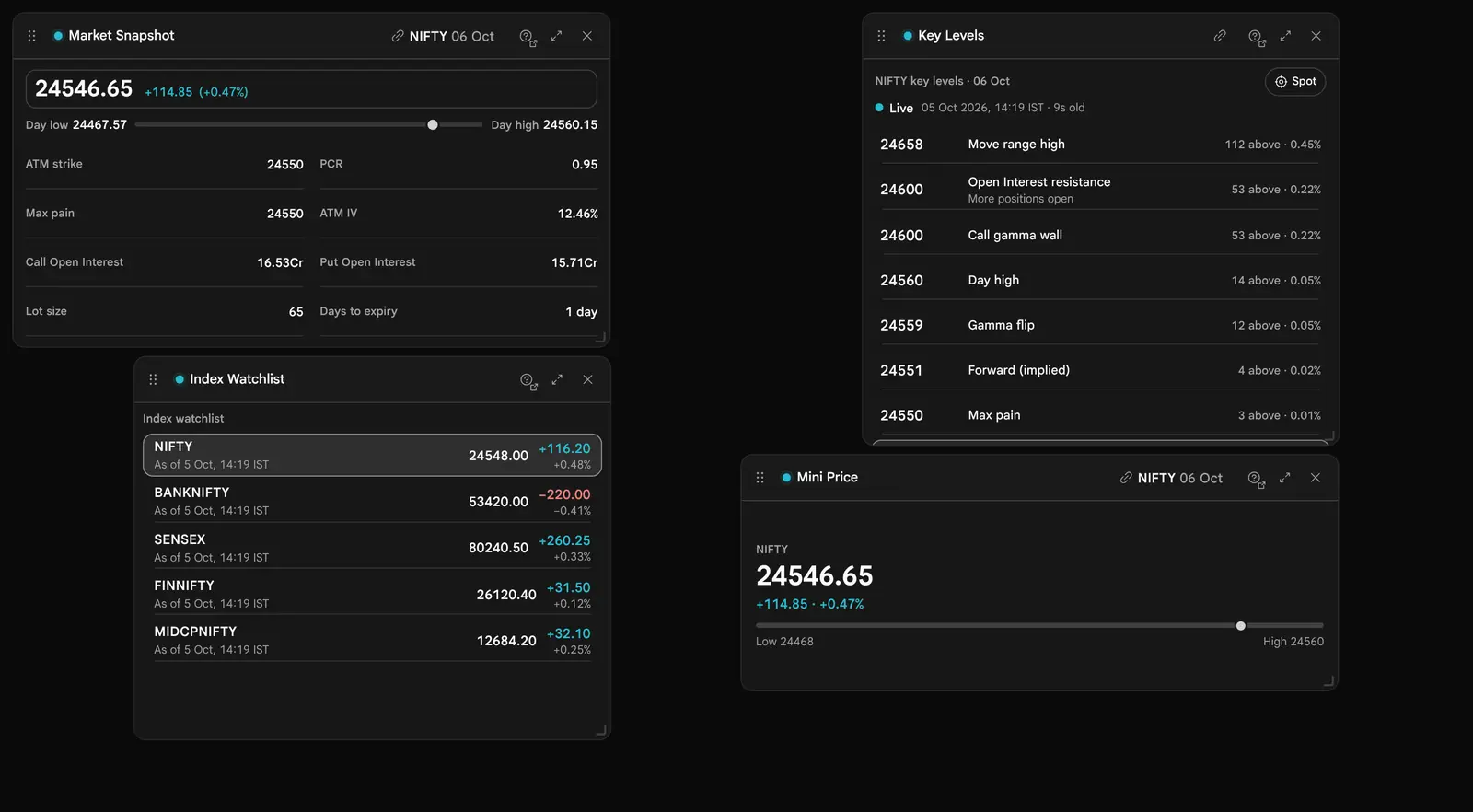
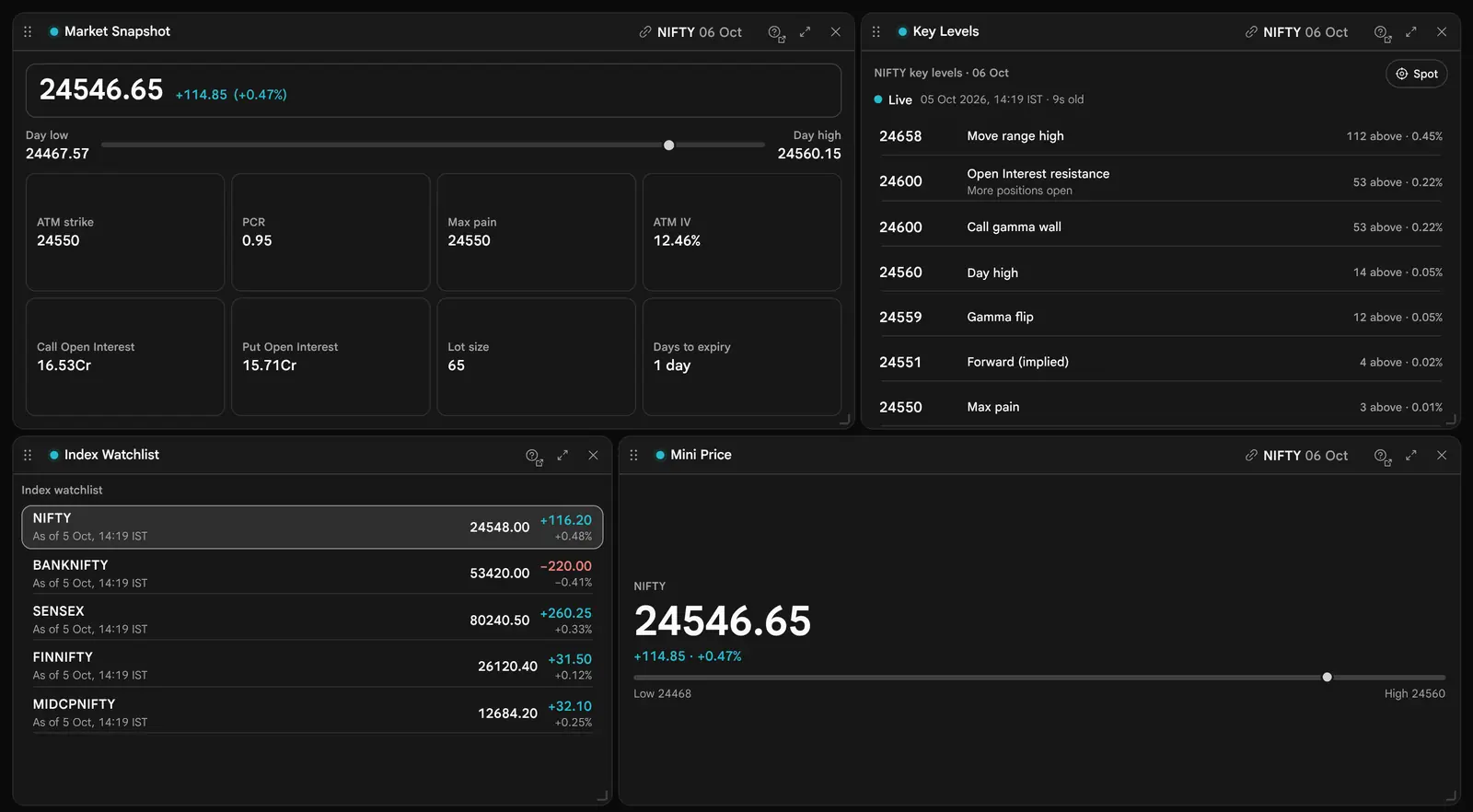
Fit (the button, or T) is the one tidy. It packs every widget into even rows, in the order they read, and squeezes the result until it fits the rows the screen holds, giving up height before width. Heights in a row become equal, rows stack with no gap between them, and each row ends flush at the right edge. When even every widget at its smallest is too tall for the screen, Fit returns that densest packing and the canvas scrolls. Fit is greyed when the layout is locked, empty or already fitted. Undo fit puts everything back.
Auto-fit, in the View menu, does the same by itself after every add, remove and resize. It is off at first (the menu reads Off: Fit re-fits on request); turned on it reads On: re-fits after every change. It is kept per layout, and it does nothing while the layout is locked.


Drag
Take hold of the grip
Press the six dots at the left of the header, or the empty part of the title, and hold. (A double-click on the title maximises instead.)
Move
The widget follows the pointer. A dashed box shows the cell it would land in, and the other widgets slide to where they would settle. Near the top or bottom edge of the canvas it scrolls.
Let go
The move is made only on release. Esc during the drag abandons it and everything goes back. Dropping on another widget pushes that one down; widgets then rise to fill any gap.


Resize From Any Edge
A widget can be resized from all four edges and the bottom-right corner. Hover over an edge and it shows a handle; its tooltip says the widget beside it gives or takes the space.
- A shared edge moves the line between the widgets, like a splitter: what one gains, the widget across the line gives up, and nothing else on the canvas moves. Each widget’s own smallest size is respected, and the live preview stops there.
- A free edge (with empty cells beyond it) grows into the free cells.
- The right and bottom edges fall back to the older behaviour, growing in place and pushing what they meet downwards, only when no clean trade with a neighbour exists.
The Size Menu
The Size button in each header (on a touch screen, inside the ⋯ menu) offers five sizes.
| Size | What it does |
|---|---|
| Small | The widget’s smallest size |
| Medium | Its standard (default) size |
| Large | Half as big again as the standard size, within the columns and the rows the screen holds |
| Full width | Across all 12 columns, keeping its height |
| Full height | From the top to the bottom of the screen, keeping its width |
A size never pushes the layout off the screen: when it would, the other widgets give up height (never the size you asked for) until the layout fits again. Each size is one change for Undo.
Removing a Widget
Press the remove button (×) in the header, or Delete on a focused frame. The space is not left empty: a widget beside it in the same row band widens over the hole, or the one above or below it in the same column grows into it. Only when neither fits cleanly do the widgets below simply rise to close the gap. Undo remove brings it back, in its old place.
From the Keyboard
- Move: Tab to a widget’s grip and press the arrow keys. Each press moves it one cell; a sideways step into a neighbour swaps the two rather than shoving a whole stack down. A screen reader is told the new column and row.
- Resize: hold Shift and press the arrows, on the grip or on the focused frame. One column or one row per press.
- Between widgets: with a frame focused, [ and ] go to the previous and next widget in reading order (top to bottom, then left to right) and wrap around.
- Maximise: M, the Maximise button, or a double-click on the title. M or Esc restores it.
- Remove: Delete (or Backspace) on a focused frame; focus then moves to its neighbour. Undo remove brings it back.
- Fit and undo: T fits; Ctrl Z takes back a move, a resize, a fit or a removal; Ctrl Shift Z does it again.
Maximise
A maximised widget fills the canvas. Use it to read a chain or a chart at full size without leaving the layout. There are three ways in and one way out.
- In: the Maximise button in the header (in the ⋯ menu on a touch screen), a double-click on the empty part of the header, or M. M acts on the widget that has focus; with none it takes the widget touched last.
- Out: the same button (it now reads Restore), a second double-click, M, or Esc. Esc works from wherever focus is. A dialog, a menu or a text box that wants Esc for itself gets it first, and a click outside the widget never restores.
- While it is maximised the other widgets are set aside: they cannot be reached or tabbed to until you restore. Moving, resizing and the keys [ and ] between widgets are off. Restoring returns focus to the widget’s Maximise button. A tool inside a widget has no full-screen button of its own any more: the frame’s Maximise is the one.


Widgets Load as They Come Into View
On the desktop grid a widget is not opened until it comes near the visible part of the canvas (about 120 pixels before it does). It is then laid out but not shown until its contents have been quiet for a moment (at most 4 seconds), with a quiet placeholder of grey bars in its place, so sections that are still loading never shuffle about on screen. Widgets open one after another rather than all at once. Once opened, a widget stays open and keeps its state. On a phone the rule is stricter: only the open tab’s widget is mounted (Reading It on a Phone).
Add Puts a Widget Where It Fits
A widget added from the panel joins the end of the last row when it fits there, taking that row’s height, or starts a new row below. When that would put it below the screen, the Cockpit first looks for a row on screen with room for it. Existing widgets keep their sizes and positions (unless Auto-fit is on). A widget can be on a layout once: its tool remembers its own view, so two copies would fight over it.
The View Menu
What is in the View menu, and which of its choices belong to a layout?
View, last on the toolbar, holds how the open layout is drawn and a few things you need now and then. The drawing choices are remembered per layout in this browser (under sahiTerminalView:v1), so a dense scalping desk and a roomy review desk can each keep their own. They are not part of the layout’s arrangement, so Undo does not touch them.
| Item | What it does |
|---|---|
| Density: Comfortable or Compact | Comfortable (the default) sets an 8 px gap and the normal title bar; Compact sets a 4 px gap and the slim title bar, and lets rows shrink further before the canvas scrolls. Choosing a density resets the title bar and the gap to match; you can then change either on its own |
| Title bar: Normal or Slim | A widget header 32 px tall, or 26 pixels |
| Gap between widgets: None, 4 px or 8 px | The space between frames |
| Auto-fit | Re-fits the layout to the screen after every add, remove and resize (Fit) |
| Focus mode (Ctrl Alt F) | Steps the arranging controls aside (every key) |
| All layouts | Opens the gallery; a card makes a new layout (ready-made layouts). Greyed at 12 layouts |
| Copy layout as text | Puts the open layout on the clipboard as a short line of text: its name and each widget’s place and size. No market data and no Customise choices go with it |
| Paste a layout | Reads such a text from the clipboard (or asks you to paste it) and opens it as a new layout; every widget in it is checked, unknown ones are dropped and sizes are brought inside their limits. Greyed at 12 layouts |
| Keyboard shortcuts (?) | Opens the shortcuts dialog |


Ready-Made Layouts and the First Visit
Which ready-made layouts does the Cockpit offer, who is each for, and how do I use one without losing my own?
A ready-made layout (the earlier screen called it a template) is a layout to begin from. Every widget in it can be moved, resized or removed afterwards. There are 12, and each is 21 rows or fewer, so it fits a 1280 by 800 window. The gallery, opened with All layouts, puts Market desk first with the label Suggested: a tall option chain beside the PCR chart, Build-up movers, the Index watchlist and Key levels. Then come six featured layouts and the rest. Filter by trading style (All layouts, Intraday, Volatility, Research) or search for a layout or a widget; each card shows a small drawing of the arrangement, its widget count and Use layout. Market readings load when you open the desk. A first visit does not start in the gallery: it opens on Market desk and offers the layouts strip (below).
The Six Featured Layouts
| Layout | What it does | Suits | Widgets (columns by rows) |
|---|---|---|---|
| Expiry day | The chain, the key levels and straddle decay on one screen, with the cockpit strip counting down. | traders working the expiry session | Cockpit strip (12 by 4), Option chain · Simple (5 by 10), Key levels (3 by 10), Straddle (4 by 10) |
| Positional | Open Interest walls, Put Call Ratio and implied volatility side by side, for the multi-day view. | positional traders holding for days | Cockpit strip (12 by 4), Open Interest (4 by 11), Put Call Ratio (4 by 11), Implied Volatility (4 by 11) |
| Scalper | A wide visual chain next to the key-levels ladder, for fast entries and exits. | intraday traders who watch strikes tick by tick | Cockpit strip (12 by 4), Option chain · Advanced (8 by 10), Key levels (4 by 10) |
| Premium seller | Straddle decay, implied volatility and GEX walls, to judge how much premium is worth selling. | option sellers and writers | Cockpit strip (12 by 4), Straddle (4 by 11), Implied Volatility (4 by 11), GEX Levels (4 by 11) |
| Option buyer | The chain with Open Interest change and the key levels, to see where the money is moving. | directional option buyers | Cockpit strip (12 by 4), Option chain · Simple (5 by 12), Open Interest change (4 by 12), Key levels (3 by 12) |
| Index overview | Snapshot and insight over Open Interest, Put Call Ratio and the heatmap: the whole index at a glance. | anyone starting the day or checking the market | Market snapshot (6 by 5), Chain insight (6 by 5), Open Interest (4 by 11), Put Call Ratio (4 by 11), Heatmap · Open Interest (4 by 11) |
The Other Ready-Made Layouts
| Layout | What it does | Suits | Widgets (columns by rows) |
|---|---|---|---|
| Market desk | A tall option chain beside Put Call Ratio, build-up movers, index prices and key levels. Your market context stays in view. | traders who want a complete daily workspace | Option chain · Simple (5 by 16), PCR chart (4 by 8), Build-up movers (4 by 8), Index watchlist (3 by 5), Key levels (3 by 11) |
| Options trader | A snapshot strip over the chain and Open Interest. | a general options trader | Market snapshot (12 by 5), Option chain · Simple (6 by 11), Open Interest (6 by 11) |
| Open Interest analyst | Open Interest and its change, spurts and the heatmap together. | Open Interest analysts | Open Interest (6 by 11), Open Interest change (6 by 11), Spurts · Rotation map (6 by 10), Heatmap · Open Interest (6 by 10) |
| Options seller | Straddle, implied volatility and GEX over a visual chain. | sellers who like the chain in view | Straddle (4 by 10), Implied Volatility (4 by 10), GEX Levels (4 by 10), Option chain · Advanced (12 by 9) |
| Strategy desk | The strategy builder with the chain and scanner below. | traders building multi-leg strategies | Strategy Builder (7 by 16), Option chain · Simple (5 by 16) |
| Market watch | Snapshot and insight over the chain: light and fast. | a quick look | Market snapshot (6 by 5), Chain insight (6 by 5), Option chain · Simple (12 by 11) |
Blank (Create your desk) is the first card under More ways to build your desk: an empty canvas to which you add widgets yourself. Options trader is the layout that opens only when this browser will not let the page read its storage at all.
Three Ways to Use a Ready-Made Layout, and What Each Does to Yours
| You press | What happens | Your other layouts |
|---|---|---|
| A drawing in the layouts strip (or a card in the gallery that More layouts opens on a first visit), or a card in the gallery an empty layout shows | Replaces the widgets of the layout that is open. The tab keeps its name (Market desk stays Market desk after you pick Scalper, until you rename it). Undo reset takes it back | Untouched |
| All layouts (in View, in the + menu, in the palette, or Shift T), then a card | Makes a new layout named after the one you picked and opens it. It never overwrites. At 12 layouts it creates nothing | Untouched |
| The layout menu, Reset this layout to | Replaces the open layout’s widgets. Undo reset takes it back | Untouched |
The First Visit
A browser that holds no saved Cockpit opens straight onto Market desk, and saves it at once, so the desk seen on the first visit is the desk found on the second. There is no welcome page and nothing to answer. Under the toolbar a strip headed Start with a layout offers 6 layouts as small drawings (Market desk, Expiry day, Scalper, Premium seller, Option buyer, Positional); the first, the open one, is marked open now for a screen reader. It also has More layouts, which opens the full gallery, and a dismiss button.
- Pressing a drawing replaces the widgets of the open layout and ends the strip. Undo reset takes the change back.
- Dismissing the strip hides it; the Cockpit says View, All layouts has them all.
- Your first edit closes it. Moving, resizing, adding or removing a widget, or pressing Fit, ends the strip: it is for a first look, not for a desk you have started to arrange.
- It is for the first visit only. The choice is remembered under its own key (
sahiTerminalWelcome:v1), and because the browser has by then saved a layout, the strip is not shown again. It is not shown in Focus mode or on a phone, and if the browser will not let the app store anything, it is not shown at all.
All Layouts, Later
Open the gallery with View › All layouts, + › All layouts or Shift T on a desktop, or with Templates on the phone’s Layouts sheet. It is headed Start from a layout. The button at its top, Back to and the layout’s name, returns to your existing desk without changing it.


Where Layouts Are Kept
Where does my layout live, what survives a reload, and how do I take it to another browser?
On This Device, in This Browser
Your layouts live on this device, in this browser’s storage. There is no account and no sign-in. Nothing is saved for you anywhere else, so a layout made in one browser is not in another browser, on another device, or in a private window. Sahi hands out no files, so a layout cannot be downloaded. To take one to another browser, use View › Copy layout as text there and View › Paste a layout here (the View menu).
- What is kept. Which layouts exist, their names, which widgets each holds and where, how big each is, which layout is open, and whether the screen is locked. A layout keeps a way of looking, never market data: nothing in it is time-stamped.
- When it is saved. A browser with nothing saved saves Market desk at once. After that, by itself, about 300 milliseconds after your last change, and again when the page is hidden or the tab is closed. There is no Save button.
- One storage entry. All layouts are one entry under the key
sahiTerminal:v1, which carries a version number (1). At most 12 layouts are read back, and a layout name is cut to 24 characters. The View choices of each layout, density, the first-visit choice, the open phone tab and the widgets with strike follow turned off are kept apart (sahiTerminalView:v1,sahiTerminalDensity:v1,sahiTerminalWelcome:v1,sahiTerminalTab:v1,sahiTerminalUnlinked:v1), so they are not part of any layout and not touched by Undo. A widget’s own Customise choices are forgotten when its type is in no saved layout and in no Undo or Redo snapshot; until then they are kept. - If the saved layouts cannot be read. A value that is there but cannot be read (damaged, edited by hand, or from a release too old to read) is not thrown away. It is first copied to
sahiTerminal:v1:unreadablein the same browser, then Market desk opens, and a one-line notice under the toolbar says: Your saved layouts could not be read, so the Market desk layout is open. A copy of the old data is kept in this browser., with a Dismiss button. - If they were written by a newer release. A value written by a newer release of the page (another tab, or this browser before a rollback) is not used, and it is also not written over: the Cockpit opens on Market desk, writes nothing over the newer desk (it shows Not saved once a change tries to save), so a rollback cannot erase it.
- Small damage is repaired. Widgets the Cockpit does not recognise are dropped and sizes are brought inside their limits; one bad widget does not cost the others. A layout saved under an older widget name (for example the single
chainoropen-interestwidget, orspurts-tree) opens the view that widget used to open on, in the same place. - Other tabs. If you change a layout in one tab of the browser, another open Cockpit tab follows it.
- If storage is refused. A private window, blocked site data or a full store can refuse the write. The Cockpit keeps working for that visit and shows Not saved in the toolbar; the layout lasts until you close the tab. If the browser will not let the page read its storage at all, Options trader opens.
- Clearing site data in the browser forgets every layout, the backup copy, your notes and every widget’s own choices.
The question each topic answers (9 topics)
- How do I add a widget, what are all 28 of them, and how big can each be?
- Why do widgets look plainer than the pages they come from, and what happens when a widget is small?
- What is each cell of the Cockpit strip and each row of Key levels, where does it come from, and what is Forward (implied)?
- Which widgets show the chain and the price, and what does each say?
- Which widgets show where positions stand, and how do they differ?
- Which widgets show premium, volatility and gamma?
- Which widgets build a strategy, scan for ideas or keep my notes?
- What does the strike-follow toggle do, which widgets take part, and when is the strike dropped?
- Which widgets have a Customise panel, what does it change, and where are my choices kept?
Add Widget and the Catalogue of All 28
How do I add a widget, what are all 28 of them, and how big can each be?
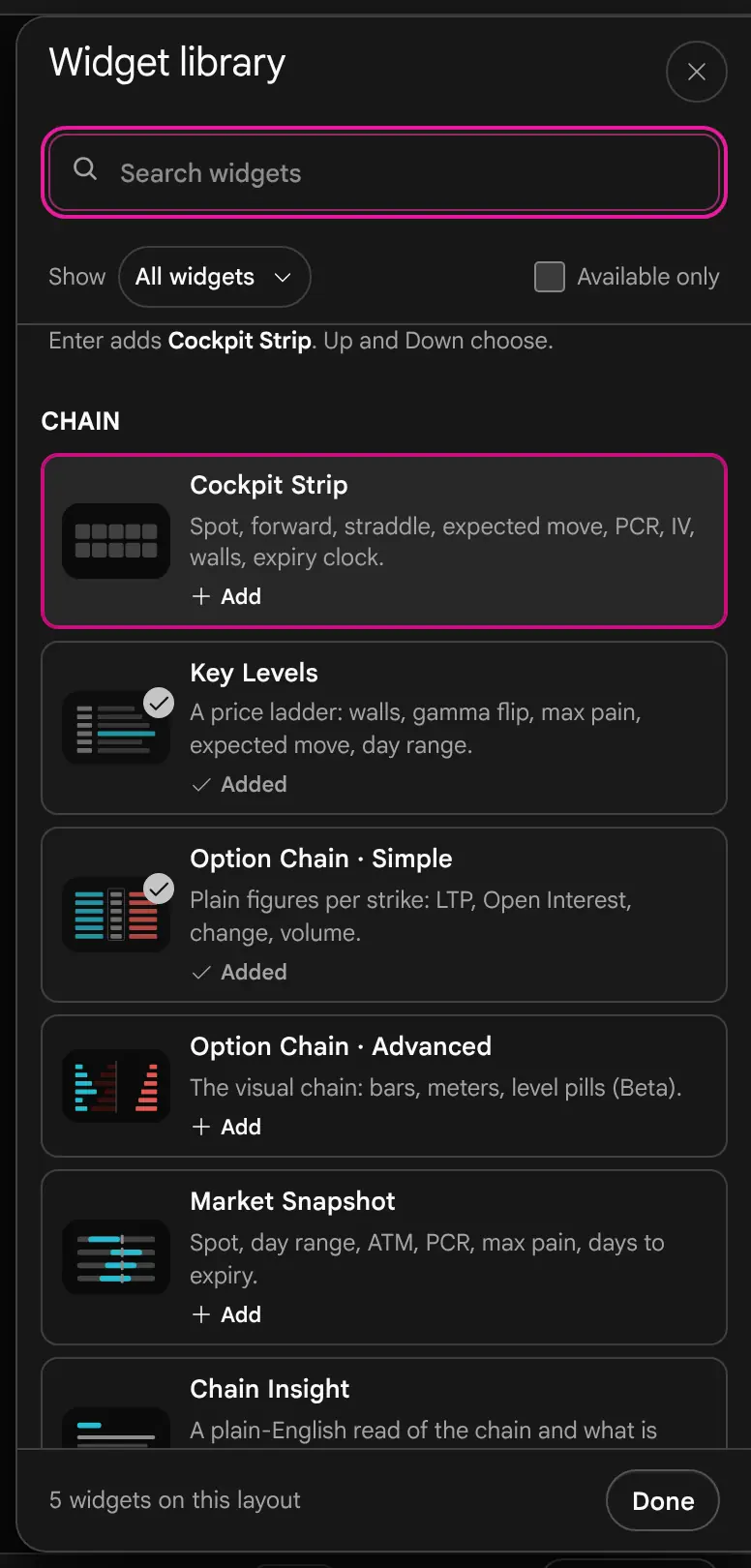
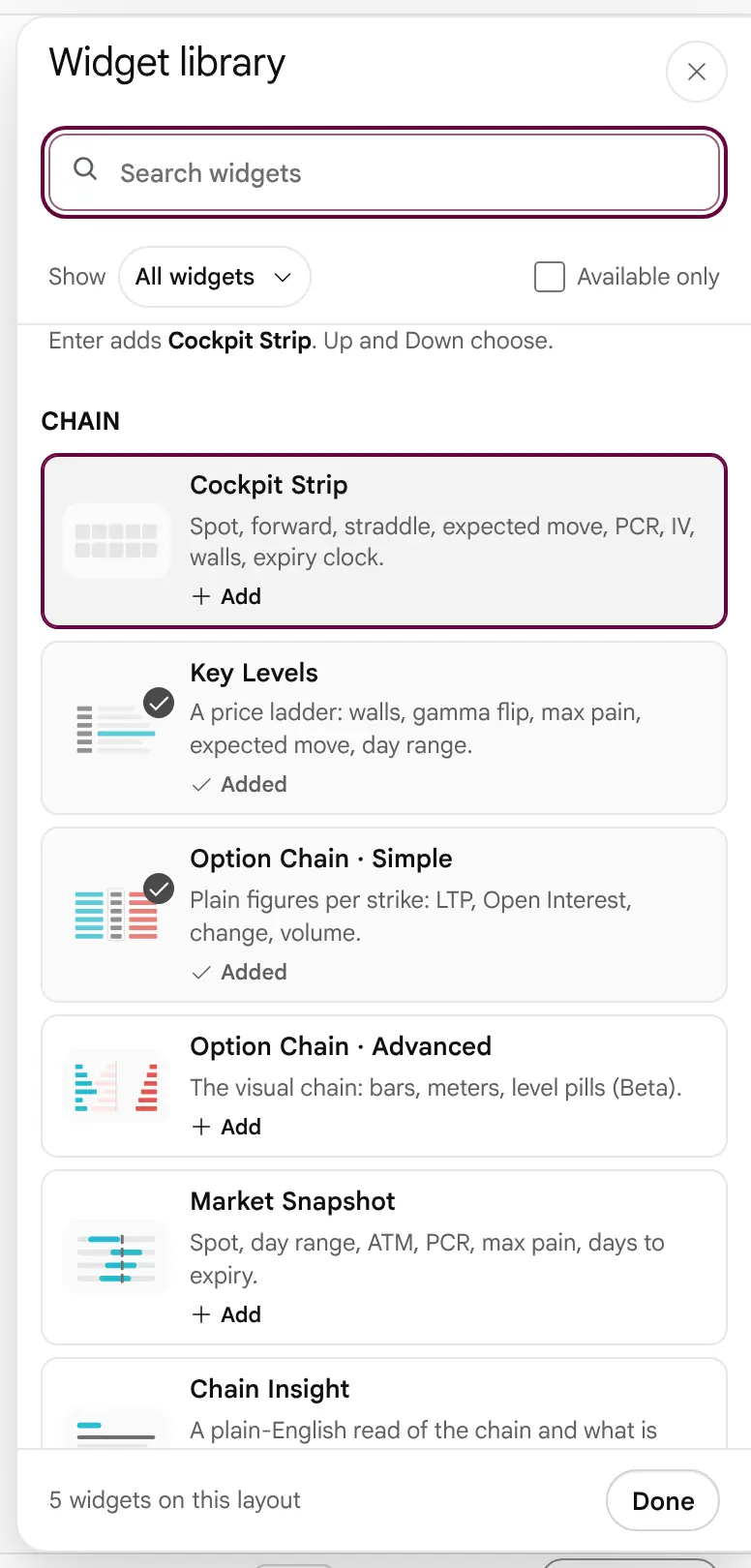
Press Add in the toolbar (or Ctrl + Alt + A). The panel headed Add widget opens, 380 px wide, docked at the right edge of the canvas. There is no scrim: the widgets make room beside it and stay in view, so you can watch the desk while you choose. The search box has focus. Under it are a Show menu to look at one group, a Hide added tick, and widgets in four groups, each shown as a small drawing of itself with its one-line description. Press a card marked Add, or press Enter. Cards already placed read Added and cannot be pressed. When every widget is on the layout the heading says Every widget is on this layout.


How the Panel Works
- It stays open so several widgets can be added in a row. At its foot it counts the widgets on this layout and offers Done. Close it with Done, its X, Esc, or by pressing outside it.
- From the keyboard. The line under the filters says which widget Enter would add (Enter adds Cockpit strip. Up and Down choose.). Up and Down move the choice, Enter adds it, and focus stays in the search box, so Enter, Enter adds two in a row.
- Recently added. A row of small chips at the top offers the widgets you added last, when they are not on the layout, so removing one and bringing it back is one press.
- Where it lands. A new widget takes the next free place, on screen where it can (see the grid), scrolls into view, is outlined for a moment, and takes keyboard focus once the panel is closed. With Auto-fit on, the layout is then fitted to the screen.
- On a phone the same list is a bottom sheet over a dimmed screen. The search box does not take focus on its own, so the keyboard stays down until you ask for it, and choosing a widget closes the sheet and opens that widget’s tab (phone section).
Search
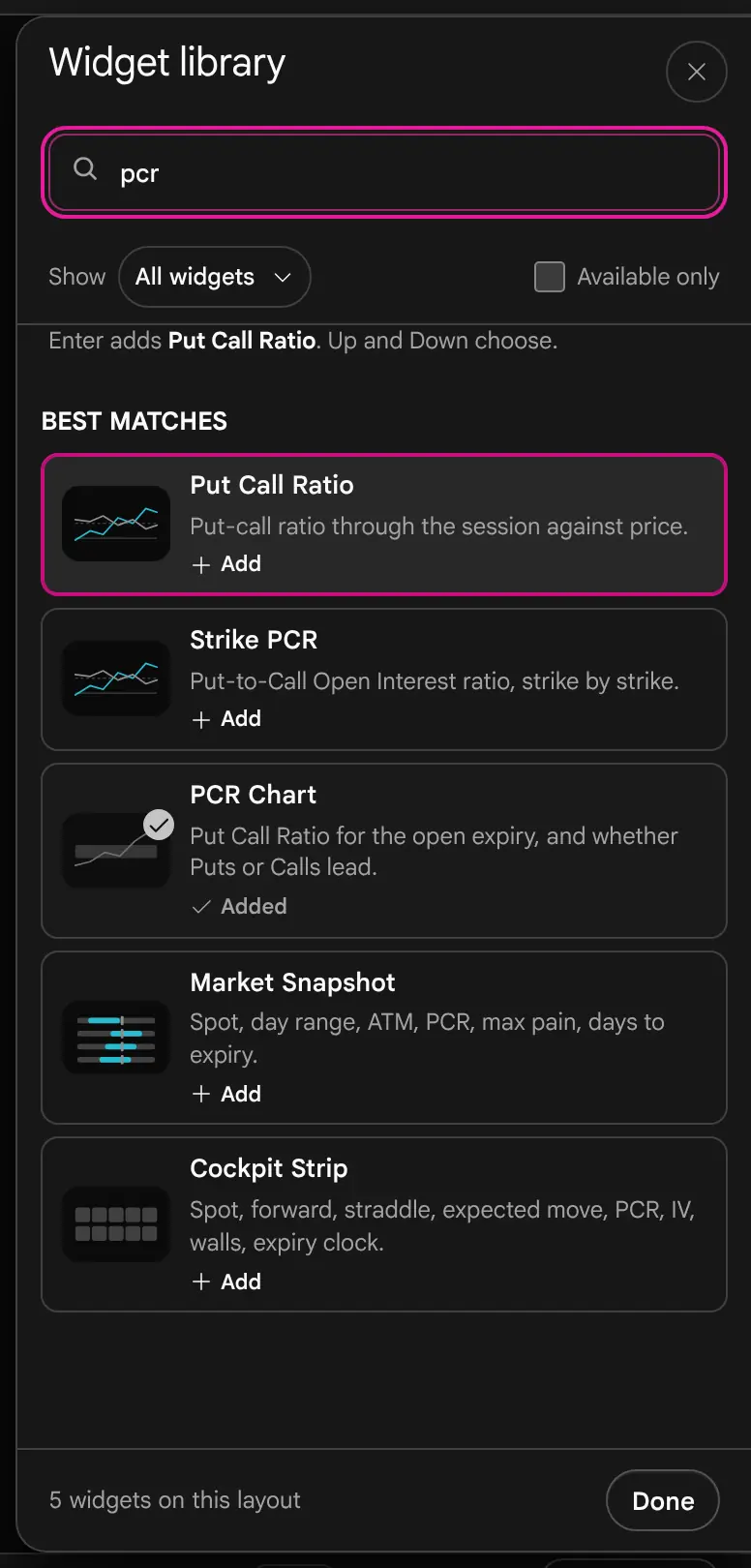
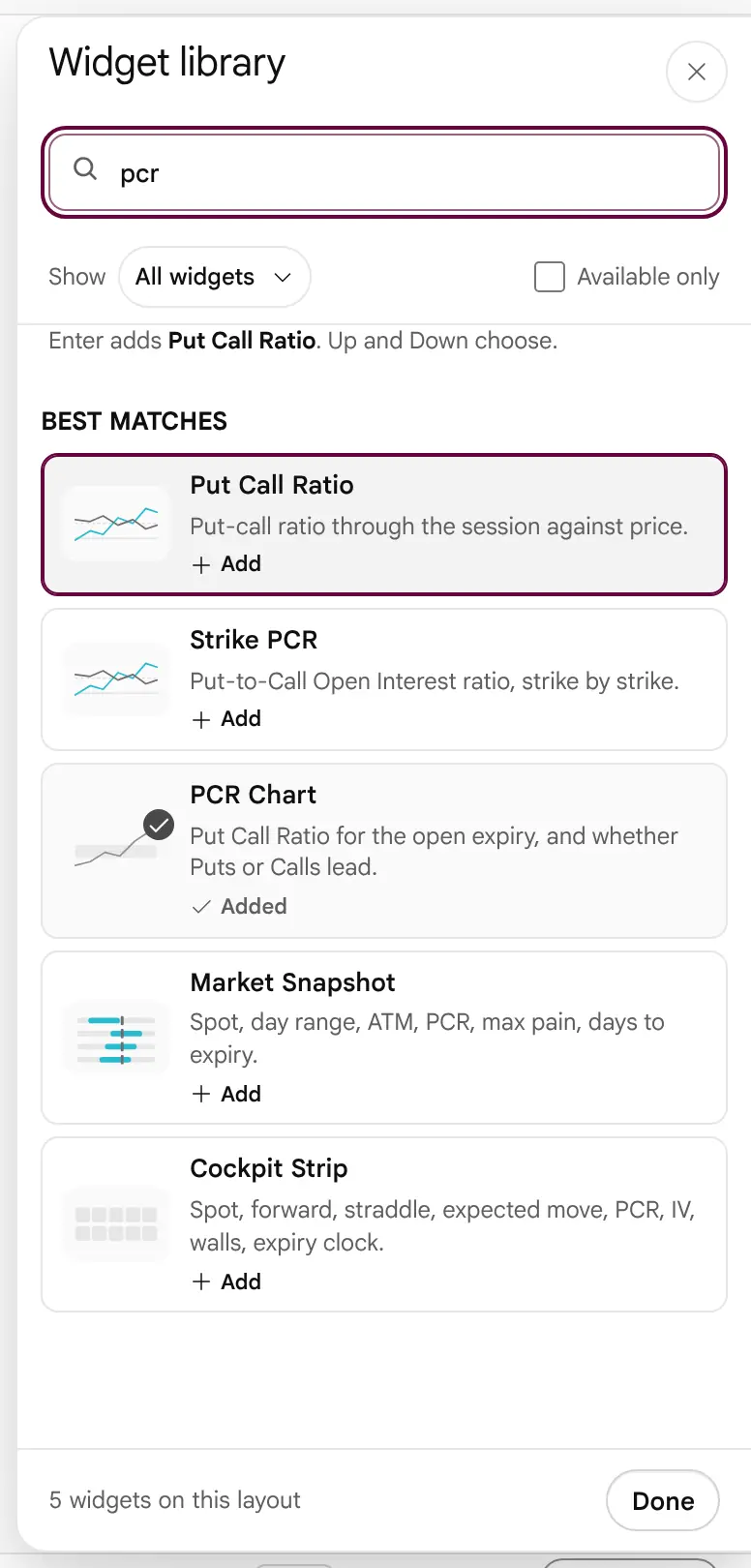
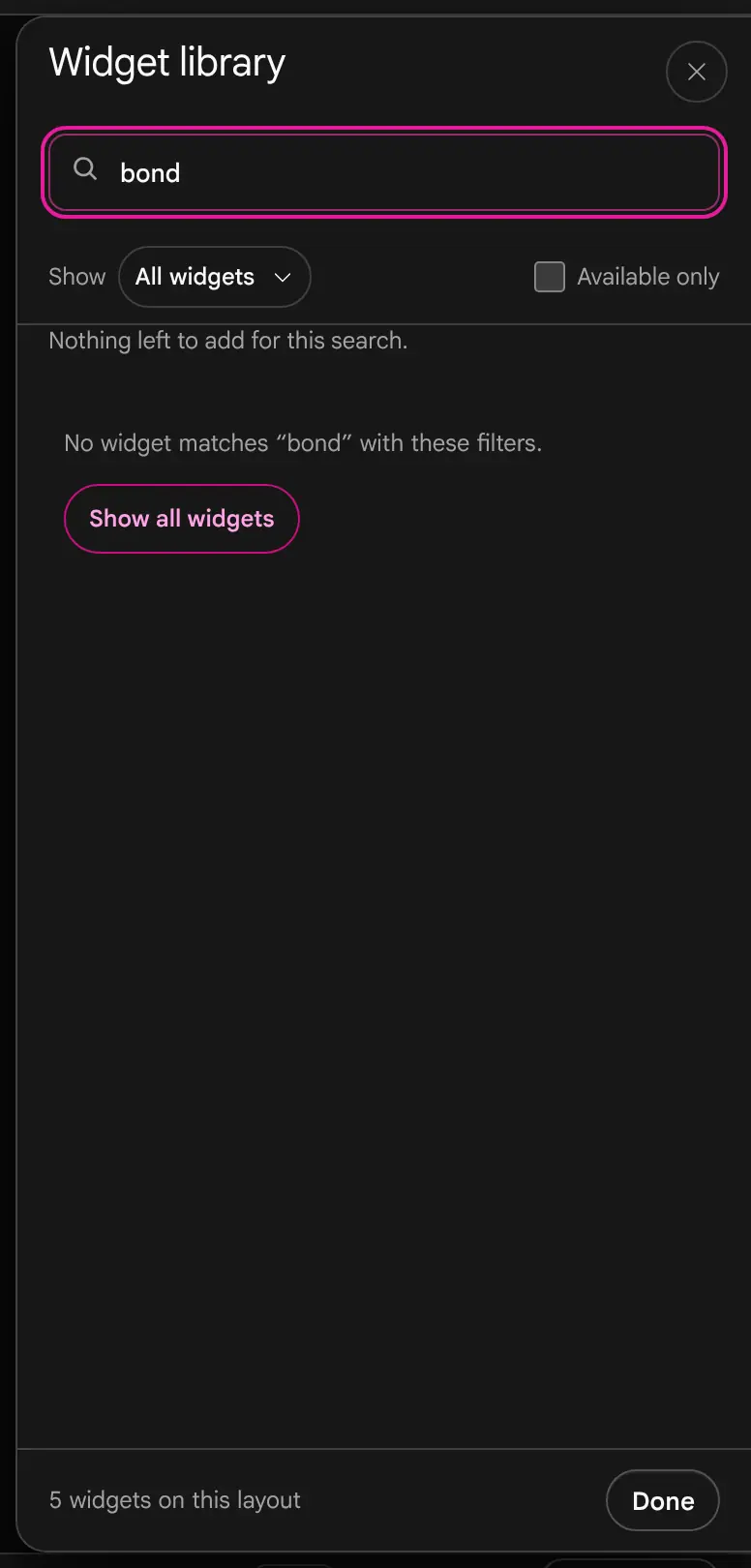
Type in Search widgets. Every word you type must match something in a widget: its name, a keyword it is known by, its one-line description or its group. The keywords include the short names traders use, so pcr finds PCR chart, Put Call Ratio and Strike PCR, and oi finds the Open Interest widgets, although the widgets say Open Interest in full. Matches are ranked under Best matches: an exact name first, then names that start with what you typed, then keywords, then descriptions. Enter adds the first one that can still be added. When nothing matches, the panel says No widget matches and what you typed, and a Show all widgets button clears the search and the filters.

Each Widget Once
A layout can hold a widget once. A card for one that is already on the layout is greyed and ticked. Remove the widget from its frame or tab if you no longer need it. The reason is that each tool remembers its own view, so two copies would fight over it. To compare two views of one tool, use the variants: Open Interest, Open Interest change, Strike PCR and Max pain are four separate widgets of one page, and so are the two chains, the two Spurts views and the three Heatmap lenses. The command palette says the same thing in its own way: a widget that is not on the layout reads Add, one that is reads Go to (the palette).
All 28 Widgets, and Their Sizes
Names, groups and the one-line descriptions are the app’s own, and so are the sizes: a width in columns by a height in rows. The smallest size is the least in which the widget’s own controls still fit. The Cockpit strip can be as short as 4 rows. The rows themselves have no fixed height: they stretch or shrink to fill the window (the grid).
| Widget | What the app says it does | Default | Smallest |
|---|---|---|---|
| Chain (8) | |||
| Cockpit strip | Spot, forward, straddle, expected move, PCR, IV, walls, expiry clock. | 12 by 5 | 4 by 4 |
| Key levels | A price ladder: walls, gamma flip, max pain, expected move, day range. | 4 by 12 | 3 by 6 |
| Option chain · Simple | Plain figures per strike: LTP, Open Interest, change, volume. | 6 by 16 | 5 by 9 |
| Option chain · Advanced | The visual chain: bars, meters, level pills (Beta). | 6 by 16 | 6 by 9 |
| Market snapshot | Spot, day range, ATM, PCR, max pain, days to expiry. | 6 by 8 | 3 by 5 |
| Chain insight | A plain-English read of the chain and what is uncertain. | 6 by 10 | 3 by 5 |
| Index watchlist | Last price and change for each index the header strip tracks. | 4 by 8 | 3 by 5 |
| Mini price | Spot, change and where it sits in the day range. | 4 by 5 | 3 by 3 |
| Open Interest (13) | |||
| Open Interest | Call and Put Open Interest by strike. | 6 by 13 | 4 by 11 |
| Open Interest change | Call and Put Open Interest added or closed in your chosen window. | 6 by 13 | 4 by 11 |
| Strike PCR | Put-to-Call Open Interest ratio, strike by strike. | 6 by 13 | 4 by 11 |
| Max pain | Strike with the smallest total buyer payout, and the payout curve. | 6 by 13 | 4 by 11 |
| Spurts · Rotation map | Every leg on a rotation map: premium across, Open Interest up. | 6 by 13 | 5 by 8 |
| Spurts · Top moves | The biggest Open Interest moves, sorted into the four build-ups. | 6 by 13 | 4 by 8 |
| Heatmap · Open Interest | Strike by time: how much Open Interest each strike holds. | 6 by 13 | 4 by 10 |
| Heatmap · Build-up | Strike by time, coloured by the four build-up signals. | 6 by 13 | 4 by 10 |
| Heatmap · Change | Strike by time: Open Interest added or closed per step. | 6 by 13 | 4 by 10 |
| Put Call Ratio | Put-call ratio through the session against price. | 6 by 13 | 4 by 7 |
| Build-up movers | Strikes with a build-up signal, biggest Open Interest move first. | 6 by 12 | 4 by 7 |
| Open Interest change leaderboard | The largest Open Interest adds and cuts across Call and Put. | 6 by 12 | 4 by 7 |
| PCR chart | Put Call Ratio for the open expiry, and whether Puts or Calls lead. | 6 by 12 | 4 by 8 |
| Volatility and Premium (4) | |||
| Straddle | ATM straddle premium and its decay. | 6 by 13 | 4 by 8 |
| GEX Levels | Gamma on every strike, walls and flip; table opens on Key levels. | 6 by 13 | 4 by 10 |
| Implied Volatility | ATM IV today, IV by strike and expiry, and its past year. | 6 by 13 | 4 by 10 |
| Straddle ladder | Call plus Put premium at each strike around the ATM, with breakevens. | 6 by 12 | 4 by 7 |
| Build and Scan (3) | |||
| Strategy Builder | Multi-leg payoff, breakevens and scenarios. | 12 by 16 | 6 by 10 |
| Options Scanner | Scan contracts and underlyings by build-up, or build your own scan. | 6 by 16 | 6 by 9 |
| Trader notes | Your own notes per symbol, saved in this browser only. | 4 by 8 | 3 by 5 |
18 of the 28 are the app’s own tools, mounted as they are (Chain insight is the Option Chain page’s insight card). The other 10 are readings made for the Cockpit: Cockpit strip, Key levels, Market snapshot, Index watchlist, Mini price, Trader notes, PCR chart, Build-up movers, Open Interest change leaderboard, Straddle ladder.
How a Widget Body Behaves
Why do widgets look plainer than the pages they come from, and what happens when a widget is small?
Since the redesign every widget follows the same few rules inside its frame, whether it is a whole tool or a reading made for the Cockpit.
- One border. The frame is the only bordered surface. The cards a page draws on its own (around the Open Interest chart, the Gamma Exposure chart, the PCR and Straddle charts, the chain table, the heatmap, the spurts, the scanner, the snapshot and the notes) lose their edges inside a widget, and an insight bar becomes a flat line. A page’s own full-screen button is dropped too: the frame’s Maximise is the one. A row that only said what the page is about, with nothing else in it, is dropped; Help in the header does that job.
- Size tiers. A widget reads its own size, not the screen’s. A small widget first hides its secondary controls (a timeframe switch, a lines switch) so that the chart keeps its height; a large one shows everything. Charts in the Straddle, Implied Volatility, PCR and Gamma Exposure widgets keep their height at the small tier.
- Whole readings, never cut. When a widget is too short or too narrow for all of its readings, it drops whole readings, the least-read first, rather than cutting one in half. The Cockpit strip keeps its first cells, Market snapshot keeps its first readings, and Spurts Top moves keeps the contract and its Open Interest move.
- Tables run edge to edge. Build-up movers, the Open Interest change leaderboard, the Straddle ladder and the Index watchlist have no heading line of their own (the frame names them), rows that run from edge to edge, and a header that stays in place as the rows scroll.
- Sentence case, no capitals for show. Names read as the app now writes them: Key levels, Build-up movers, PCR chart, Market desk. The four build-up words are the same everywhere in the app: Long build-up, Short build-up, Short covering, Long unwinding, and No clear pattern when there is none.
Whether every widget meets these rules at every size the grid allows was read from the code and checked on a few sizes; it was not tried at every size (not checked at every size).
The Cockpit Strip and Key Levels
What is each cell of the Cockpit strip and each row of Key levels, where does it come from, and what is Forward (implied)?
These two widgets are the heart of the Cockpit. Both are built once from the chain the Cockpit holds, so each figure is the one the Option Chain, Gamma Exposure, Straddle and Open Interest pages already show. A figure the chain cannot back prints a dash and says Not reported; the Cockpit never guesses one.


The Strip, Cell by Cell
Spot stands at the left, large, with its change and the data line under it. The other cells follow, most-read first, in one row where the widget is wide enough; a short or narrow strip keeps the first cells and drops the later ones whole. Hover over any label and its tooltip says in a sentence what it is. The examples marked pictures are from the invented market of 5 October (the arithmetic of those cells did not change in the redesign); those marked 19 Oct are from one reading of NIFTY, expiry 27 Oct, after the close (not in a picture yet).
| Cell | Example | What it is, and where it comes from |
|---|---|---|
| Spot | 24546.65 +114.85 (+0.47%) (pictures) | The underlying’s price now and its change from the previous close, in points and percent. If the previous close is not known it says Previous close not reported instead. The data line sits under it (below). |
| Expected move | ±112 24435 to 24658 (pictures) | The ATM straddle premium times 0.85; below it, spot less and plus that move. A convention of the app, not a forecast. |
| ATM straddle | ₹131.20 24550 · Call 66.20 + Put 65.00 (pictures) | The ATM Call premium plus the ATM Put premium; the line under it names the ATM strike and the two parts. It needs both prices above zero, and says Series settled for an expired series. There is no separate ATM strike cell any more. |
| Call wall | 23000 (19 Oct) | The strike at or above spot with the most Call Open Interest, read within the 15 strikes around the money (the ATM strike and 7 listed strikes on each side). The line under it says how many points above spot it is. The wall rule. |
| Put wall | 22700 (19 Oct) | The strike at or below spot with the most Put Open Interest, in the same window, and how many points below spot it is. |
| PCR | 0.88 Whole expiry (19 Oct) | Put Open Interest divided by Call Open Interest over every strike of the expiry, to two decimals. The line under it always names that scope, so that it is never read as the PCR chart’s figure, which counts the strikes around the money (0.92, ATM ±20, 41 strikes, on the same reading). |
| ATM IV | 12.46% (pictures) | Implied volatility at the ATM strike, from the chain. |
| Max pain | 24550 +3 vs spot (pictures) | The strike at which the total payout to option buyers at expiry is smallest, and its distance from spot. |
| Gamma flip | 24559 Spot below by 12 (pictures) | The price at which the Gamma Exposure model’s net gamma changes sign, and whether spot is above or below it. A model level, resting on an assumption (not verified). |
| Time to expiry | 1 day Calendar day | Calendar days to expiry, counted from the data time; the line under it says Calendar day or Calendar days, and Expiry day on the day itself. In the last 24 hours, when the chain carries the time, it shows the hours and minutes left instead. Expired once the series has settled. |
| Forward (implied) | 24550.74 +4 vs spot (pictures) | The price of the underlying that the open expiry’s Call and Put prices imply. Not a futures price: see below. The line under it is its distance from spot. |
The Walls: One Rule for the Whole App
The strip’s Support and Resistance cells, which read a window that changed with the days to expiry, are gone. The Cockpit now names the Call wall and the Put wall by the same rule as the Open Interest page and the Option Chain, so the three can never name different strikes for the same thing:
- read only the 15 strikes around the money: the ATM strike (the listed strike nearest spot) and 7 listed strikes on each side;
- the Call wall is at or above spot, the Put wall at or below it;
- the highest total Open Interest wins, never the change; a tie goes to the strike nearer price.
On the reading of NIFTY, expiry 27 Oct, after the close on 19 Oct, that rule gave a Call wall of 23000 and a Put wall of 22700 (not in a picture yet). A wall is where positions are heaviest, not a price that must hold. It is not the same as a Call or Put gamma wall, which comes from the Gamma Exposure model. On the Open Interest widgets the marks drawn from a scored band are named Support zone and Resistance zone, so that they are never confused with the walls.
Forward (Implied) Is Not a Futures Price
Why the Name
A futures contract has its own quote on the exchange. The Cockpit reads none. Instead it asks the option prices: if you buy a Call and sell a Put at one strike, the difference between their prices, carried to expiry at the app’s interest rate, points to one price of the underlying. That price, 24550.74 in the pictures against spot 24546.65, is the Forward (implied). The cell’s own tooltip says that the app reads it from Call and Put prices at the listed strikes and that it is not a futures quote. Do not set it beside a futures price as if they were the same thing; they can differ, and for a weekly expiry there may be no futures contract of that date at all.
The chain widgets are different: in their Customise you may choose the futures price as the price reference, and they then fetch futures prices. That is the Option Chain page’s own choice. The strip, Key levels and the other Cockpit readings never read a futures price.
The Data Line: Live, Delayed, Stale, Closing Data
Under spot in the strip, and at the foot of Key levels, one line says how current the figures are, in one way of writing a time for the whole Cockpit (19 Oct, 15:40 IST). While the session runs, the line compares the clock with the time of the chain’s snapshot and works it out again every 5 seconds. Up to 90 seconds old reads Live and the time; up to 600 seconds (ten minutes) Delayed, the age and the time (for example Delayed · 4m old · 19 Oct, 10:58 IST); and older Stale, the age and the time.
| The line reads | When |
|---|---|
| Live, Delayed or Stale | Only while the session is running, by the age of the snapshot |
| Closing data · 19 Oct, 15:40 IST | The market is closed: the last session’s close is the current reading, so it is not called stale, and the 5-second clock stops |
| Saved session and the time | The app is reading a saved session rather than the market, for example the delivered build when it is offline |
| Settled and the time | The series has expired |
| Time not reported | The chain carries no snapshot time |





Key Levels, Row by Row
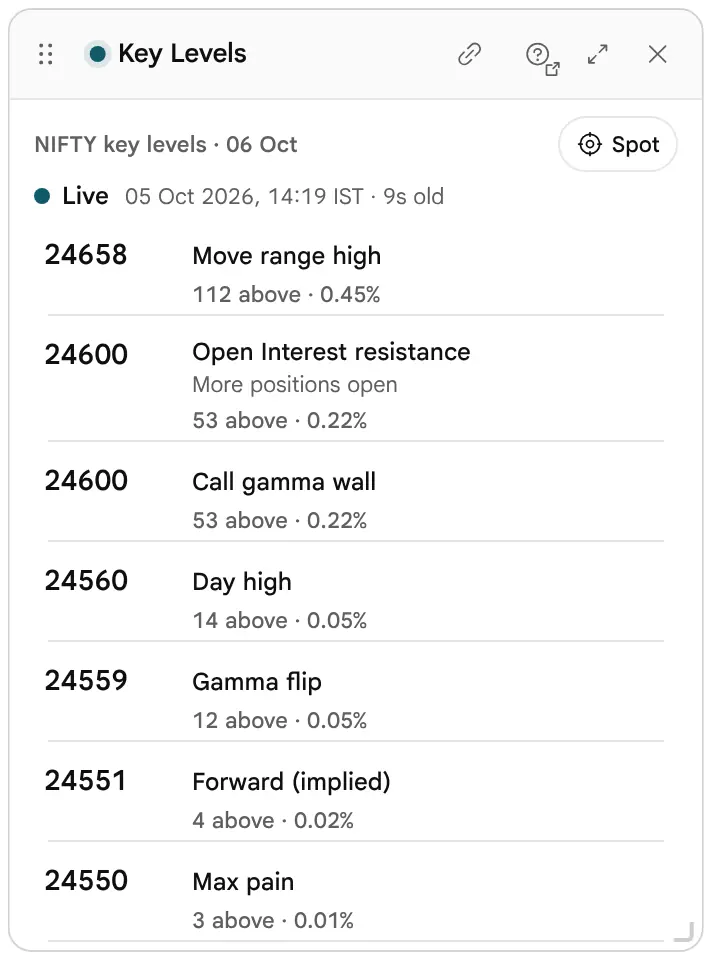
Key levels puts every level the app holds on one price axis, highest first, with spot as a highlighted row so that you can see what is above and below it. It opens scrolled so that spot sits in the middle. There is one row per price: when two or more sources name the same price, they share the row as tags, for example 23000 · Call wall · Call gamma wall · Max pain, and the row is marked at its left edge, because two sources agreeing is the point. Each row ends with its distance from spot in points and percent (for example 53 above · 0.22%), or At spot. Tags are coloured by family: the Call side, the Put side, gamma, and the rest.

| Tag | Meaning |
|---|---|
| Call wall, Put wall | As in the strip, by the shared rule. The tag adds a note, More positions open, Positions closing or Positions steady, when the chain says whether the Open Interest there is growing, shrinking or level. |
| Call gamma wall, Put gamma wall | The strikes where the Gamma Exposure model’s gamma is largest above and below the price. |
| Gamma flip | The price where the model’s net gamma changes sign. |
| Max pain | The smallest-payout strike. |
| Move range high, Move range low | Spot plus and minus the expected move: 24658 and 24435 in the pictures. |
| Day high, Day low | The session’s own range so far: 24560 and 24468 in the pictures. It needs more than one reading. |
| Forward (implied) | The option-implied forward described above; its tooltip repeats that it is not a futures quote. |
| Spot | The current price, always on a row of its own, with no distance. |
The foot of the widget carries the data line and one note: Gamma levels are model estimates, or, when a group cannot be worked out, Not reported: and what is missing (Put wall, Call wall, gamma levels, day range, expected move).
Chain Widgets (8)
Which widgets show the chain and the price, and what does each say?
Eight widgets that read the chain and the price. Two of them, the Cockpit strip and Key levels, are above; the other six follow.
Cockpit strip is described in the strip and Key levels.
Key levels is described in the strip and Key levels.
Option chain · Simple 6 by 16 · smallest 5 by 9
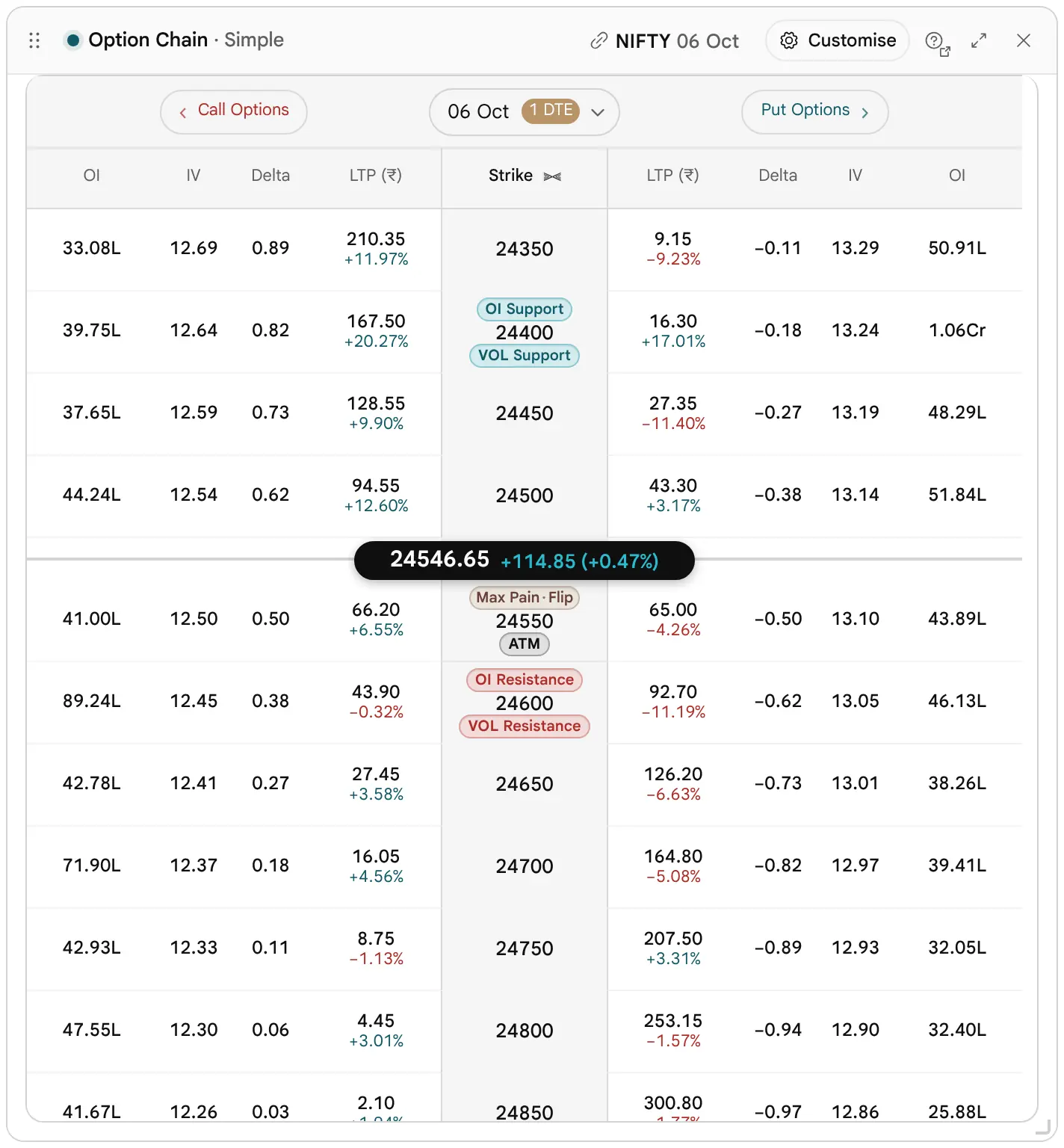
The Option Chain page’s table in its plain view: Call and Put side by side around the strike, with the last price, Open Interest, its change and the build-up label for each. The widget is fixed on this view and has no Simple or Advanced switch. Option Chain guide explains the tool itself.
- Numbers come from
- The option chain the Cockpit already holds for the open symbol and expiry. It is fetched again about every 5 seconds while the market is open and the tab is visible.
- When there is nothing to show
- The chain page’s own loading state while the chain is read, and Market data unavailable, with a retry, when it cannot be.
- Customise inside
- Yes: Customise in the widget’s header: columns and their order, the side shown, in-the-money or out-of-the-money, the price line, the strike window and a build-up filter. The chain widgets can also take the futures price as their price reference; that is the Option Chain page’s own choice.

Option chain · Advanced 6 by 16 · smallest 6 by 9
The visual chain: bars and meters for Open Interest and volume, and pills that mark levels on the strike column. It is marked Beta in the app. Fixed on this view. Option Chain guide explains the tool itself.
- Numbers come from
- The option chain the Cockpit already holds for the open symbol and expiry. It is fetched again about every 5 seconds while the market is open and the tab is visible.
- When there is nothing to show
- As for the Simple chain.
- Customise inside
- Yes, as for the Simple chain; its choices are kept apart from the Simple widget’s.


Market snapshot 6 by 8 · smallest 3 by 5
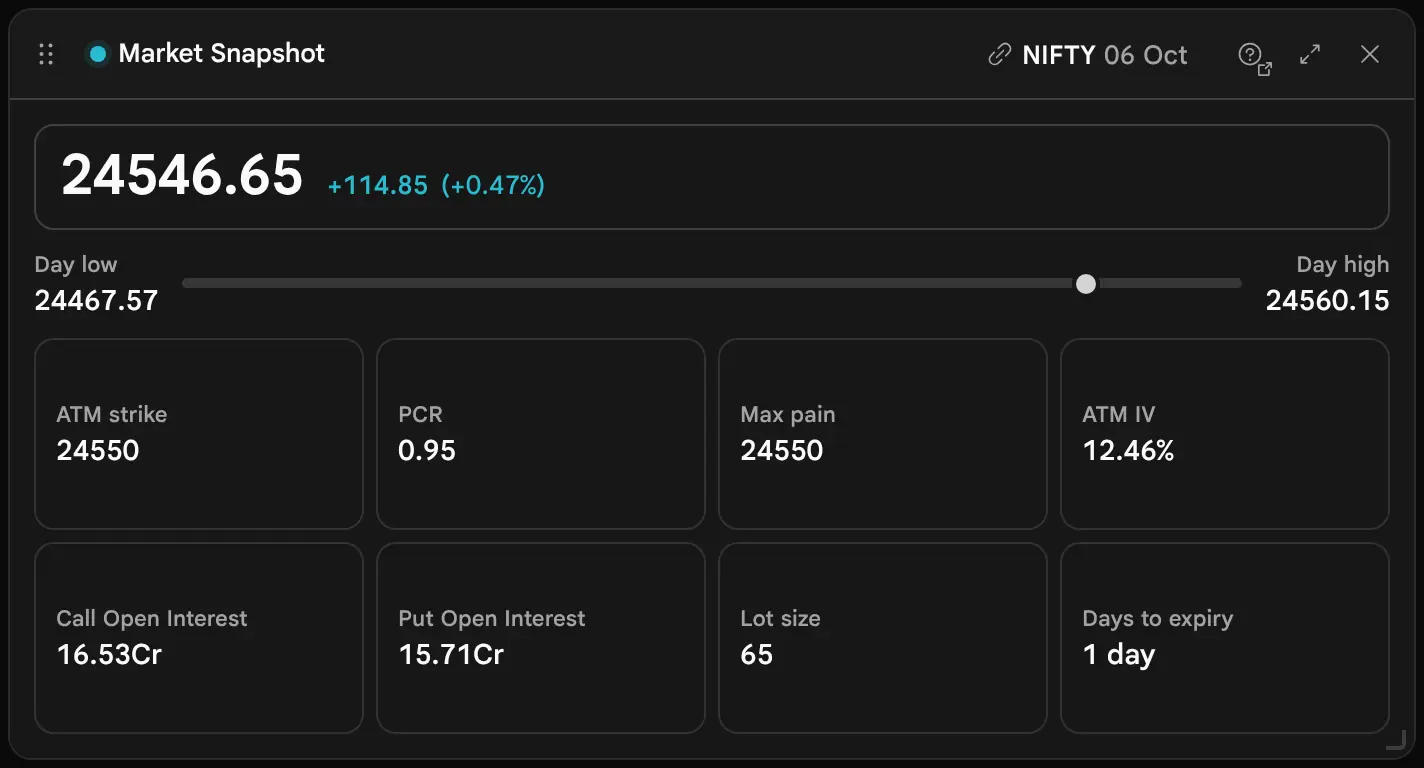
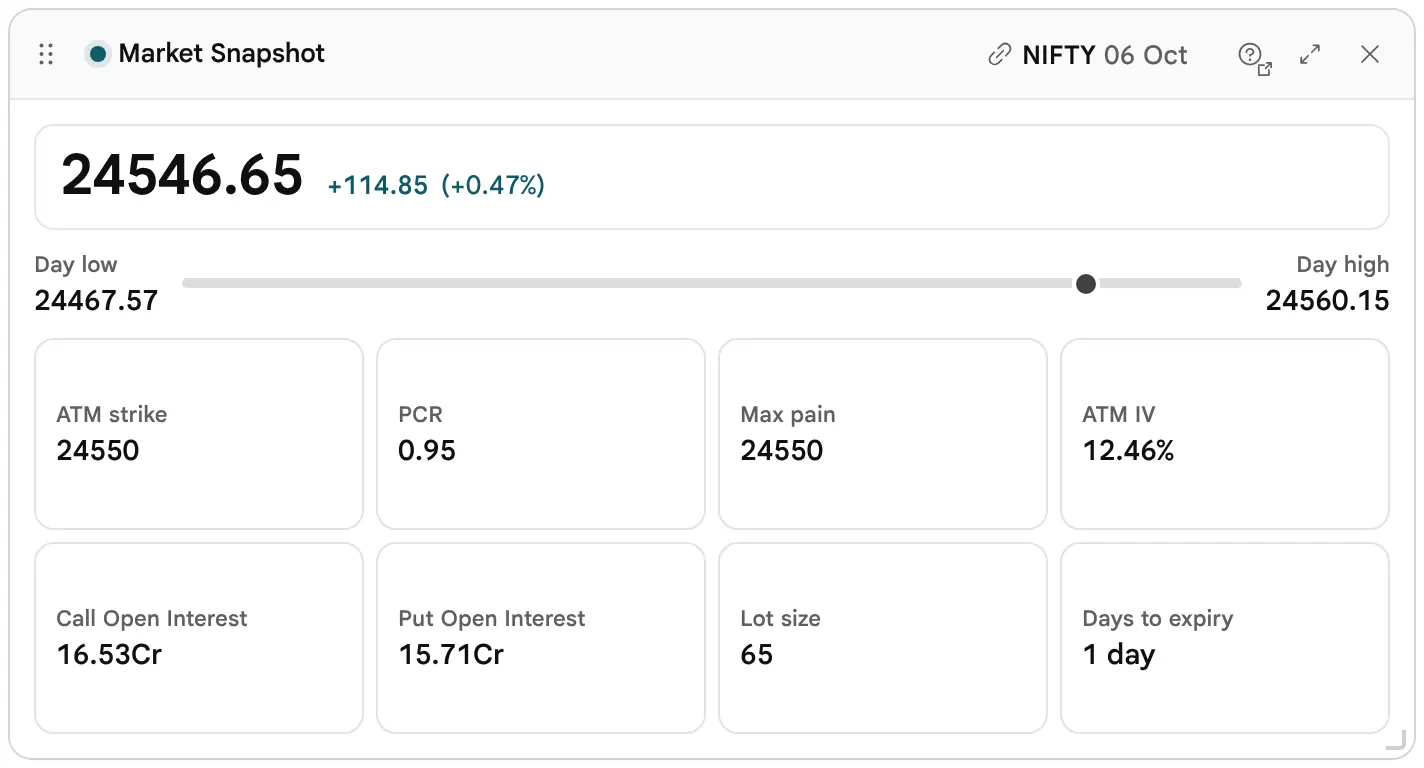
The few figures a reader glances at first: spot and its change, the day’s low and high on a track with spot marked, and flat readings, a label over a value, for the ATM strike, PCR · whole expiry, max pain, ATM IV, Call and Put Open Interest in total, lot size and days to expiry. Spare height goes to the price and the day range; a short widget drops whole readings rather than cutting one.
- Numbers come from
- The chain the Cockpit holds. The day range needs two or more readings in the session.
- When there is nothing to show
- Reading the chain… or the reason it cannot load; Not reported in a tile the chain does not carry; Previous close not reported beside spot; The day range appears once the session has a second reading.
- Customise inside
- None.
Chain insight 6 by 10 · smallest 3 by 5
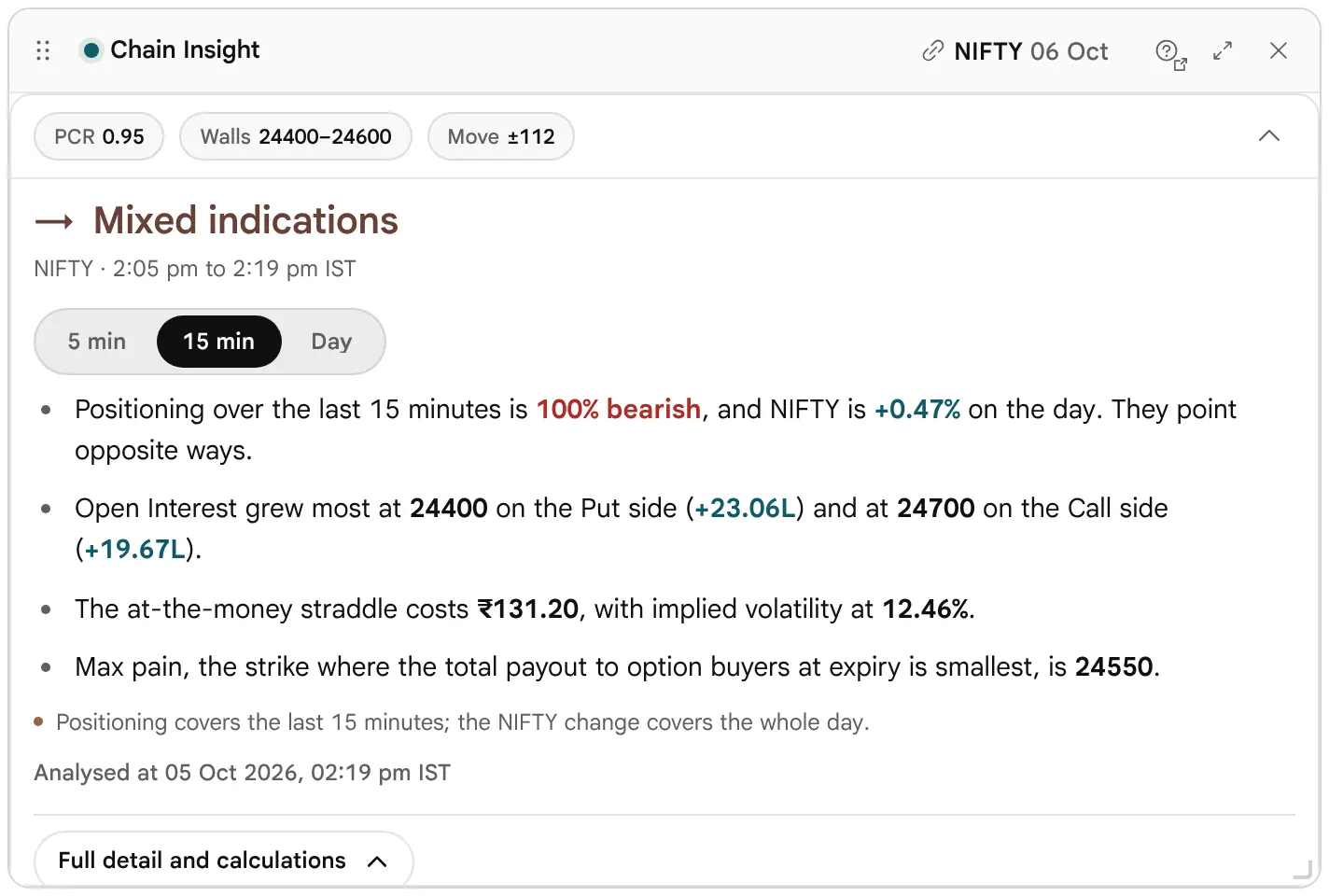
A plain-English read of the chain and what is uncertain: a verdict line, the positions that support it measured over 5 minutes, 15 minutes or the day, and a full-detail panel. It is the Option Chain page’s own insight card. Option Chain guide explains the tool itself.
- Numbers come from
- The option chain the Cockpit already holds for the open symbol and expiry. It is fetched again about every 5 seconds while the market is open and the tab is visible.
- When there is nothing to show
- The read appears once the chain has loaded. It also steps aside while a picker or a Customise panel is open.
- Customise inside
- None in the widget; the card has its own window switch.

Index watchlist 4 by 8 · smallest 3 by 5
The last price and the change, in points and percent, for each index in the app’s header strip (NIFTY, BANKNIFTY and SENSEX first, then any others the file carries), in rows that run edge to edge under a header that stays in place. The row of the symbol the Cockpit follows is marked. One line at the foot says when the levels were read (for example Daily levels and the day); when rows differ it says some rows differ (point at a name for its time), and each name’s tooltip gives its own time. Pressing a row makes the Cockpit follow that index (the symbol changes for every widget).
- Numbers come from
- The index levels the header collects from its own file, fetched again about every 60 seconds. They are not part of the option chain.
- When there is nothing to show
- A row keeps its place with a dash when its level is missing, and Unavailable where the change cannot be worked out; the foot line says Time not reported when no row has a read time.
- Customise inside
- None.


Mini price 4 by 5 · smallest 3 by 3
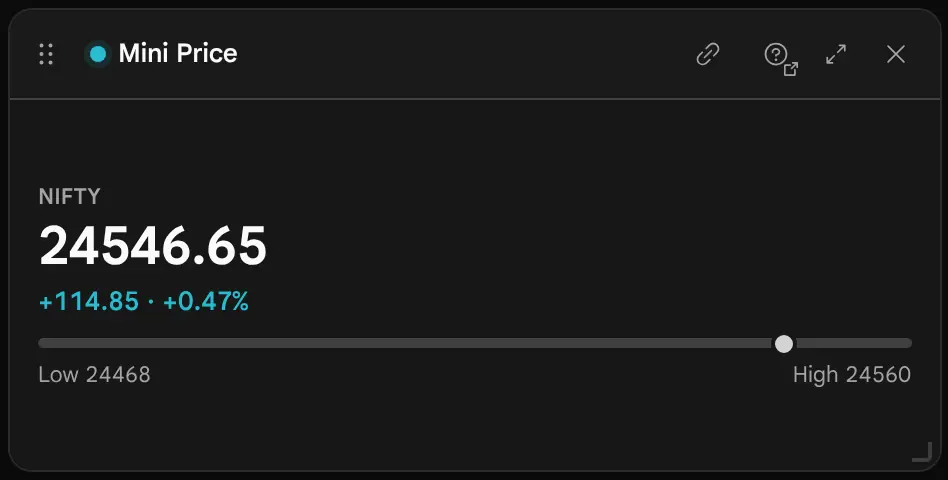
Spot, its change and where it sits in the day’s range, on a small track with the low and high at its ends, read from the top of the box.
- Numbers come from
- The chain the Cockpit holds and the session’s own readings for the range.
- When there is nothing to show
- A placeholder while loading; Previous close not reported; Day range not reported.
- Customise inside
- None.

Open Interest Widgets (13)
Which widgets show where positions stand, and how do they differ?
Thirteen widgets. Nine are one fixed view of an Open Interest tool: they hide that tool’s own view switch and keep their own choices. Open Interest, Open Interest change, Strike PCR and Max pain are four views of one page; Spurts has two; the Heatmap has three lenses. Two read the chain directly (Build-up movers and the leaderboard), and the PCR chart reads the PCR page’s snapshots. The tools draw from the day’s saved snapshots.
Open Interest 6 by 13 · smallest 4 by 11
The Open Interest page on its first view: Call and Put Open Interest at every strike as paired bars, with the Support zone and Resistance zone marks (named so that they are never confused with the walls), the position of spot and max pain. The chart takes the height that is left and the legend wraps inside the frame. Open Interest guide explains the tool itself.
- Numbers come from
- The day’s saved snapshots of the chain for the open symbol and expiry, the same ones the tool’s own page reads.
- When there is nothing to show
- The page’s own words: it says it has no snapshots yet for this expiry, or that the data could not be read, and offers its own retry where it has one. While the tool is being loaded the box shows a calm placeholder of grey bars (a screen reader hears Loading <title>), and the widget is shown once it has settled; if it cannot be opened at all it says Could not read <title>. and Your other cards are still available. with a Try again button.
- Customise inside
- Yes: the Customise button in the widget’s header opens the tool’s own Customise panel, showing only what applies to this view. What you choose is kept for this widget only.
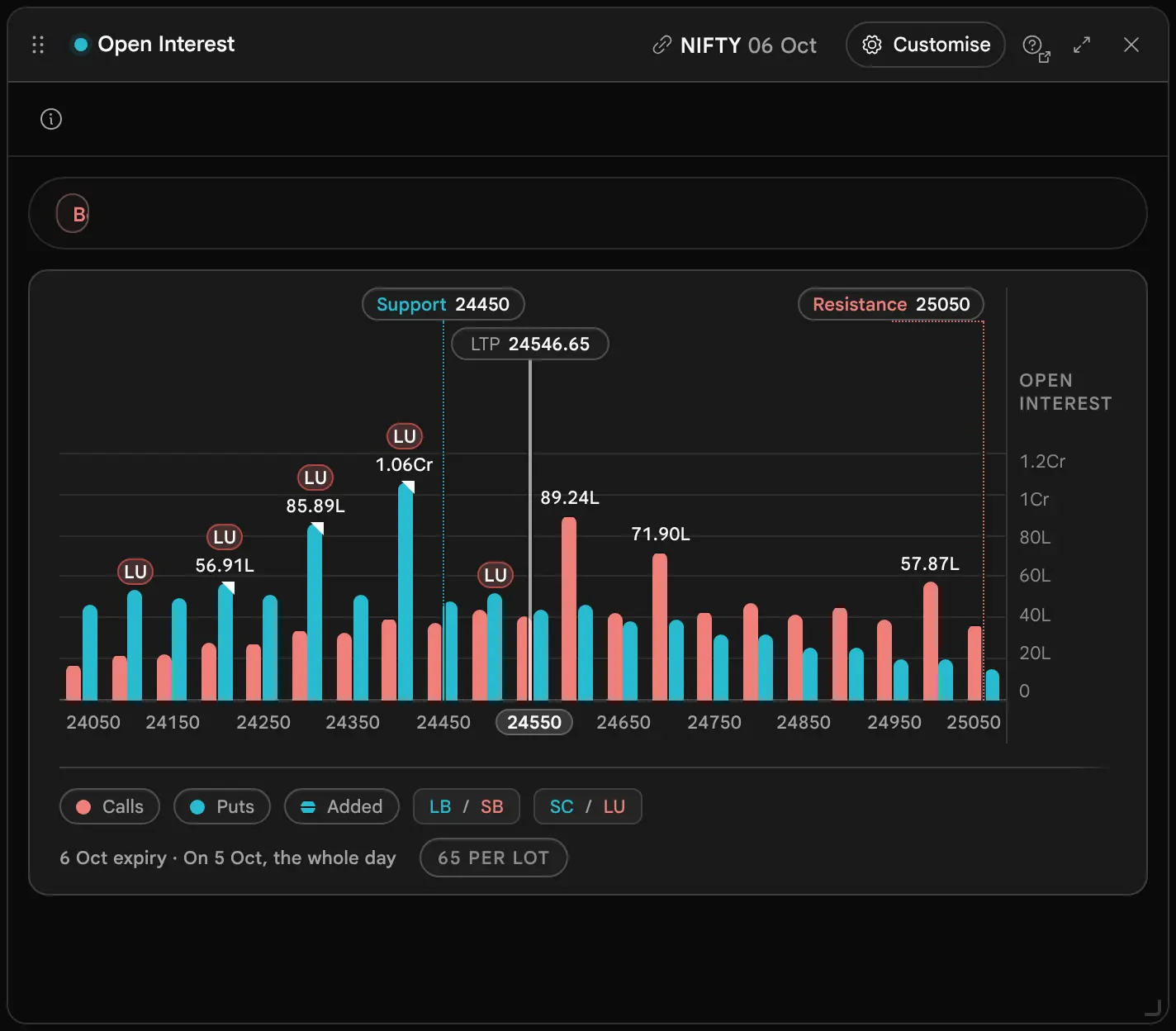

Open Interest change 6 by 13 · smallest 4 by 11
The same page on its change view: what was added or closed at each strike over a window you choose (15 minutes, 30 minutes, 1 hour, the day or a custom range). Open Interest guide explains the tool itself.
- Numbers come from
- The day’s saved snapshots of the chain for the open symbol and expiry, the same ones the tool’s own page reads.
- When there is nothing to show
- The page’s own words: it says it has no snapshots yet for this expiry, or that the data could not be read, and offers its own retry where it has one. While the tool is being loaded the box shows a calm placeholder of grey bars (a screen reader hears Loading <title>), and the widget is shown once it has settled; if it cannot be opened at all it says Could not read <title>. and Your other cards are still available. with a Try again button.
- Customise inside
- Yes: the Customise button in the widget’s header opens the tool’s own Customise panel, showing only what applies to this view. What you choose is kept for this widget only.


Strike PCR 6 by 13 · smallest 4 by 11
The same page on its strike-by-strike view: the ratio of Put to Call Open Interest at each strike, so you can see where Puts or Calls lead. Open Interest guide explains the tool itself.
- Numbers come from
- The day’s saved snapshots of the chain for the open symbol and expiry, the same ones the tool’s own page reads.
- When there is nothing to show
- The page’s own words: it says it has no snapshots yet for this expiry, or that the data could not be read, and offers its own retry where it has one. While the tool is being loaded the box shows a calm placeholder of grey bars (a screen reader hears Loading <title>), and the widget is shown once it has settled; if it cannot be opened at all it says Could not read <title>. and Your other cards are still available. with a Try again button.
- Customise inside
- Yes: the Customise button in the widget’s header opens the tool’s own Customise panel, showing only what applies to this view. What you choose is kept for this widget only.


Max pain 6 by 13 · smallest 4 by 11
The same page on its max-pain view: the payout to option buyers if the expiry settled at each strike, the strike where it is smallest, and how far spot is from it. Max Pain guide explains the tool itself.
- Numbers come from
- The day’s saved snapshots of the chain for the open symbol and expiry, the same ones the tool’s own page reads.
- When there is nothing to show
- The page’s own words: it says it has no snapshots yet for this expiry, or that the data could not be read, and offers its own retry where it has one. While the tool is being loaded the box shows a calm placeholder of grey bars (a screen reader hears Loading <title>), and the widget is shown once it has settled; if it cannot be opened at all it says Could not read <title>. and Your other cards are still available. with a Try again button.
- Customise inside
- Yes: the Customise button in the widget’s header opens the tool’s own Customise panel, showing only what applies to this view. What you choose is kept for this widget only.


Spurts · Rotation map 6 by 13 · smallest 5 by 8
The Open Interest Spurts page as a rotation map: every leg placed by its premium change (across) and its Open Interest change (up), with the four build-up corners named. Open Interest Spurts guide explains the tool itself.
- Numbers come from
- The day’s saved snapshots of the chain for the open symbol and expiry, the same ones the tool’s own page reads.
- When there is nothing to show
- The page’s own words: it says it has no snapshots yet for this expiry, or that the data could not be read, and offers its own retry where it has one. While the tool is being loaded the box shows a calm placeholder of grey bars (a screen reader hears Loading <title>), and the widget is shown once it has settled; if it cannot be opened at all it says Could not read <title>. and Your other cards are still available. with a Try again button.
- Customise inside
- Yes: the Customise button in the widget’s header opens the tool’s own Customise panel, showing only what applies to this view. What you choose is kept for this widget only.


Spurts · Top moves 6 by 13 · smallest 4 by 8
The same spurts as the Top moves board: the biggest Open Interest moves sorted into the four build-ups, loudest first, with a small card on hover for each row. In a narrow widget each row keeps the contract and its Open Interest move and drops the rest whole. Open Interest Spurts guide explains the tool itself.
- Numbers come from
- The day’s saved snapshots of the chain for the open symbol and expiry, the same ones the tool’s own page reads.
- When there is nothing to show
- The page’s own words: it says it has no snapshots yet for this expiry, or that the data could not be read, and offers its own retry where it has one. While the tool is being loaded the box shows a calm placeholder of grey bars (a screen reader hears Loading <title>), and the widget is shown once it has settled; if it cannot be opened at all it says Could not read <title>. and Your other cards are still available. with a Try again button.
- Customise inside
- Yes: the Customise button in the widget’s header opens the tool’s own Customise panel, showing only what applies to this view. What you choose is kept for this widget only.


Heatmap · Open Interest 6 by 13 · smallest 4 by 10
The Open Interest Heatmap, strike by time, shaded by how much Open Interest each strike holds. Open Interest Heatmap guide explains the tool itself.
- Numbers come from
- The day’s saved snapshots of the chain for the open symbol and expiry, the same ones the tool’s own page reads.
- When there is nothing to show
- The page’s own words: it says it has no snapshots yet for this expiry, or that the data could not be read, and offers its own retry where it has one. While the tool is being loaded the box shows a calm placeholder of grey bars (a screen reader hears Loading <title>), and the widget is shown once it has settled; if it cannot be opened at all it says Could not read <title>. and Your other cards are still available. with a Try again button.
- Customise inside
- Yes: the Customise button in the widget’s header opens the tool’s own Customise panel, showing only what applies to this view. What you choose is kept for this widget only.

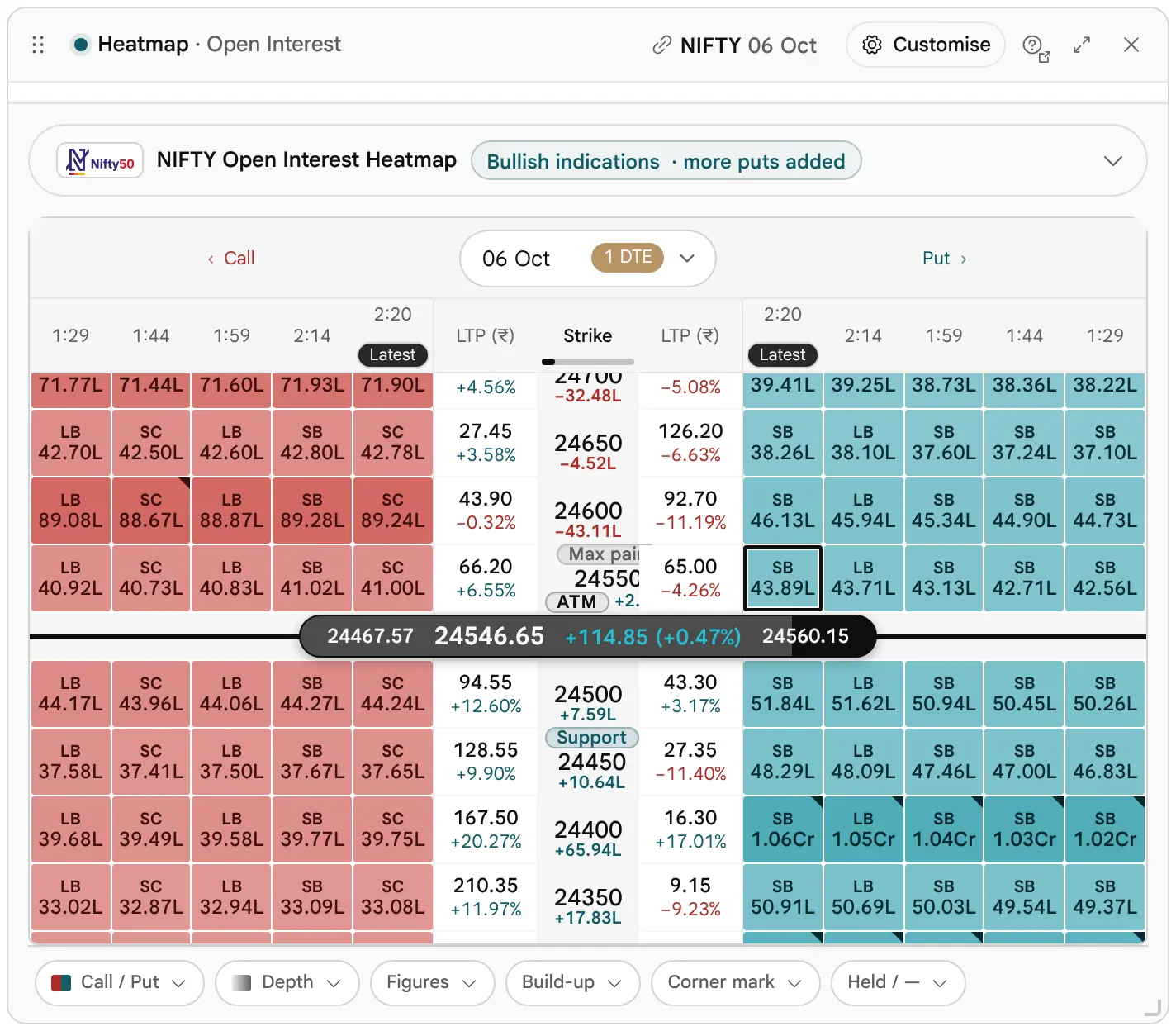
Heatmap · Build-up 6 by 13 · smallest 4 by 10
The same heatmap coloured by the four build-up labels; its heading names the lens (for example NIFTY Build-up heatmap). Open Interest Heatmap guide explains the tool itself.
- Numbers come from
- The day’s saved snapshots of the chain for the open symbol and expiry, the same ones the tool’s own page reads.
- When there is nothing to show
- The page’s own words: it says it has no snapshots yet for this expiry, or that the data could not be read, and offers its own retry where it has one. While the tool is being loaded the box shows a calm placeholder of grey bars (a screen reader hears Loading <title>), and the widget is shown once it has settled; if it cannot be opened at all it says Could not read <title>. and Your other cards are still available. with a Try again button.
- Customise inside
- Yes: the Customise button in the widget’s header opens the tool’s own Customise panel, showing only what applies to this view. What you choose is kept for this widget only.
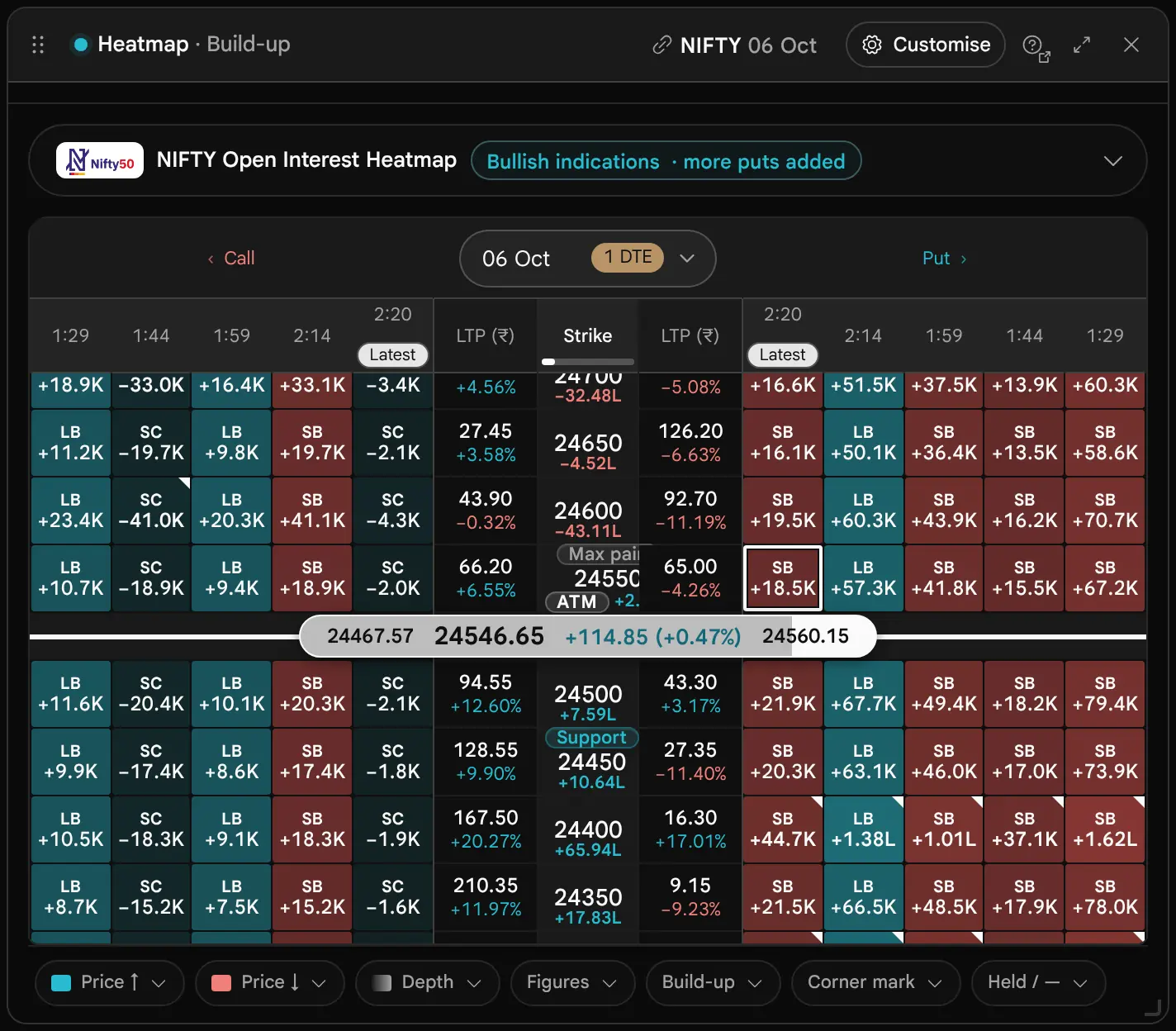

Heatmap · Change 6 by 13 · smallest 4 by 10
The same heatmap shaded by Open Interest added or closed in each step. Open Interest Heatmap guide explains the tool itself.
- Numbers come from
- The day’s saved snapshots of the chain for the open symbol and expiry, the same ones the tool’s own page reads.
- When there is nothing to show
- The page’s own words: it says it has no snapshots yet for this expiry, or that the data could not be read, and offers its own retry where it has one. While the tool is being loaded the box shows a calm placeholder of grey bars (a screen reader hears Loading <title>), and the widget is shown once it has settled; if it cannot be opened at all it says Could not read <title>. and Your other cards are still available. with a Try again button.
- Customise inside
- Yes: the Customise button in the widget’s header opens the tool’s own Customise panel, showing only what applies to this view. What you choose is kept for this widget only.


Put Call Ratio 6 by 13 · smallest 4 by 7
The PCR page: the Put Call Ratio through the day against the 1.00 line, with a one-row verdict, an insight box and crossings of 1.00. PCR guide explains the tool itself.
- Numbers come from
- The day’s saved snapshots of the chain for the open symbol and expiry, the same ones the tool’s own page reads.
- When there is nothing to show
- The page’s own words: it says it has no snapshots yet for this expiry, or that the data could not be read, and offers its own retry where it has one. While the tool is being loaded the box shows a calm placeholder of grey bars (a screen reader hears Loading <title>), and the widget is shown once it has settled; if it cannot be opened at all it says Could not read <title>. and Your other cards are still available. with a Try again button.
- Customise inside
- Yes: the Customise button in the widget’s header opens the tool’s own Customise panel, showing only what applies to this view. What you choose is kept for this widget only. The strikes counted in the ratio are one of its choices.
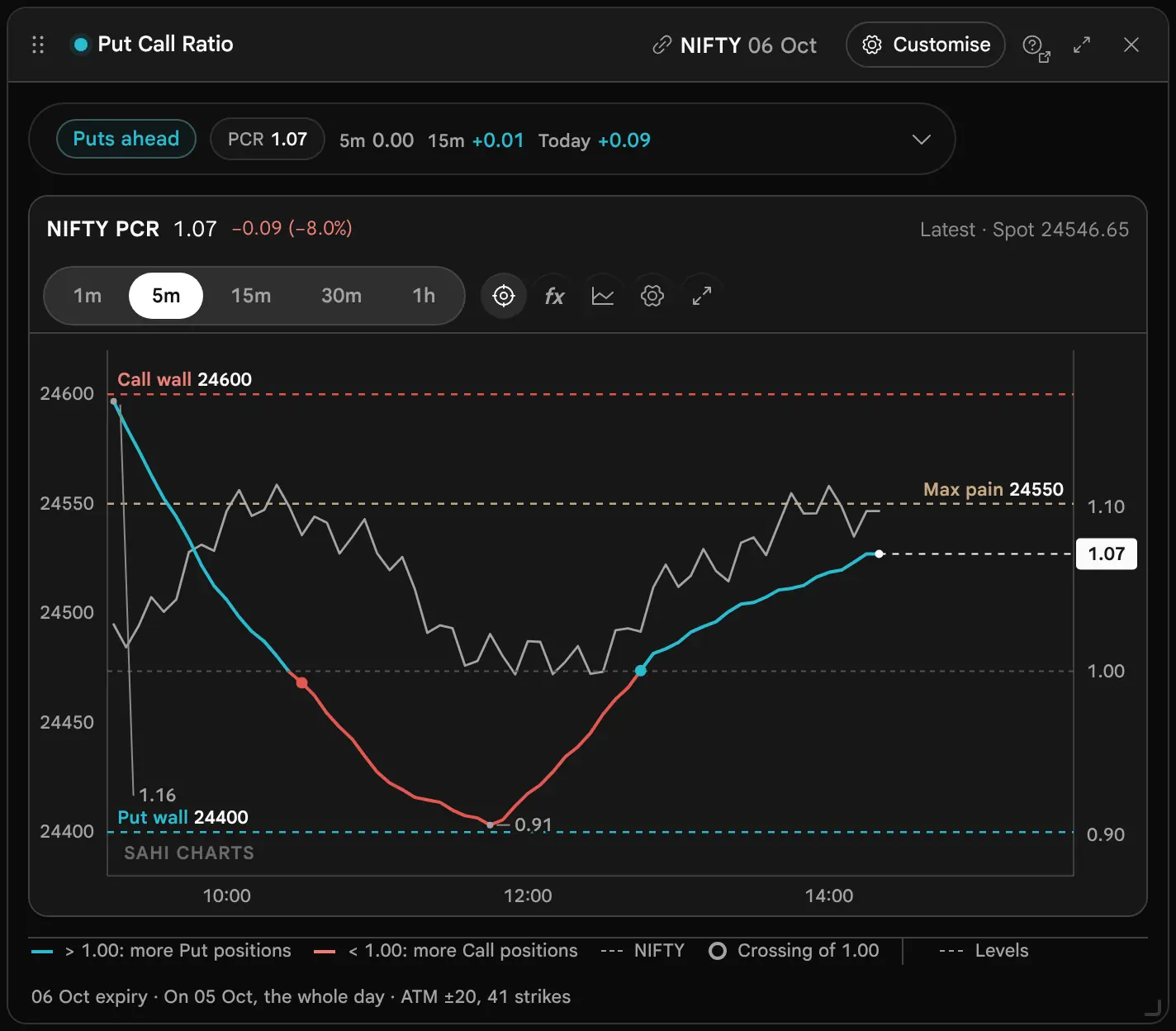

Build-up movers 6 by 12 · smallest 4 by 7
The strikes with a build-up signal, biggest Open Interest move first: up to 12 rows of strike, Call or Put, the signal (Long build-up, Short build-up, Short covering or Long unwinding) and the change in contracts and percent, in rows that run edge to edge under a header that stays in place. Large figures are written in lakh (L) and crore (Cr). Rows can be picked for strike follow.
- Numbers come from
- The chain the Cockpit holds; the signal is the chain’s own reading of premium against Open Interest since the previous close.
- When there is nothing to show
- No strike shows a clear build-up signal yet, or the chain has no previous-session Open Interest to compare with.
- Customise inside
- None.
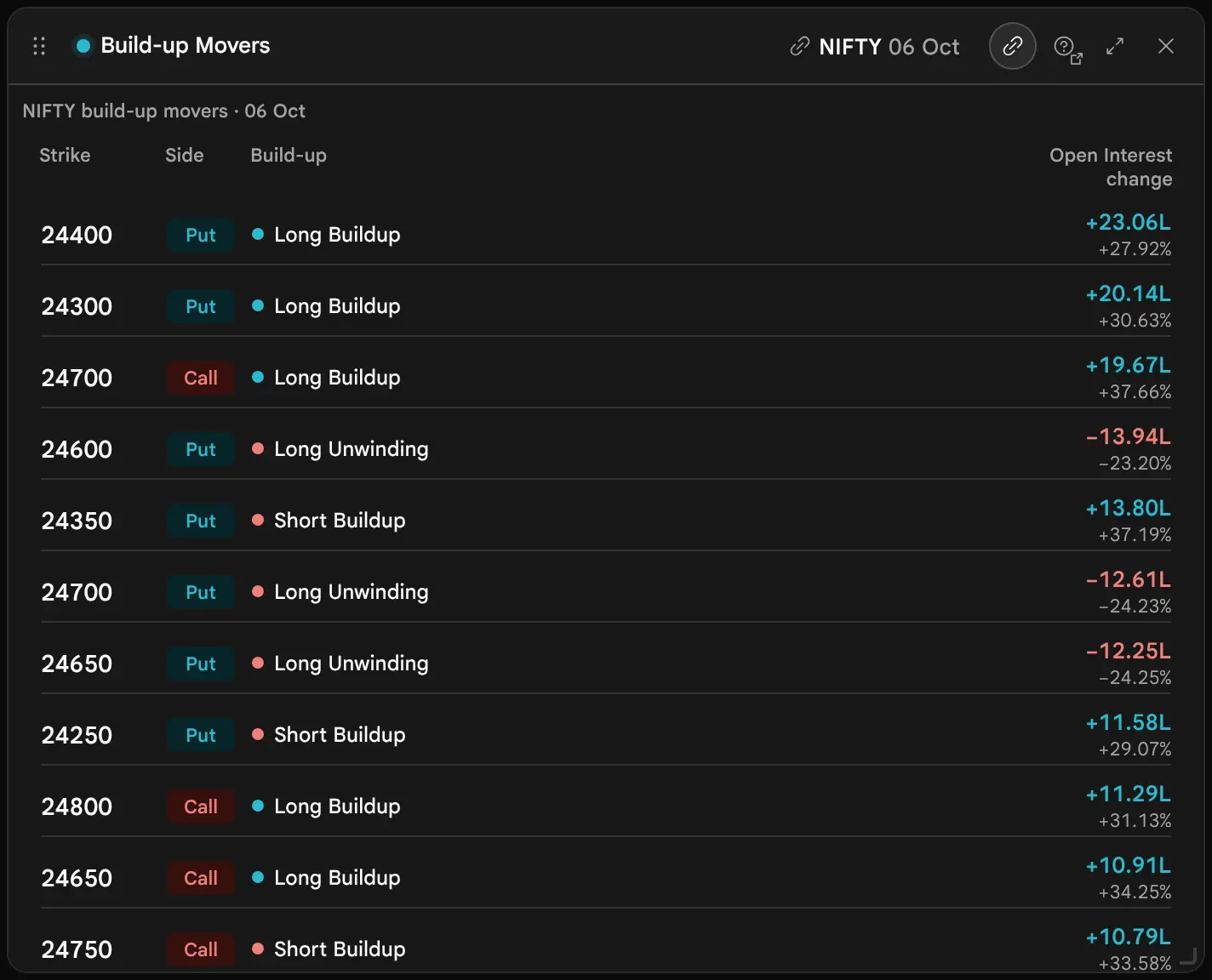
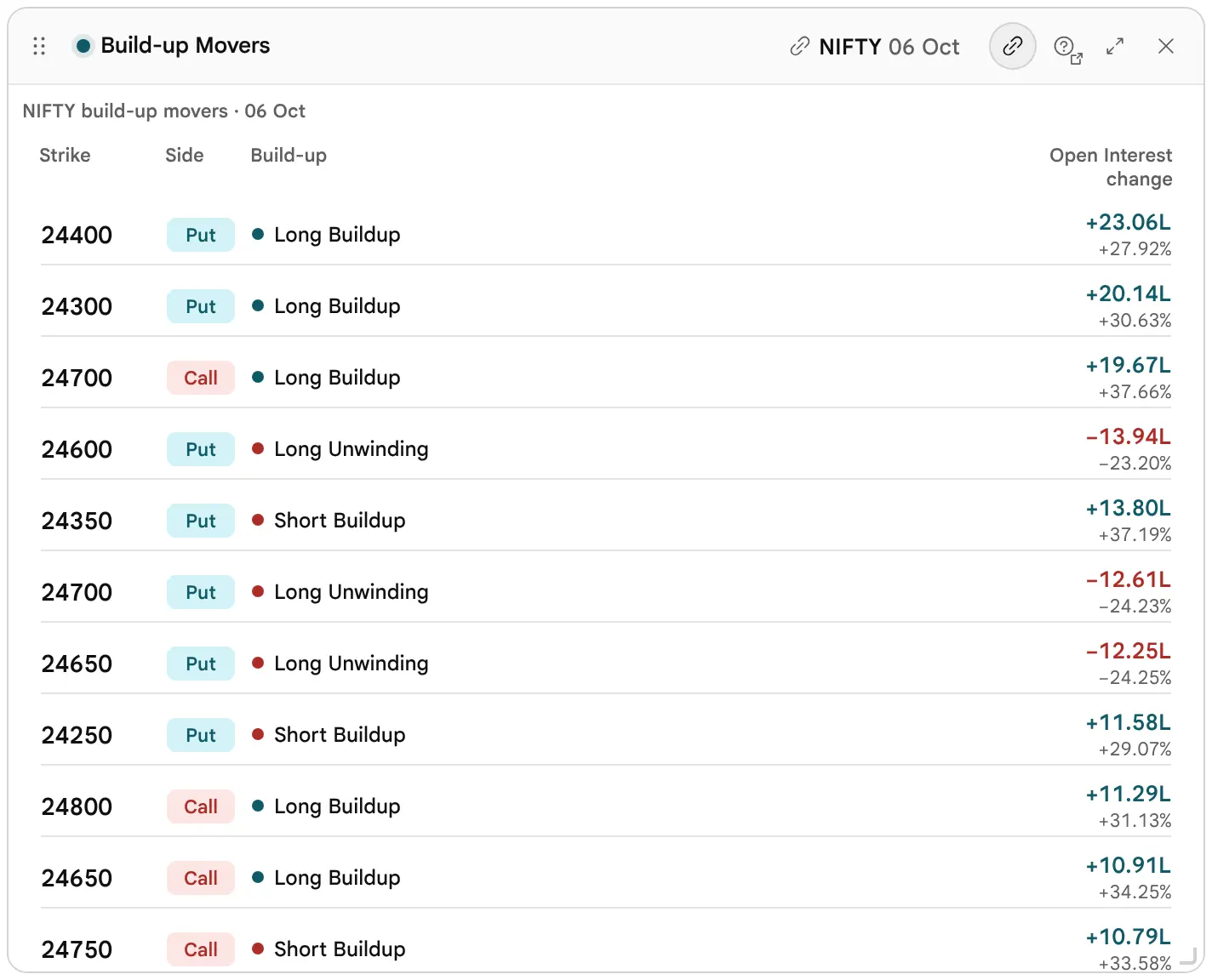
Open Interest change leaderboard 6 by 12 · smallest 4 by 7
The largest Open Interest adds and the largest cuts across Call and Put: 5 of each, with the Open Interest now, the change in contracts and the percent. A short widget shows one list at a time, chosen with two tabs, Adds and Cuts; a taller one shows both. Large figures are written in lakh (L) and crore (Cr). Rows can be picked for strike follow.
- Numbers come from
- The chain the Cockpit holds, against the previous close.
- When there is nothing to show
- No strike has added Open Interest. and No strike has lost Open Interest. for an empty half.
- Customise inside
- None.


PCR chart 6 by 12 · smallest 4 by 8
Only the ratio line of the PCR page, for the open expiry, under one reading line: the figure, the word beside it (Puts ahead at 1.03 or above, Calls ahead at 0.97 or below, Balanced between) and the scope with the strikes counted (for example ATM ±20, 41 strikes), then the day’s line. PCR guide explains the tool itself.
- Numbers come from
- The same saved snapshots the PCR page reads (it makes no request of its own), one reading per 5 minutes, for the strikes the PCR page’s Customise is set to (the first time, ATM ±20).
- When there is nothing to show
- A placeholder while loading and No valid Put Call Ratio reading yet for this expiry. when there is none.
- Customise inside
- None in the widget. Its strike scope follows the PCR page’s Customise choice.
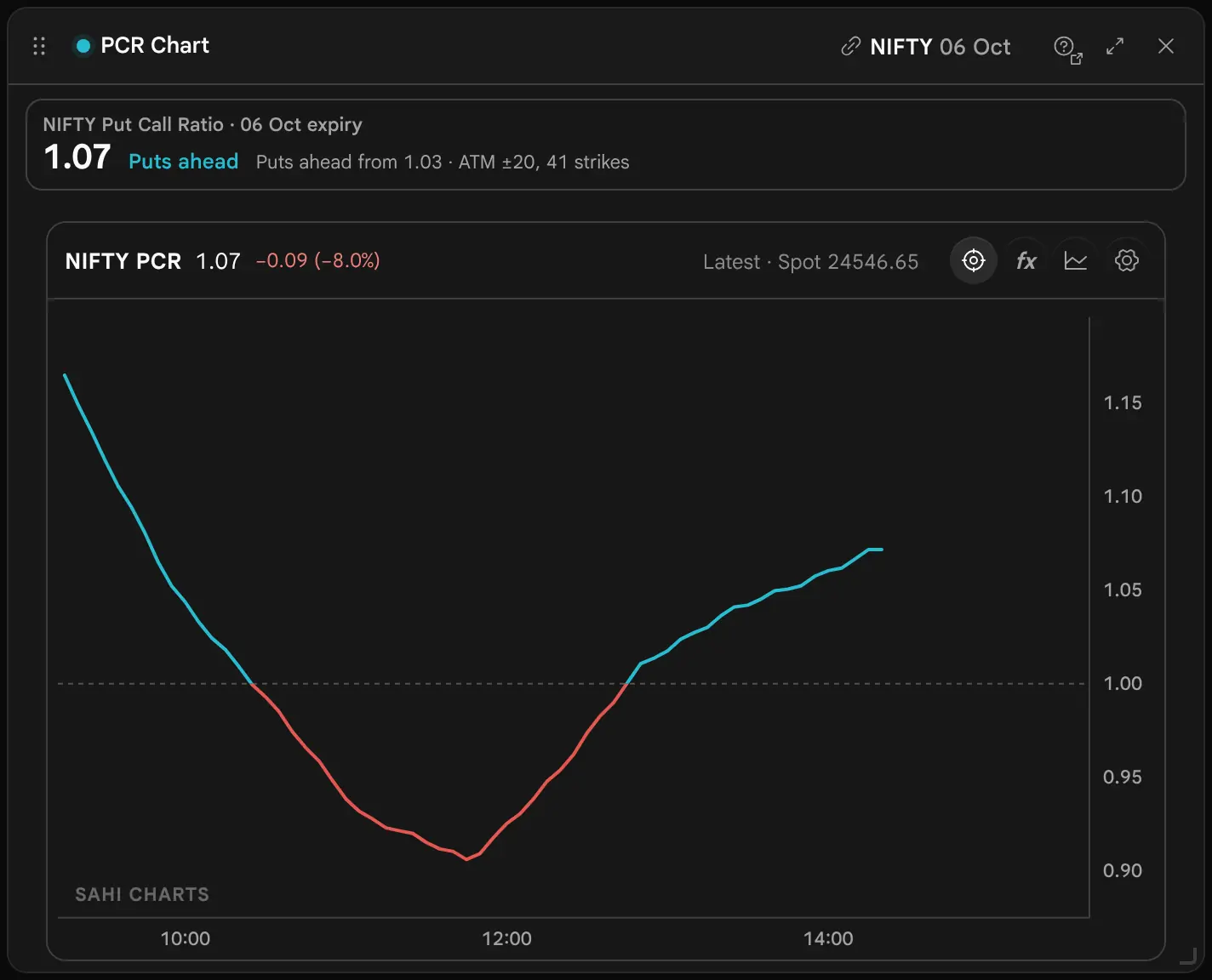

Volatility and Premium Widgets (4)
Which widgets show premium, volatility and gamma?
Four widgets. Straddle, GEX Levels and Implied Volatility are whole tools; the Straddle ladder is a small reading made for the Cockpit.
Straddle 6 by 13 · smallest 4 by 8
The Straddle page: the ATM straddle premium and how it decays through the day, with views for premium decay, price against Open Interest, several strikes and several straddles. ATM Premium guide explains the tool itself.
- Numbers come from
- The day’s saved snapshots of the chain for the open symbol and expiry, the same ones the tool’s own page reads.
- When there is nothing to show
- The page’s own words: it says it has no snapshots yet for this expiry, or that the data could not be read, and offers its own retry where it has one. While the tool is being loaded the box shows a calm placeholder of grey bars (a screen reader hears Loading <title>), and the widget is shown once it has settled; if it cannot be opened at all it says Could not read <title>. and Your other cards are still available. with a Try again button.
- Customise inside
- Yes: the Customise button in the widget’s header opens the tool’s own Customise panel, showing only what applies to this view. What you choose is kept for this widget only.


GEX Levels 6 by 13 · smallest 4 by 10
The Gamma Exposure page: the model’s gamma by strike, the call and put walls and the flip level. Gamma Exposure guide explains the tool itself.
- Numbers come from
- The day’s saved snapshots of the chain for the open symbol and expiry, the same ones the tool’s own page reads. The gamma is a model estimate.
- When there is nothing to show
- The page’s own words: it says it has no snapshots yet for this expiry, or that the data could not be read, and offers its own retry where it has one. While the tool is being loaded the box shows a calm placeholder of grey bars (a screen reader hears Loading <title>), and the widget is shown once it has settled; if it cannot be opened at all it says Could not read <title>. and Your other cards are still available. with a Try again button.
- Customise inside
- Yes: the Customise button in the widget’s header opens the tool’s own Customise panel, showing only what applies to this view. What you choose is kept for this widget only.
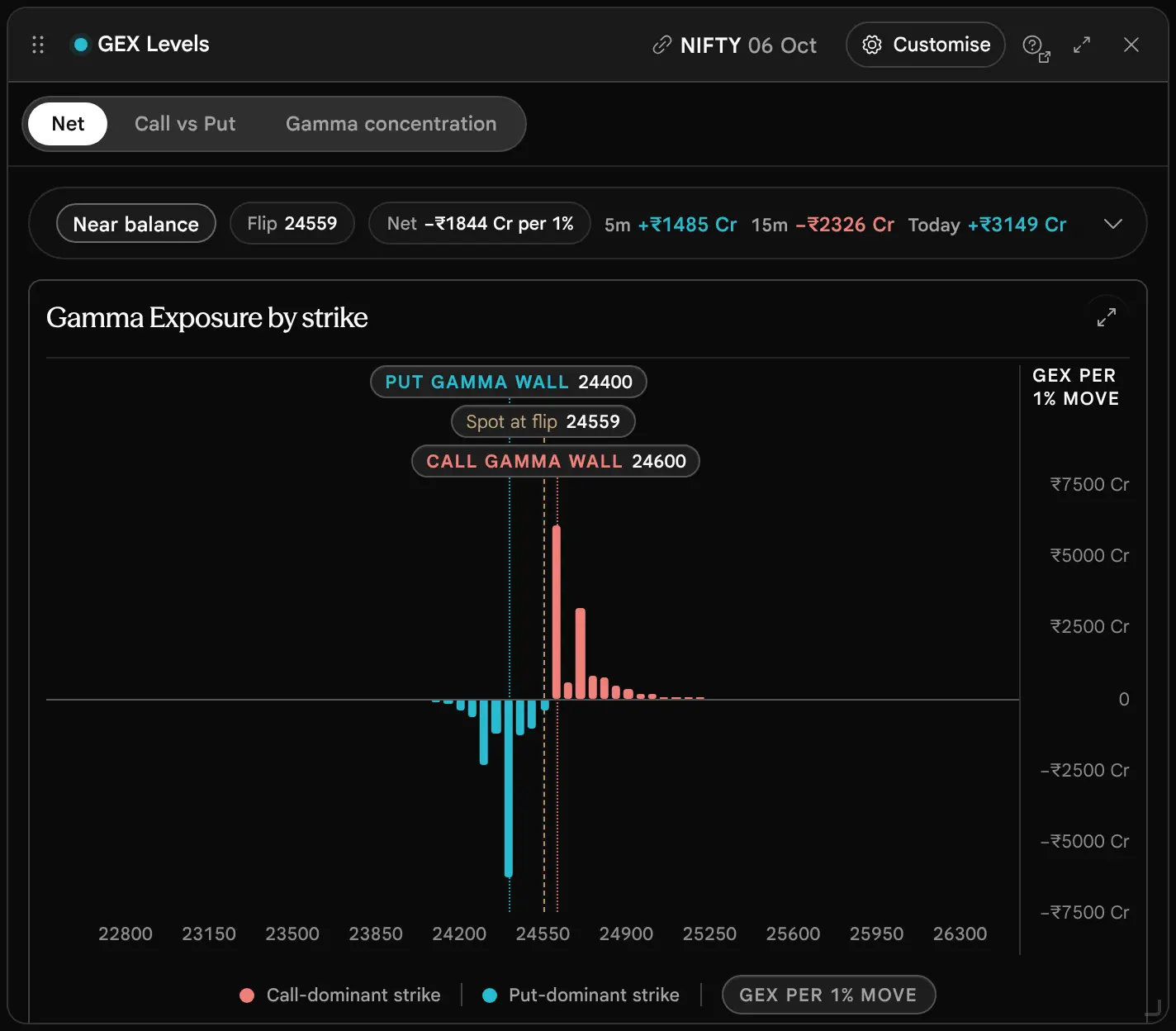
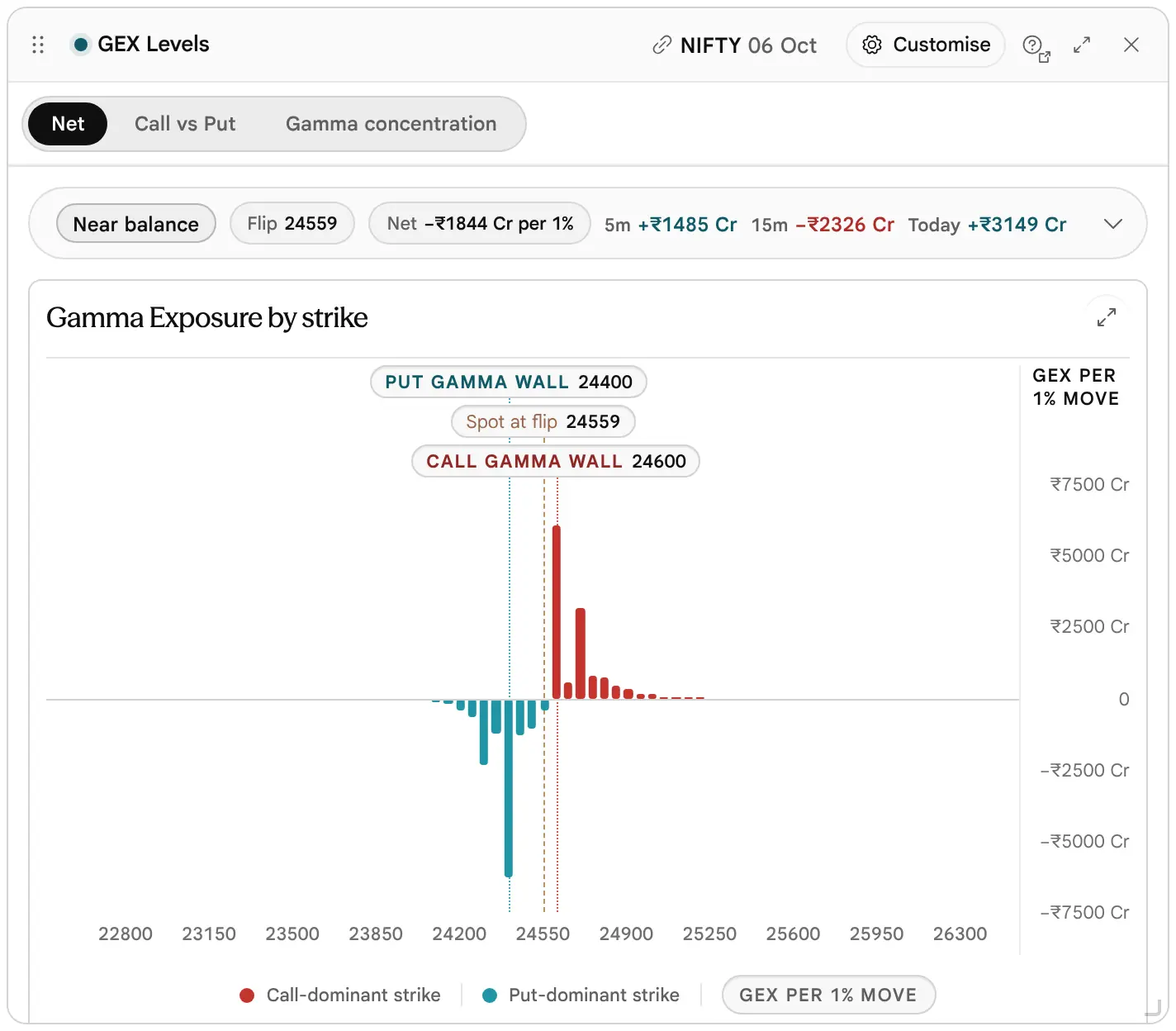
Implied Volatility 6 by 13 · smallest 4 by 10
The Implied Volatility page: ATM implied volatility through the day, the strike skew, the term structure across expiries and the history, with realised volatility for comparison. Implied Volatility guide explains the tool itself.
- Numbers come from
- The day’s saved snapshots of the chain for the open symbol and expiry, the same ones the tool’s own page reads. The history views read a longer file and daily prices.
- When there is nothing to show
- The page’s own words: it says it has no snapshots yet for this expiry, or that the data could not be read, and offers its own retry where it has one. While the tool is being loaded the box shows a calm placeholder of grey bars (a screen reader hears Loading <title>), and the widget is shown once it has settled; if it cannot be opened at all it says Could not read <title>. and Your other cards are still available. with a Try again button.
- Customise inside
- Yes: the Customise button in the widget’s header opens the tool’s own Customise panel, showing only what applies to this view. What you choose is kept for this widget only.


Straddle ladder 6 by 12 · smallest 4 by 7
The Call plus Put premium at each strike within 5 strikes either side of the ATM, with the change since the previous close and the two breakevens (the strike less and plus the combined premium, at expiry). The ATM row is tagged, and the ladder opens scrolled to it. A line at the foot says Breakevens exclude fees. Not a forecast. Rows can be picked for strike follow.
- Numbers come from
- The chain the Cockpit holds. A strike appears only when both its Call and Put have a price.
- When there is nothing to show
- Not reported: no strike near the ATM has both a Call and a Put price. On a settled expiry it says This expiry has settled. Select an active expiry for straddle premiums. A change shows a dash when a leg has no previous close.
- Customise inside
- None.
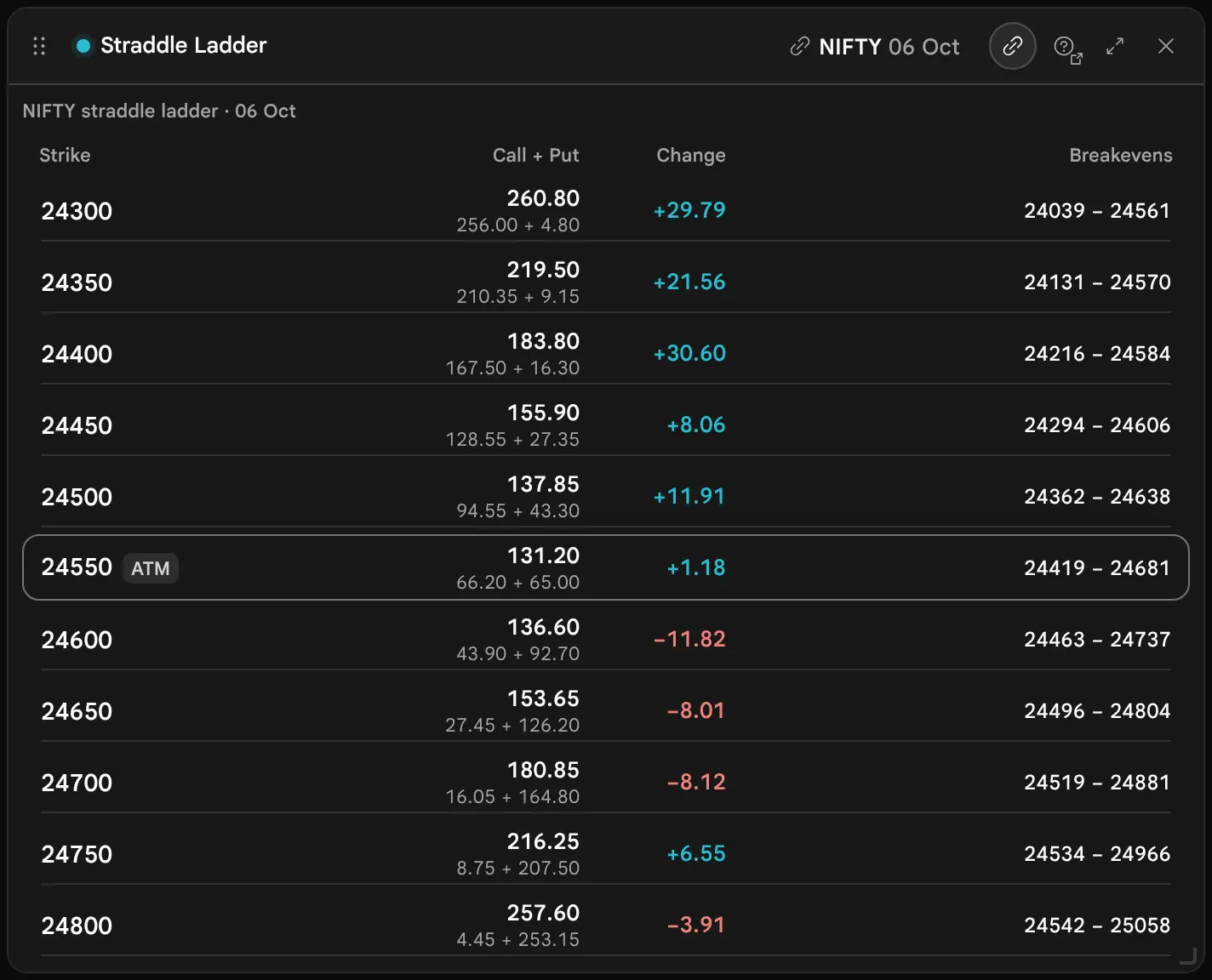

Build and Scan Widgets (3)
Which widgets build a strategy, scan for ideas or keep my notes?
Three widgets. The Strategy Builder and the Options Scanner are whole tools and the largest in the catalogue; Trader notes is yours alone.
Strategy Builder 12 by 16 · smallest 6 by 10
The Strategy Builder page: build a multi-leg position from templates or contracts and read its payoff, breakevens, risk and scenarios. It needs width, so its default box is the full 12 columns (the Strategy desk layout gives it 7). Strategy Builder guide explains the tool itself.
- Numbers come from
- The chain of the open expiry, fetched again about every 5 seconds in market hours; other expiries about once a minute.
- When there is nothing to show
- The page’s own words: it says it has no snapshots yet for this expiry, or that the data could not be read, and offers its own retry where it has one. While the tool is being loaded the box shows a calm placeholder of grey bars (a screen reader hears Loading <title>), and the widget is shown once it has settled; if it cannot be opened at all it says Could not read <title>. and Your other cards are still available. with a Try again button.
- Customise inside
- Yes: the Customise button in the widget’s header opens the tool’s own Customise panel, showing only what applies to this view. What you choose is kept for this widget only.


Options Scanner 6 by 16 · smallest 6 by 9
The Options Scanner page: Contracts, Underlyings and Custom scans. It looks across many underlyings, not only the one the Cockpit follows. Options Scanner guide explains the tool itself.
- Numbers come from
- The scanner’s own market file, which the browser reads again about once a minute.
- When there is nothing to show
- The page’s own words: it says it has no snapshots yet for this expiry, or that the data could not be read, and offers its own retry where it has one. While the tool is being loaded the box shows a calm placeholder of grey bars (a screen reader hears Loading <title>), and the widget is shown once it has settled; if it cannot be opened at all it says Could not read <title>. and Your other cards are still available. with a Try again button.
- Customise inside
- Yes: the Customise button in the widget’s header opens the tool’s own Customise panel, showing only what applies to this view. What you choose is kept for this widget only.
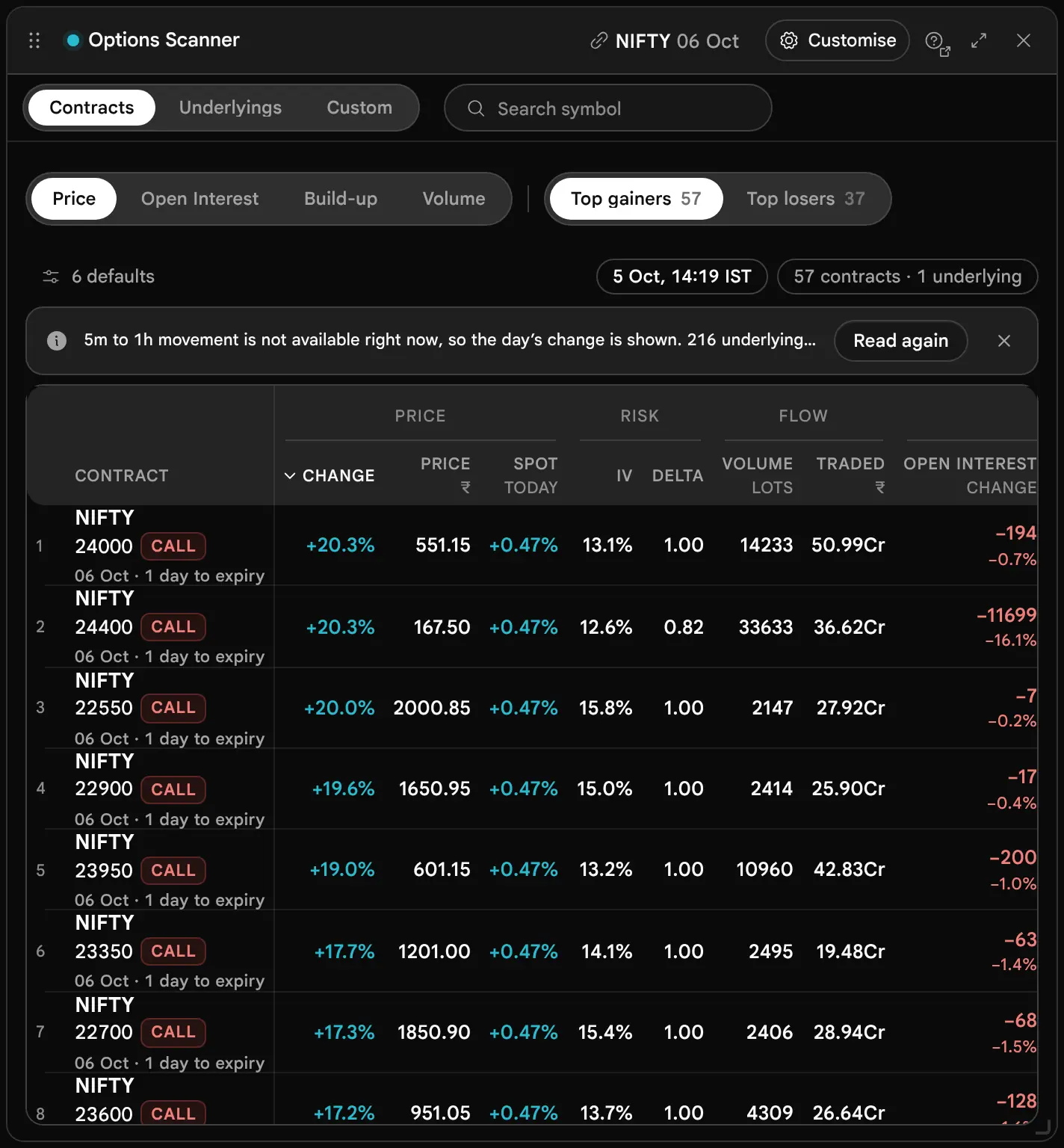
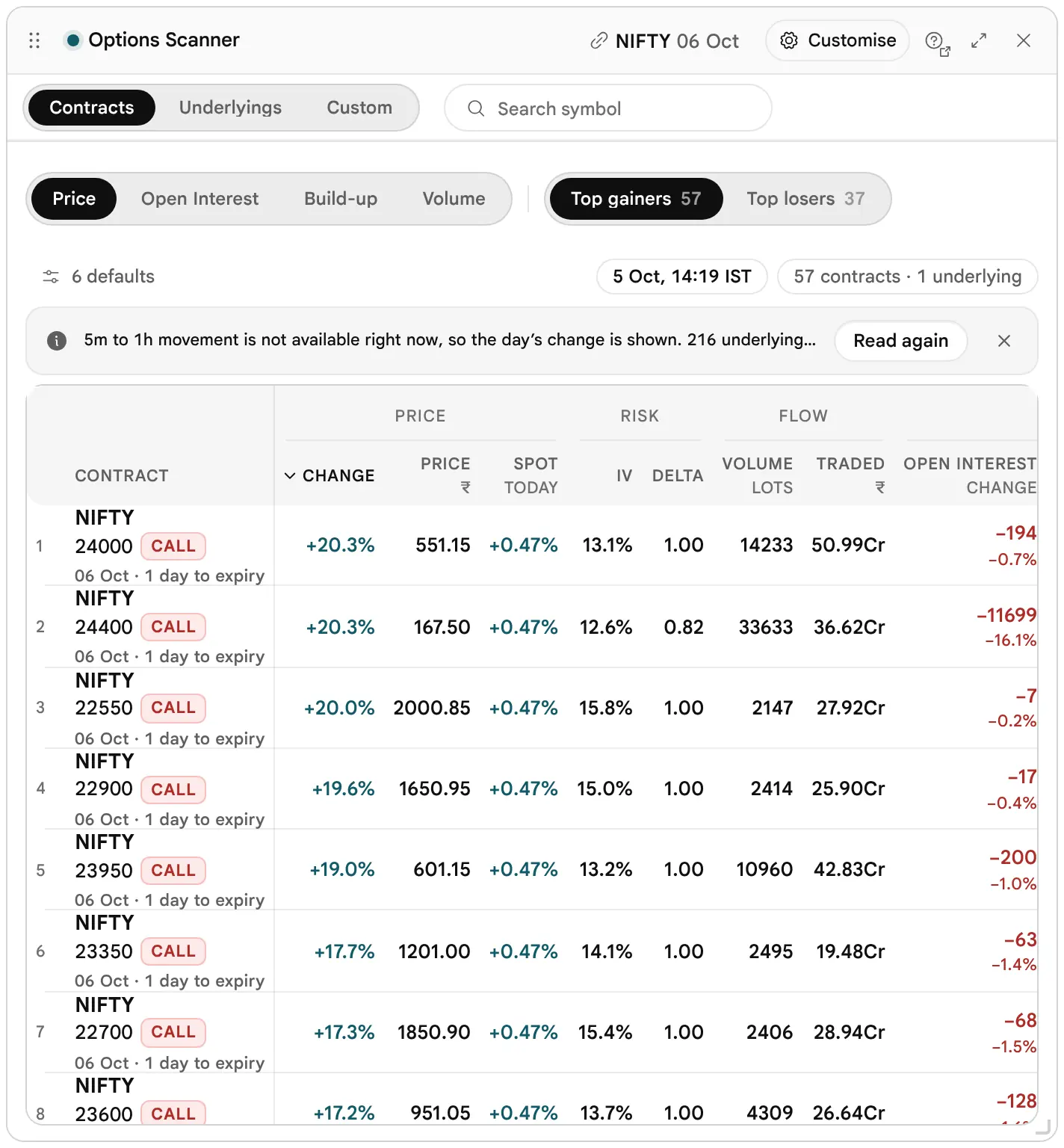
Trader notes 4 by 8 · smallest 3 by 5
A borderless text box for your own notes on the open symbol. Each symbol has its own note, up to 4000 characters. It is saved a moment after you stop typing.
- Numbers come from
- This browser’s storage only. Nothing is shared, backed up or sent anywhere; clearing the site’s data deletes the notes.
- When there is nothing to show
- An empty box with the hint Levels to watch, what you saw, what you will not do. While you type, the line under the box says Saving…; if the browser refuses storage it says Not saved: this browser is not allowing storage.
- Customise inside
- None.
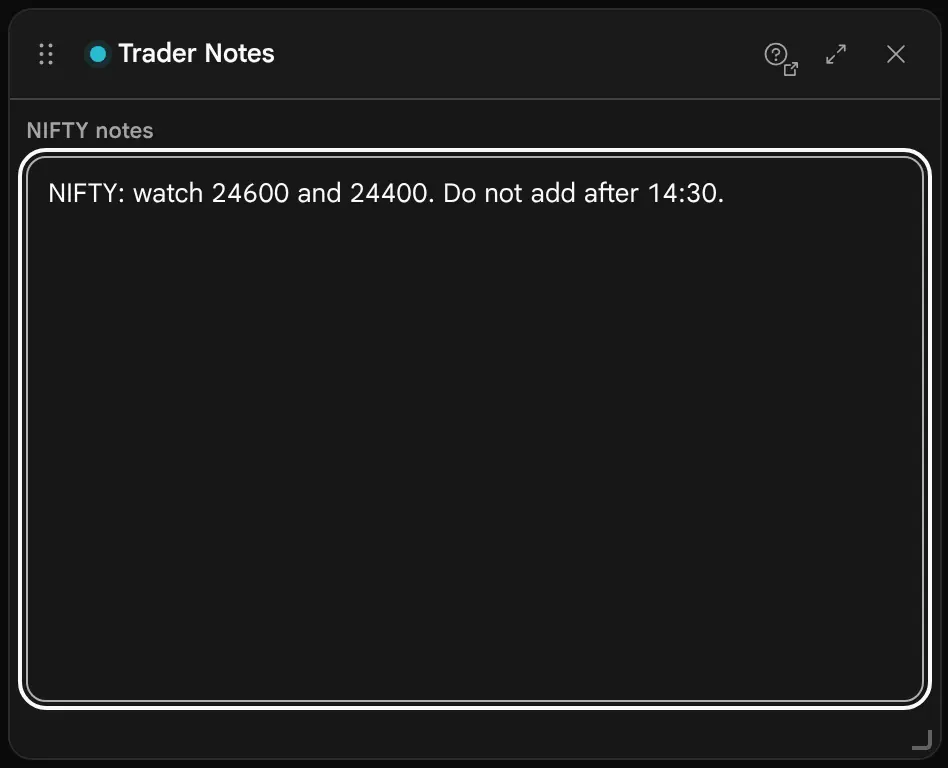
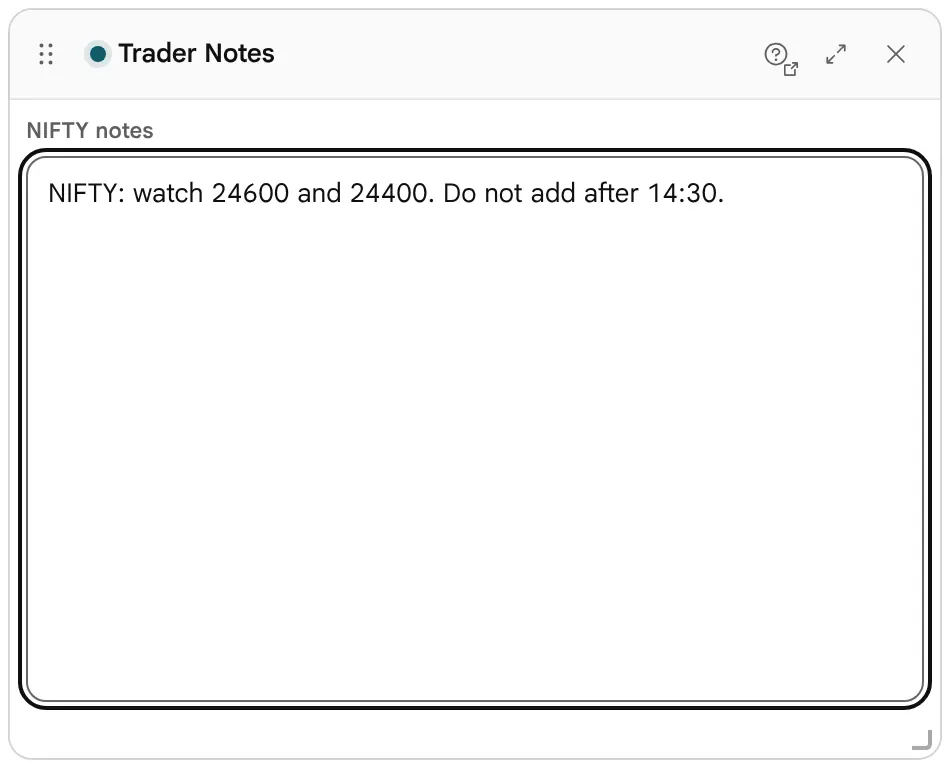
Strike Follow
What does the strike-follow toggle do, which widgets take part, and when is the strike dropped?
Three widgets can share a picked strike. When they follow it, picking a strike in one marks the same strike in the others, so you can follow one strike across the Straddle ladder, Build-up movers and the leaderboard without hunting for it.
How It Works
Pick a row
In one of the three widgets, press a row. In the picture the row for strike 24600 was pressed in the Straddle ladder.
See it in the others
That strike is highlighted in the other two widgets, on both sides where it appears: the Call and the Put row in Build-up movers (if each has a signal) and in the leaderboard (if each is among the largest adds or cuts). A strike that is in none of a widget’s rows is simply not highlighted there.
Pick another to move it
One strike is shared at a time. It stays highlighted until you pick a different strike or change the symbol or the expiry.

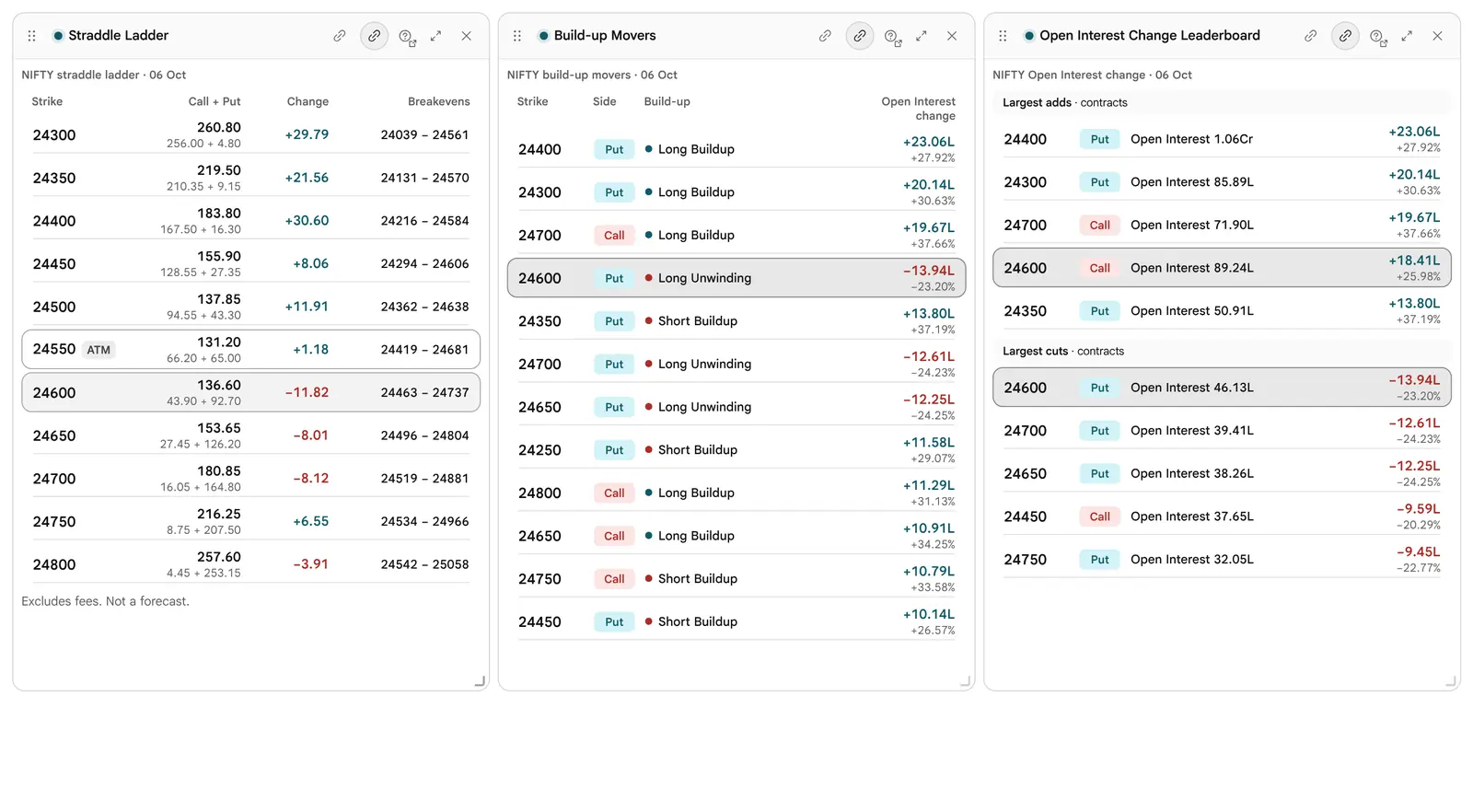
The Toggle
The toggle is a small crosshair inside the symbol and expiry chip in the header of those three widgets; there is no separate chain-link button any more. It is announced as a switch, Follow the picked strike in and the widget’s name. Its tooltip says Follows the picked strike: picking a strike here highlights it in the other widgets that follow. Press to stop. while it is on, and Does not follow the picked strike. Press to follow. while it is off. A widget that does not follow neither receives nor publishes a strike, and its rows become plain text instead of buttons; it keeps showing its own figures. Every widget starts out following.
The choice is now remembered for each widget in this browser (under sahiTerminalUnlinked:v1), so a widget you turned off stays off after a reload, in every layout that holds it.


When the Strike Is Dropped
A strike belongs to one symbol and one expiry. When you change either, the shared strike is cleared in every widget, so a highlight never points at a contract that is no longer on screen. The picked strike itself is not saved: after a reload no strike is shared, although each widget keeps its follow choice.
Customise Inside Widgets
Which widgets have a Customise panel, what does it change, and where are my choices kept?
A widget that is a whole tool has that tool’s own Customise button (a gear) in its header, first among the buttons. The panel is the one the tool’s page has, narrowed to what applies to this widget. For example, a chain widget’s panel has no Simple or Advanced switch, because the widget is already one of them.
| Has Customise | Has none |
|---|---|
| Option chain (Simple and Advanced), Open Interest, Open Interest change, Strike PCR, Max pain, Spurts (both), Heatmap (all three), Put Call Ratio, Straddle, GEX Levels, Implied Volatility, Strategy Builder, Options Scanner | Cockpit strip, Key levels, Market snapshot, Chain insight, Index watchlist, Mini price, PCR chart, Build-up movers, Open Interest change leaderboard, Straddle ladder, Trader notes |
Where Your Choices Are Kept
- In this browser, for that widget. A widget’s choices are stored under its own name, so the Open Interest widget and the Open Interest change widget, built from one page, never share a setting, and neither shares with the tool’s own page.
- Not in the layout. The same widget in two layouts has the same choices, because they belong to the widget and not to the layout. Duplicating a layout does not copy them anywhere; they are already shared. A layout copied as text does not carry them either.
- PCR chart follows the PCR page. It has no panel of its own and takes the strike scope from the PCR page’s Customise choice.
Removing a widget keeps its choices while its kind is still on some saved layout, or can be brought back by Undo or Redo. Once a kind of widget is on no saved layout and in no undo history, the Cockpit forgets its choices after the next successful save, so adding it again later starts from the defaults.
The question each topic answers (7 topics)
- How do I find a symbol, a widget, a layout or an action from the keyboard?
- How does the Cockpit work on a phone and on a tablet, and what is different from a desktop?
- What does the Cockpit show while it is loading, when something is missing, or when the market is closed?
- How can I use the Cockpit before the open, in the first hour, on expiry day and in a positional review?
- What do readers get wrong about the Cockpit, and what should I check before I rely on a number?
- When should I use the Cockpit, and when one of the single pages or another tool?
- What does the Cockpit not do?
The Command Palette and Instrument Search
How do I find a symbol, a widget, a layout or an action from the keyboard?
Press Ctrl K (Cmd K on a Mac), or press Search in the toolbar. One box opens over the Cockpit, in Focus mode as well. Type, and it finds a symbol, a widget, a layout or an action. Press Enter to run the highlighted row. It is the fastest way to change the symbol, to add a widget without opening the Add panel, or to switch layout without reaching for the tabs. Pressing / opens the same box already limited to symbols.

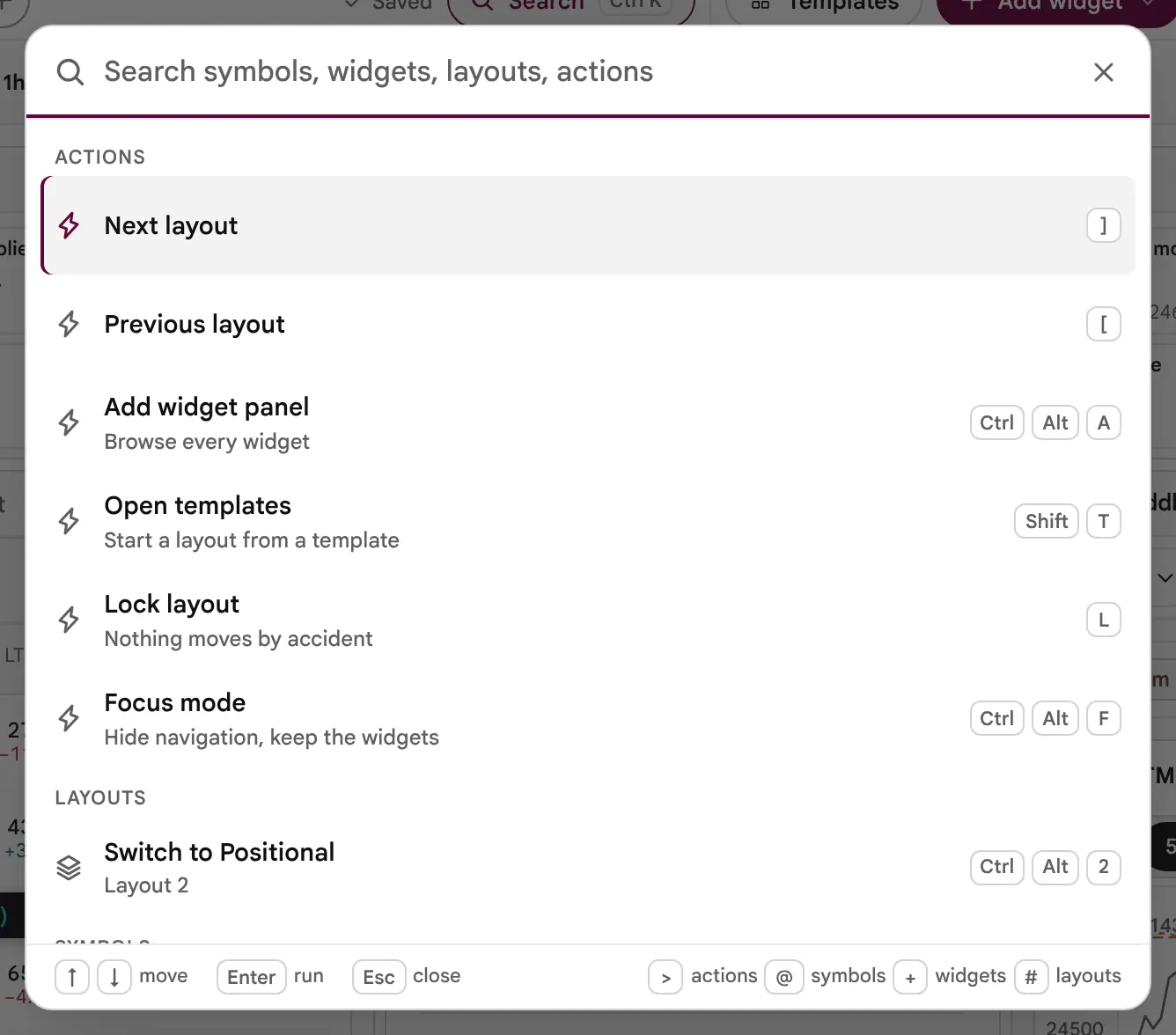
What Is in It
| Group | Rows | Enter does |
|---|---|---|
| Recent | With the box empty, the rows and symbols you used last | Runs the row again |
| Symbols | The index and stock underlyings, ranked as the symbol picker ranks them, so nif finds NIFTY | Changes the symbol for every widget |
| Widgets | One row per widget: Add <widget> when it is not on the layout, Go to <widget> when it is | Adds the widget, or scrolls to it and gives it focus |
| Layouts | Switch to <layout> for each layout, and New layout from <ready-made layout> | Opens that layout, or makes a new one |
| Actions | Fit to screen, Lock or Unlock layout, All layouts, Add widget, Focus mode, Undo, Redo, Toggle theme, Keyboard shortcuts, New layout, Next and Previous layout (when there are several), and Browse all instruments | Does it. Each row shows the key that does the same, where there is one |
Narrowing It with a Prefix
Start the box with one character to look in one group only; a small tag at the right of the box then names the group. > actions, @ symbols, + widgets, # layouts. +pcr lists only the widgets that match pcr, # lists the layouts, >fit finds Fit to screen.
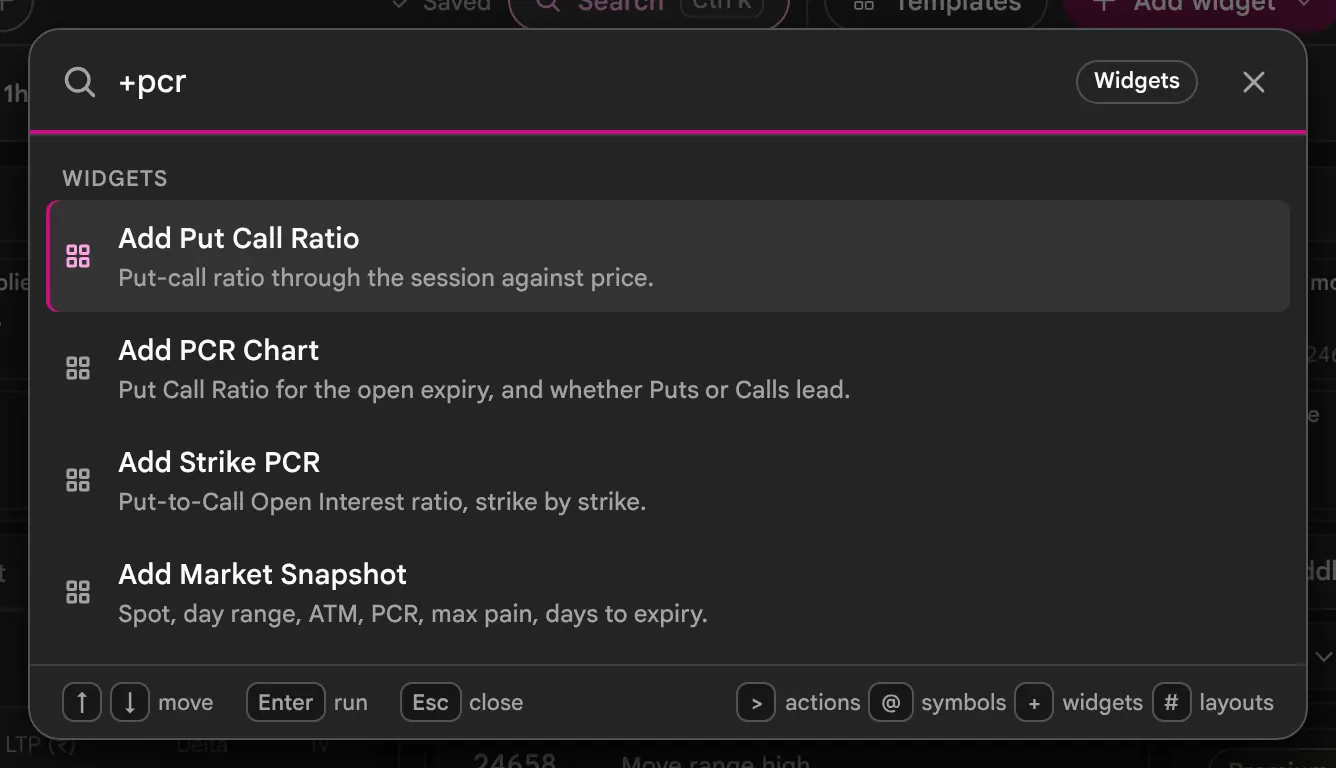
How It Matches
- Every word you type must match something in the row: its name, the words it is known by, or its description.
- Ranking. A word that starts a name beats one found in the middle of it. Short names count: pcr finds Put Call Ratio and oi finds the Open Interest widgets. For a word of three letters or more, letters found in order are the last resort.
- Symbols rank a little below an equally good Cockpit row, so oi offers the Open Interest widgets before any symbol that contains those letters.
When a Row Cannot Run
A row that cannot run now stays in the list, so you learn that it exists. When it is highlighted it says why: Nothing to fit yet., Already fitted to the screen., Unlock the layout to fit it., Unlock the layout to add widgets., Nothing to undo., Nothing to redo., Delete a layout to make room for another., or Up to 12 layouts. Delete one to make room. Pressing Enter on it shows the reason and keeps the palette open.
Keys Inside the Palette
- Up and Down move through the results, and wrap round at the ends. Ctrl Home and Ctrl End go to the first and the last.
- Enter runs the highlighted row and closes the palette. Esc, the X, a press outside the box, or Ctrl K again closes it without running anything, and focus goes back to where it was.
- Focus stays in the box while the highlight moves, and a screen reader hears each row and the number of results.
The Other Way In: the Symbol Picker
The Cockpit also uses the app’s shared symbol picker. Press the symbol in the toolbar, the chip in any widget’s header, or type any letter other than T, L and M with nothing focused (the letter starts the search). Use the arrow keys to move through matches, press Enter or click a result, and press Esc to close and return focus. Either way, choosing an instrument updates the shared symbol that every widget follows. Expiry has its own menu in the toolbar, and layouts and widgets have the tabs and the Add panel; the palette is a shortcut to all of them, not a replacement.
Reading It on a Phone
How does the Cockpit work on a phone and on a tablet, and what is different from a desktop?
At 768 pixels wide or less the Cockpit does not draw the grid. A twelve-column grid on a 390-pixel screen would be twelve cells of about 20 pixels. Instead it shows the same widgets as tabs, like a mobile browser: one tab per widget, in the order they read on the grid (top to bottom, then left to right), and the open widget fills the screen and scrolls on its own. Only the open widget is mounted, so the others cost nothing until you open them.
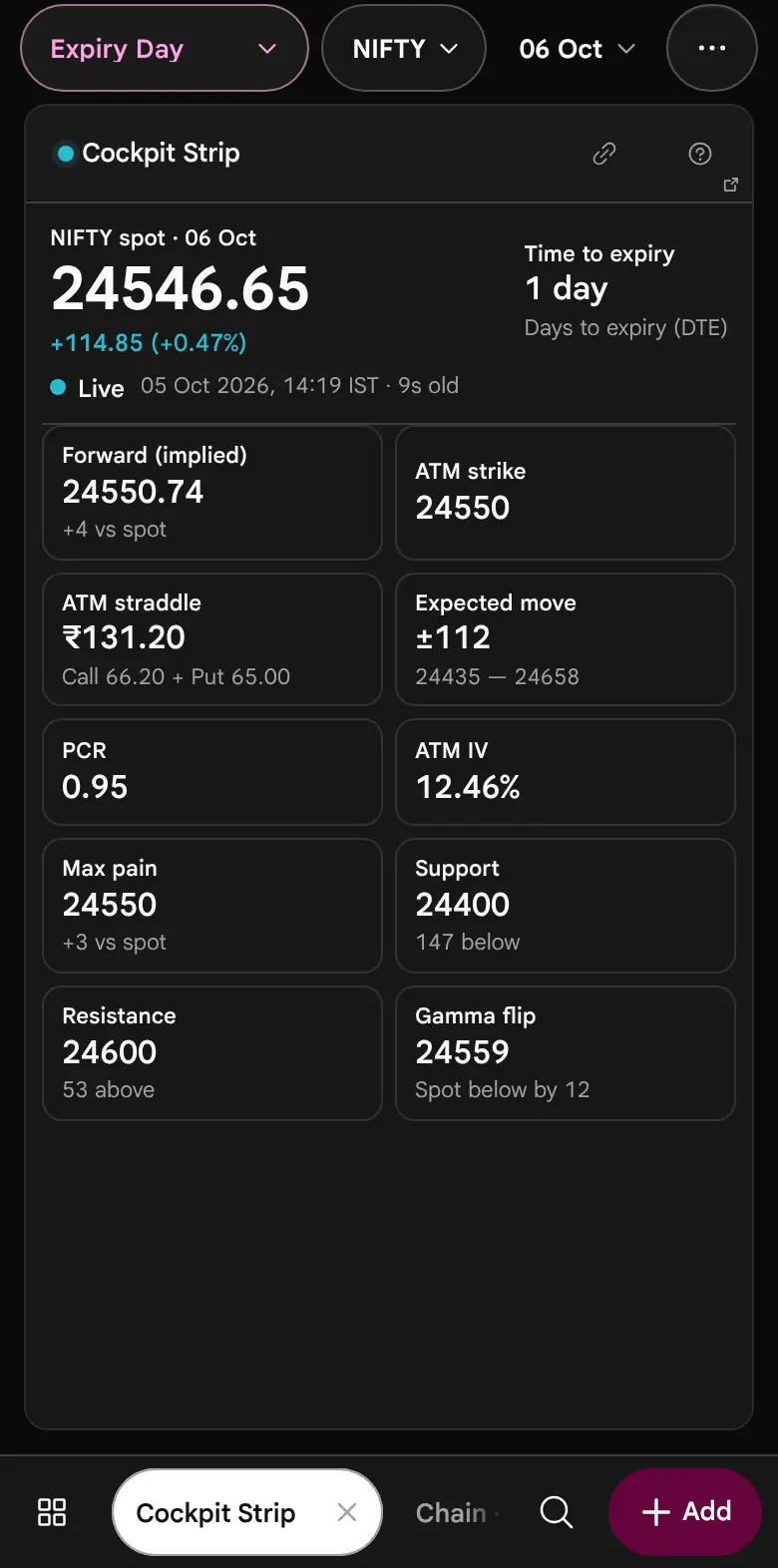

The Header and the Bottom Bar
| Where | What it holds |
|---|---|
| Header, one row | The layout button (the open layout’s name, read whole, and a caret; it opens the Layouts sheet); the symbol button (the symbol and a caret; it opens the symbol picker); the Expiry chip; and the More button (three dots), which opens the More sheet |
| Under the header | Only when there is something to say: Not saved if the browser refuses storage, and Undo <change> and Redo <change> buttons |
| The open widget | Fills the screen. Its header keeps the status dot, the title, the symbol chip (with the strike-follow toggle on three widgets), Customise where it has one, and Help (in a ⋯ menu on a touch screen); it has no grip, maximise, size or remove button |
| Bottom bar | The widget tabs (the open tab carries an × that removes it, hidden while the layout is locked); a counter, for example 2 of 5, when there is more than one tab; and Add, which opens the Add widget panel as a sheet. The Layouts and symbol buttons are not repeated here, because the header already has them. The bar keeps clear of the phone’s rounded corners and home bar |
| On a desktop | On a phone |
|---|---|
| Layout tabs, and Ctrl + Alt + 1 to 9 | The layout button and the Layouts sheet |
| The grid: drag, resize, the Size menu, maximise, Fit | None of these. One widget at a time, full width |
| Add: the panel at the right | The Add button in the bottom bar, opening a bottom sheet |
| Remove from the frame, or Delete | The × on the open tab (not shown while locked) |
| Undo and Redo in the toolbar | The same two buttons, in a row under the header |
| Lock, View, All layouts | In the More sheet (Lock, Spacing) and the Layouts sheet (Templates). Title bar, gap, Auto-fit, copy and paste are desktop choices |
| The command palette | None. The symbol picker and the sheets |
| Keys, Focus mode, the shortcuts dialog | An attached keyboard supports the symbol picker, navigation, layouts, adding widgets, undo and help. Focus mode remains desktop-only |
| The market status and data time in the toolbar | The chain’s observation time is the first line of the More sheet; the countdown is not shown |
The Sheets
The Layouts, More and Add widget sheets rise from the bottom over a dimmed screen. Each has a bounded height and scrolls inside itself, stays above the on-screen keyboard, and closes with Esc, its × or a tap on the dimmed screen. Only one is open at a time: opening Add widget closes the others.
- Layouts. A short list of your layouts, each with its number of widgets and the open one ticked; one tap switches. New layout and Templates (the gallery) are pinned at the foot. At 12 layouts both are greyed and the foot says Up to 12 layouts. Delete one to make room.
- More (its button’s tooltip reads Layout options). The chain’s observation time; the Not saved note when it applies; Lock layout; Spacing (Comfortable or Compact); then the open layout’s own actions: Rename (the layout button turns into a text box), Duplicate, Clear all widgets, Reset to a starter (a list of every ready-made layout) and Delete layout, which asks twice (Delete “name”? Press again).
- Add widget. The same panel as on the desktop, as a sheet. Choosing a widget closes the sheet and opens that widget’s tab.


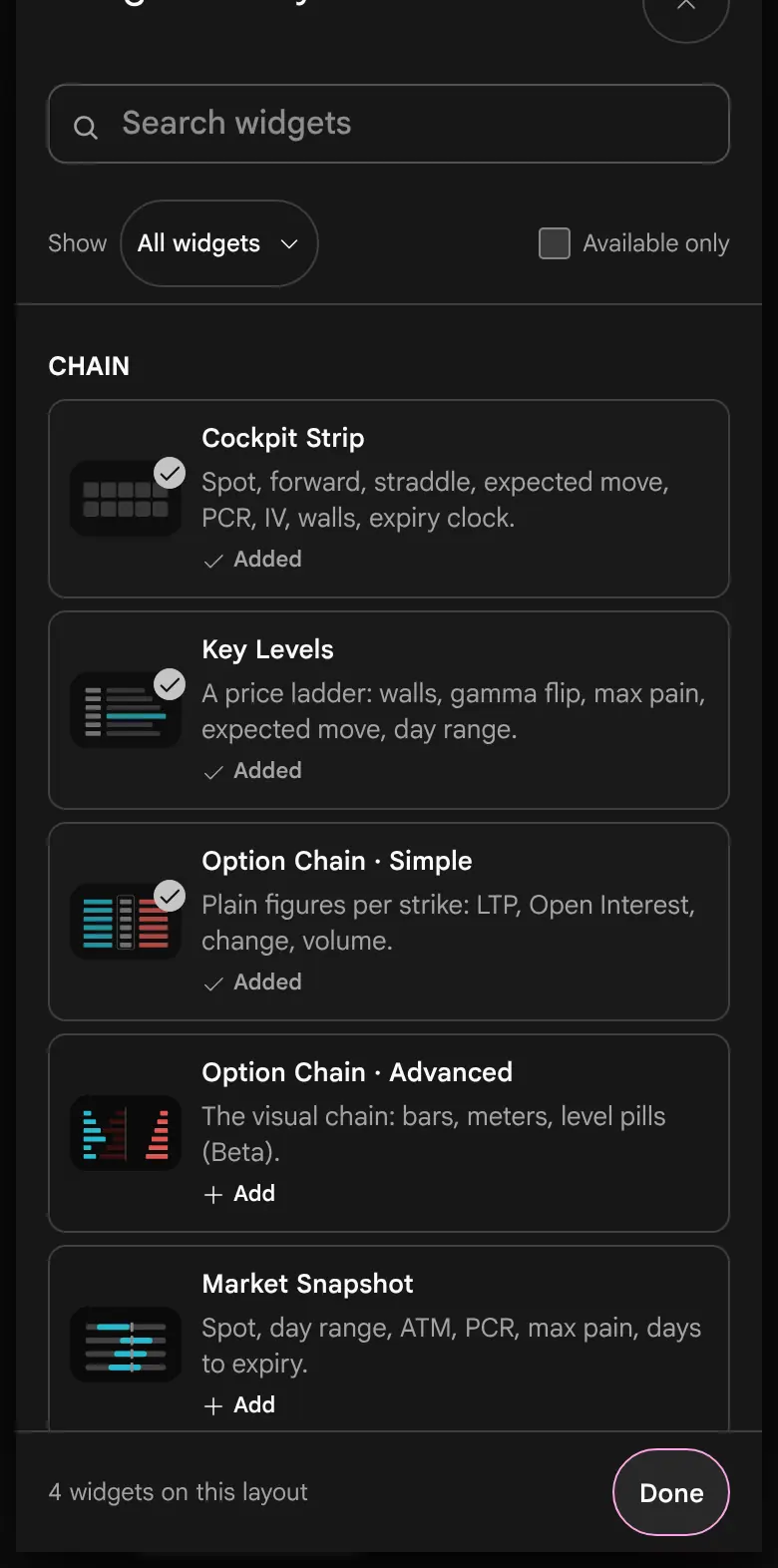


Switching Tabs
- Tap a tab. With a keyboard, Left and Right on the strip move between tabs, and Home and End go to the first and last. The N of M counter says where you are.
- Swipe the body sideways: at least 64 pixels, mostly sideways, in under 700 milliseconds. A swipe that starts inside a text box, a menu, a chart, a slider, a dialog or anything that scrolls sideways is left to that control, so charts keep their own panning.
- The strip fades at an edge only while more tabs remain beyond it.
- The open tab is remembered per layout in this browser, under its own key (
sahiTerminalTab:v1), so it survives a reload. If the remembered widget is gone, the first tab opens. Adding a widget opens its tab; removing one lands on the neighbouring tab.
On a Tablet: Two Columns
Between 769 to 1100 px wide the Cockpit draws the layout in two columns. The wide widgets (the option chains, the Cockpit strip, the Strategy Builder and the Options Scanner) take the full width; the rest pair up side by side in reading order, each pair as tall as its taller widget. This is a way of showing the layout only: the saved desktop arrangement is untouched, and moving, resizing and Fit wait for a desktop. On a touch screen every toolbar button, the expiry picker, the layout tabs and every header control are 40 to 44 pixels, whatever the density or title bar.
Using This Guide on a Phone
Each picture in this guide is a real capture. A picture wider than the screen scrolls sideways inside its frame (the frame says Swipe sideways to see all of it); the Enlarge button opens it full size. The guide’s contents panel lists every section.
States: Loading, Empty, Unavailable, Closed
What does the Cockpit show while it is loading, when something is missing, or when the market is closed?
The Cockpit prefers to say what is wrong over drawing a plausible number. These are the states, in the words the app prints. Every widget shares the same frame, and the loading and error states share one look, so a widget that has no data yet looks finished rather than broken, at any size the grid allows.
| State | What you see | What it means |
|---|---|---|
| Loading | A calm placeholder of grey bars, in every widget (Market snapshot says Reading the chain…). A widget is shown once its contents have settled, at most 4 seconds after it opened, so nothing shuffles on screen | The chain or the tool has not arrived yet. Nothing is drawn from an older reading |
| No expiries | No expiries available for this index; the Expiry control shows a dash | The expiry list could not be loaded, so there is nothing to read. Try another symbol or reload |
| Chain unavailable | The widget’s name with : not available, and the reason the app has, for example No historical snapshot data found for NIFTY | The expiry list loaded but the chain did not, and there is no saved snapshot to fall back on |
| A figure is missing | One phrase everywhere: a dash with Not reported under it in the Cockpit strip, Not reported in a Market snapshot reading, Previous close not reported beside a price, Day range not reported in Mini price, Data time not reported in the toolbar | The chain does not carry that figure (no previous close, no usable pair for the forward, no Open Interest near spot). It is not zero |
| Market closed | Market closed and Closing data with the time in the toolbar (for example Market closed · Closing data 19 Oct, 15:40 IST); Closing data · 19 Oct, 15:40 IST on the data line of the strip and Key levels; the dot in each frame unlit, its tooltip saying the figures are the last session’s | What you see is the last session’s close, not today. It is not called stale |
| A saved session | Saved session and the time on the data line | The app is reading a saved day rather than the market, for example the delivered build when it is offline |
| A tool fails to open | Could not read <Title>., Your other cards are still available. and a Try again button | One widget failed; the rest of the Cockpit is unaffected. If the failure is only a stale file after an update, the page reloads itself once |
| Storage refused | Not saved in the toolbar (on a phone, under the header and in the More sheet) | The layout lasts only until the tab is closed (saving) |
| Saved layouts unreadable | A one-line notice under the toolbar: Your saved layouts could not be read, so the Market desk layout is open. A copy of the old data is kept in this browser. and Dismiss | The old value was copied to sahiTerminal:v1:unreadable before Market desk opened (where layouts are kept) |
| An empty layout | The gallery, headed Start from a layout, inside the canvas | Pick a card, or use Add |


Routines
How can I use the Cockpit before the open, in the first hour, on expiry day and in a positional review?
These routines show one way to use the screen. They read price and positions; they predict nothing and recommend nothing. Each begins with a layout, then says what to read and what the reading does not tell you. Write levels as conditions (“above”, “below”, “at”), not as forecasts. The figures below are quoted only to show where to look: those from the pictures are the invented market of 5 October, and the walls and the two PCR figures are the reading of NIFTY, expiry 27 Oct, after the close on 19 Oct (not in a picture yet).
Before the Open (about 8:45 to 9:15)
Layout: Index overview, or Positional.
- Check what the screen means. The toolbar says Market closed and Closing data with the time of the last close, for example Closing data 19 Oct, 15:40 IST. Every figure is the last session’s close, not this morning’s.
- Read the levels as they stand. In Key levels, note the Call wall and the Put wall, the gamma walls, max pain and the expected range. On the 19 Oct reading the walls were 23000 and 22700. Where one row carries several tags, several sources agree on that price.
- Check the Index watchlist. It shows where the other indices stand against their previous close, with one time line at its foot.
- Write a note in Trader notes: the three or four levels that matter today and how price is placed against them.
It does not tell you where the open will print, or which side the day will favour. Open Interest is the previous session’s, and published late.
The First Hour (9:15 to about 10:15)
Layout: Scalper, or Expiry day.
- Watch the data line first. Live means the chain’s snapshot is under 90 seconds old. In the first minutes lean on price and premium before Open Interest.
- Place price in its range. Mini price shows where spot sits between the day’s low and high; in the pictures spot 24546.65 sits between 24468 and 24560. A narrow range early is a fact about the first hour, not about the day.
- Read the straddle. The ATM straddle (₹131.20 in the pictures) and the expected move (±112) are what the options are pricing for the move. If the day’s range is already near the expected high or low (24435 and 24658), the options have been more or less right so far.
- See where positions are building. Build-up movers and the leaderboard show the strikes where Open Interest was added or cut and with what signal (in the pictures 24400 Put, Long build-up, an Open Interest change of +23.06L, where L stands for lakh contracts). Pick one in the Straddle ladder and see it in the others.
It does not tell you who is on which side of a position, or whether a build-up is a bet or a hedge.
Expiry Day
Layout: Expiry day (the strip, the Simple chain, Key levels and the Straddle).
- Confirm the day. The strip’s Time to expiry cell shows the hours and minutes left in the last 24 hours, or Expiry day. The toolbar counts down to 15:40, in minutes and seconds in the last hour.
- Watch premium, not just price. In the Straddle widget the ATM straddle decays through the day. Compare it with how far price has actually travelled from the open.
- Use the levels as references. Spot against max pain (24550, +3 from spot in the pictures) and the Call and Put walls show where positions are concentrated. They are not forces on price and not limits.
- Mind the gamma flip. In the pictures spot is 12 points below the gamma flip 24559. That is a model level that rests on an assumption; read it beside price, not instead of it.
- Maximise the chain (M) when you need the strikes near spot at full size, then restore it. If the layout has become ragged, press T to fit it to the screen.
It does not tell you where the expiry will settle. Premiums that are near zero move in large percentages on small amounts; read them in points.
The Positional Review (evening, or the weekend)
Layout: Positional (Open Interest, Put Call Ratio and Implied Volatility under the strip).
- Read the walls by the day. In the Open Interest widgets use the Day window: where Open Interest was added or closed, and whether the walls and the support and resistance zones moved up or down since yesterday.
- Read the ratio against 1.00, with its scope. The PCR widget draws it through the day. On the 19 Oct reading the strip said 0.88 (Whole expiry) and the PCR chart 0.92 (ATM ±20, 41 strikes), against the lines at 0.97 and 1.03. The two count different strikes; each says which beside its figure.
- Read volatility. The Implied Volatility widget’s Strikes, Expiries and History views show the skew, the term structure and where today’s level sits in its own history.
- Move to the next expiry. Change the Expiry in the toolbar and read the same layout for it; every widget follows.
- Write the note for each symbol, then switch symbol and repeat.
It does not tell you the direction of the next session. Evening values are the last session’s close, and the toolbar and the data lines say Closing data.
Mistakes and Traps
What do readers get wrong about the Cockpit, and what should I check before I rely on a number?
- Reading Forward (implied) as a futures price. It is worked out from Call and Put prices. The Cockpit reads no futures quote (why).
- Comparing two Put Call Ratios that count different strikes. On the 19 Oct reading the strip said 0.88 and the PCR chart 0.92 for the same moment. The strip counts the whole expiry; the chart counts the strikes around the money (ATM ±20, 41 strikes) unless the PCR page’s Customise says otherwise. Neither is wrong; they are different ratios, and each now prints its scope beside the figure.
- Confusing the walls with the gamma walls or the zones. The Call wall and the Put wall are the strikes with the most Open Interest near the money (the rule). The Call and Put gamma walls come from the Gamma Exposure model, and the Support and Resistance zones on the Open Interest widgets come from a scored band. They can name different strikes.
- Taking “Live” to mean real time. The data line judges the chain’s snapshot, which is fetched again about every 5 seconds. It is polled, not streamed.
- Reading “Closing data” as today’s market. After the close and before the open, every figure is the last session’s close. The toolbar says Market closed and Closing data with the time, and the frame dots are unlit.
- Treating a level as a promise. The walls, the gamma walls, max pain and the expected range are descriptions of positions and of option prices. Price can pass through any of them, even where several agree on one row of Key levels.
- Expecting one widget to show another symbol. There is one symbol and one expiry for the whole Cockpit. To compare two symbols, switch between them, or use the Index watchlist for the indices.
- Expecting strike follow in every widget. Only the Straddle ladder, Build-up movers and the Open Interest change leaderboard take part, and a widget you turned off stays off after a reload (strike follow).
- Trusting Lock to freeze everything. It stops dragging, resizing, the Size menu, removing and Fit. The Add panel and the layout menu still work.
- Expecting your layouts on another device by themselves. They live in this browser only. Copy a layout as text and paste it in the other browser (where layouts are kept).
- Deleting a layout you wanted. A deleted layout cannot be undone, although moves, resizes, removals and Fit can (up to 50). Duplicate it, or copy it as text, first if you may want it back.
- Picking a ready-made layout and losing the arrangement. In the first-visit strip, on an empty layout and in Reset this layout to, a ready-made layout replaces the open layout (Undo reset takes it back). Under All layouts it makes a new one instead.
- Expecting a setting to belong to the arrangement. A widget’s Customise choices belong to the widget, so they are the same in every layout that holds it. The View choices belong to the layout, but Undo does not take them back.
- Typing a symbol with nothing focused. Most letters open the symbol picker, but T fits the layout, L locks it and M maximises, and / opens the palette on symbols. Add widget and Focus mode need Ctrl + Alt. If you meant to type in a box, click the box first.
Which Tool When
When should I use the Cockpit, and when one of the single pages or another tool?
| Your question | Use |
|---|---|
| I want to see the chain, the levels and the straddle together on expiry day | The Cockpit, Expiry day layout |
| I want every column of the chain explained | The Option Chain guide and its page |
| I want to build a multi-leg position and read its payoff | The Strategy Builder guide; in the Cockpit, the Strategy desk layout |
| I want to scan every underlying for what moved | The Options Scanner guide |
| I want to understand where positions stand and where they were added or closed | The Open Interest guide; Open Interest Spurts; Open Interest Heatmap |
| I want the ratio of Put to Call Open Interest explained | The PCR guide |
| I want to understand max pain | The Max Pain guide |
| I want gamma levels and the flip explained | The Gamma Exposure guide |
| I want straddle premium and expected move explained | The ATM Premium guide |
| I want volatility, skew and term structure explained | The Implied Volatility guide |
| I want my own notes and levels beside the numbers | The Cockpit’s Trader notes widget |
What the Cockpit Does Not Do
What does the Cockpit not do?
- It places no orders. It is a reading screen. It sets no alerts and sends no notifications.
- It has no account. Nothing is kept for you outside this browser.
- It hands out no files. A layout cannot be saved to a file or loaded from one; it travels only as text, copied and pasted through the View menu.
- It cannot show two symbols or two expiries at once. One of each, for every widget.
- It reads no futures price in its own readings. Forward (implied) is derived from option prices.
- It does not stream. The chain is fetched again about every 5 seconds while the market is open.
- It holds at most 12 layouts and each widget once per layout.
- It does not shrink a row below 24 pixels. A layout too tall for the window at that floor scrolls.
- It undoes 50 changes, no more. The history is not saved, so a reload forgets it, and a deleted layout cannot be undone.
- On a phone it has no grid, no Fit, no Size menu, no Focus mode and no command palette. On a tablet it shows the layout in two columns and does not arrange it.
- It does not forecast. A level or a word on the screen says where positions or prices stand, not where they go.
What We Have Not Verified
Which statements in this guide could we not confirm, and what should I check myself?
Everything in this guide about how the Cockpit behaves was read from the app’s own program code, as it stands after the redesign of 19 October 2026, or taken from a picture of the app (all taken before that redesign). The layout, lock, template and key behaviours were tried in a browser before the redesign. The items below are the ones we could not confirm. Where the guide touches one of them it links here instead of stating it as fact. We state no exchange rule that we could not read from an official source.
| What | What we do not know | What you can do |
|---|---|---|
| How often the data itself changes | The browser fetches the chain again about every 5 seconds while the market is open and the tab is visible; we read that from the program. How often the figures at the source change, and whether every fetch brings new ones, we have not confirmed. The index levels are fetched about every 60 seconds; how old they are at the source we have not confirmed. | Watch the data line and the snapshot time it prints. |
| How the saved snapshots are made and how many are kept | The Open Interest, Spurts, Heatmap, PCR and Straddle widgets draw from the day’s saved snapshots. The saving is done outside this program, so we have not confirmed that it runs every minute, what it does when it is late, or how many sessions it keeps. | Read the tool’s own page and its guide for its time step and what it says when snapshots are missing. |
| The derivatives close at 15:40 | The toolbar counts down to 15:40 and says Market open from 9:15. These are the app’s own settings, written for the changes effective 3 August 2026. We could not open an exchange circular to confirm them, so they are not stated here as verified rules. | Read the exchange’s own notice for session times. |
| Which days the market is closed | The Cockpit takes holidays from a list kept inside the app. We did not compare it with the exchange’s calendar. The program’s own note says the list needs updating each year and that after 2027 holidays would be treated as trading days. | Check the exchange’s holiday calendar before relying on Market open, Closing data or the countdown. |
| The gamma levels | The GEX walls and the gamma flip come from a model that assumes something about who holds the contracts. No exchange data confirms the assumption. The Gamma Exposure guide describes it. | Read those levels as the model’s, and beside price. |
| The interest rate behind Forward (implied) | Forward (implied) carries the Call minus Put difference to expiry at an interest rate that is a constant inside the app. We do not state its value, and we have not compared it with any market rate. | Do not treat the forward as an exact price; it is a derived level. |
| How long a widget’s own choices are kept | A widget’s Customise choices are stored in this browser under the widget’s name. The program forgets the choices of a kind of widget that is on no saved layout and in no Undo or Redo history, after the next successful save. We read that from the code; we did not watch a browser’s storage over days of use. | If a widget looks odd after adding it back, clear the site’s data in the browser. |
| Keyboard, touch and screen-reader behaviour on every device | We read the key handling, the palette, the tab strip, the swipe rule, the ⋯ menu on touch screens and the tablet’s two-column view (769 to 1100 px) from the program. The phone layout was looked at, at 390 and 360 pixels, before the redesign. We have not tried the redesigned Cockpit on a real phone or tablet, in every browser, or with a screen reader, and we did not exercise the swipe on a touch device. | If a control does not respond as described, use the button on the screen. |
| Pictures taken before the redesign | On 19 October 2026 the Cockpit was redesigned: one 40 px toolbar (layout tabs, symbol, expiry with days to expiry, market status with the data time, Search, Undo and Redo, Add, Fit, Lock, View) in place of two rows and a status bar; rows that fill the window; Fit in place of Tidy up; resizing from every edge; the Size menu; the larger View menu; a 32 px widget header with the strike-follow toggle inside the chip; flat widget bodies; the strip’s Call wall, Put wall and PCR scope; one row per price in Key levels; sentence-case names; and a phone bottom bar with an N of M counter. Every picture in this guide was taken on the invented market on 5 October, before that, and none has been retaken, so each still shows the earlier screen: The first visit: Market desk and the layouts strip, The Expiry day layout, The bar, before the redesign, One widget frame, A locked layout, Focus mode, The shortcuts dialog, The + menu, The layout menu, Renaming a layout, Delete asks twice, Twelve layouts, A ragged layout, After the earlier Tidy up, Dragging a widget, A maximised widget, The View menu, before the redesign, Compact density, The gallery, The Add widget panel, docked, The Add widget panel, Searching: pcr, Searching: bond, The Cockpit strip, Live, Delayed, Stale, Key levels, Option chain · Simple, Option chain · Advanced, Market snapshot, Chain insight, Index watchlist, Mini price, Open Interest, Open Interest change, Strike PCR, Max pain, Spurts · Rotation map, Spurts · Top moves, Heatmap · Open Interest, Heatmap · Build-up, Heatmap · Change, Put Call Ratio, Build-up movers, Open Interest change leaderboard, PCR chart, Straddle, GEX Levels, Implied Volatility, Straddle ladder, Strategy Builder, Options Scanner, Trader notes, Strike 24600 followed, Strike follow off, The command palette, Typing +pcr, The phone view at 390 pixels, The Layouts sheet, The More sheet, Add widget, as a sheet, At 360 pixels, Loading, No expiries, Chain unavailable. Pictures of parts that are gone altogether (the second row, the status bar and its phases, the Undo tidy and Redo tidy buttons) were taken out of the guide until they are retaken. | Trust the text where it differs from a picture. The pictures are retaken with scripts/guides/shot-trader-cockpit.cjs. |
| The figures from one reading of the redesigned Cockpit | The Call wall 23000, the Put wall 22700, the whole-expiry PCR 0.88, the PCR chart’s 0.92 (ATM ±20, 41 strikes) and the line Closing data · 19 Oct, 15:40 IST come from one reading of NIFTY, expiry 27 Oct, after the close on 19 Oct, reported when the redesign was checked. They are not in a picture yet, and the guide’s build cannot check them against a capture as it checks the other figures. | Use them to learn what each cell says, not as levels; read the Cockpit itself for the current figures. |
| Adding a widget while the layout is locked | Before the redesign we added a widget from the Add panel with the layout locked, and it worked. The code still allows it after the redesign, but we have not tried it again. | If Add does nothing while locked, unlock the layout first. |
| Copying and pasting a layout as text | Copy layout as text and Paste a layout use the browser’s clipboard, and fall back to a box to copy from or paste into when the clipboard is refused. We read that from the code; we did not try it in every browser or between two devices. | If Paste a layout does nothing, paste the text into the box it shows, or check that the text begins with the layout’s own marker. |
| How each widget behaves at every size | The rules inside a widget (no inner cards, size tiers, whole readings dropped) are read from the style sheets and were checked on a few widgets at a few sizes. We have not tried every widget at every size the grid allows. | If a reading is cut rather than dropped, make the widget larger or use Maximise. |
| Expiry weekdays, lot sizes and which expiries exist | The pictures use invented expiries (6, 13 and 27 October 2026) and a lot size taken from the invented market. We state no exchange rule about which weekday an expiry falls on, or which contracts are weekly or monthly, or lot sizes. | Read the expiry list in the Expiry menu and the contract specification on the exchange’s website. |
| General statements about options and traders | Statements such as what Open Interest, a straddle or a build-up means are textbook descriptions. We did not measure them from the Cockpit’s data, and we did not test any level or word against later price moves. | Treat them as background, and check the figures the widgets print. |
| The other tools’ own rules | The Option Chain, Open Interest, Spurts, Heatmap, PCR, Straddle, Gamma Exposure, Implied Volatility, Strategy Builder and Options Scanner widgets are the tools themselves. This guide describes how they sit in the Cockpit, not each tool’s own calculations. | Open the guide named under each widget. |
Glossary
What does each word mean?
- Trader Cockpit
- The page at /terminal: a canvas on which you place widgets, each of them one of the app’s own tools, so that several can be read at once. Every widget follows the one symbol and the one expiry chosen in the toolbar. The rail and the dock call it Cockpit; its own toolbar calls it Trader cockpit.
- Widget
- One box on the canvas. It is either a whole tool of the app shown in one fixed view (for example Open Interest, Straddle or the Strategy Builder) or a small reading made only for the Cockpit (the Cockpit strip, Key levels and a few more). There are 28, and each can be on a layout once.
- Layout
- A named set of widgets with a place and a size for each. A browser holds up to 12. A layout keeps no market data: it keeps only how the screen looks.
- Toolbar
- The one row, 40 px tall, above the canvas: layout tabs, the symbol, the expiry, the market status with the data time, Search, Undo and Redo, Add, Fit, Lock and View. It replaced the earlier bar, the second row of quick controls and the status bar.
- Layouts strip
- The strip under the toolbar on a first visit, headed Start with a layout: six layouts as small drawings, More layouts and a dismiss button. The Cockpit has already opened on Market desk; the strip only offers other layouts, and it closes on the first change to the layout.
- Ready-made layout
- A layout to begin from, such as Expiry day or Scalper (the earlier screen called these templates or starters). It is a starting point, not a locked screen: every widget can be moved, resized or removed afterwards. All layouts opens the gallery of them.
- Grid
- The invisible 12-column frame that every widget snaps to. A widget’s width is a number of columns and its height a number of rows; the height of a row is worked out so that the layout fills the window, down to 24 pixels.
- Frame
- The header and border around a widget, the same on every widget: the grip, the title with the status dot, the symbol and expiry chip (with the strike-follow toggle inside it on three widgets), then Customise (on a whole-tool widget), Size, Help, Maximise and Remove. The header is 32 px tall, or 26 pixels with the slim title bar; on a touch screen Help, Maximise and Size fold into one menu.
- Fit
- The button (or the T key) that packs the widgets of a layout into even rows that fill the screen, giving up height before width. Undo takes it back. Auto-fit, in View, does it after every add, remove and resize. It replaced Tidy up.
- Size menu
- The Size button in a widget header: Small (its smallest size), Medium (its standard size), Large (half as big again), Full width and Full height. A size never pushes the layout off the screen.
- Lock
- A switch that freezes the arrangement on the canvas: no dragging, no resizing, no Size menu, no removing and no Fit, and the controls for them disappear. It is one switch for every layout.
- Maximise
- A widget enlarged to fill the canvas, by its button, a double-click on its header or the M key. The other widgets are set aside; Esc restores it.
- Focus mode
- Ctrl + Alt + F, or Focus mode in View, on a desktop. The toolbar keeps the symbol, the expiry, the market status, Search and View, but the layout tabs and the arranging controls step aside for an Exit focus button, and the widgets cannot be moved.
- Command palette and instrument search
- The command palette is one box, opened with Ctrl K (Cmd K on a Mac) or Search, that finds symbols, widgets, layouts and actions; the prefixes > @ + # narrow it, and / opens it on symbols. The instrument search is the shared symbol picker, opened from the symbol in the toolbar, a widget chip, or by typing a letter. Choosing an instrument in either updates all Cockpit widgets.
- Density
- How tight the layout is drawn: Comfortable (the default: 8 px gap and the normal title bar) or Compact (a 4 px gap and the slim title bar). It is a View choice kept per layout in this browser, not part of the arrangement.
- Strike follow
- A strike you pick in one of three widgets (Straddle ladder, Build-up movers, Open Interest change leaderboard) is highlighted in the others that follow it. The crosshair toggle in each one’s header chip turns following off or on, and the choice is remembered for that widget. The strike is dropped when the symbol or the expiry changes.
- Spot
- The current price of the underlying, for example NIFTY. It is not the price of any futures contract.
- Forward (implied)
- The price of the underlying that the Call and Put prices of the open expiry imply through put-call parity: the strike plus Call minus Put, carried to expiry at the app’s interest rate. It is worked out from option prices. It is not a futures quote and the Cockpit reads no futures price.
- At the money (ATM)
- The strike nearest the current price of the underlying.
- Straddle
- A Call and a Put at the same strike. The ATM straddle premium is the ATM Call price plus the ATM Put price.
- Expected move
- The ATM straddle premium times 0.85. It is the app’s own rough proxy for how far the price is priced to travel by expiry; it is a convention, not a forecast.
- Open Interest
- The number of contracts at a strike that are still open: bought and sold but not yet closed or expired. It counts positions, not trades.
- Put Call Ratio (PCR)
- Put Open Interest divided by Call Open Interest. Above 1.00 there are more Put contracts open than Call contracts. It describes how open positions are split; it does not say who holds them.
- Call wall and Put wall
- The Call wall is the strike at or above spot with the most Call Open Interest, and the Put wall the strike at or below spot with the most Put Open Interest, both read within the 15 strikes around the money. The same rule names them on the Open Interest page and the Option Chain. They are reference levels drawn from positions, not promises that price will stop there, and not the same as the gamma walls.
- Call gamma wall, Put gamma wall, Gamma flip
- Levels from the Gamma Exposure model: the strike where the model’s gamma is largest on the Call side (Call gamma wall) and on the Put side (Put gamma wall), and the price at which the model’s net gamma changes sign (gamma flip). The model rests on an assumption about who holds the contracts that no exchange data confirms.
- Max pain
- The strike at which all option buyers together would be paid the least if the expiry settled there. It is worked out from Open Interest over every strike, and it is a level read from the book, not a prediction.
- Build-up
- The app’s label for how a contract’s premium and Open Interest moved together since the previous close: Long build-up, Short build-up, Short covering or Long unwinding (No clear pattern when there is none). The same words are used everywhere in the app. It names what happened. It does not say who is on which side.
- Snapshot
- A saved reading of the option chain at one moment. The Open Interest, Spurts, Heatmap, PCR and Straddle widgets are drawn from the day’s snapshots.
- Live, Delayed, Stale, Closing data
- The data line of the Cockpit strip and Key levels. While the session runs it compares the clock with the time of the chain’s snapshot: up to 90 seconds old reads Live, up to 600 seconds Delayed, older Stale. When the market is closed it reads Closing data and the time, because the last close is the current reading. It judges the chain’s snapshot, not the Open Interest delay.
- Market status
- The toolbar’s word for the time of day: Market open, with the time left to the 15:40 close, from 9:15; Market closed at any other time. Beside it, the data time. The times are the app’s own settings.
- A widget’s own choices
- What you set in a widget’s Customise, such as columns or a time window, is kept for that widget in this browser, apart from the same tool’s own page and from every other widget.
- Expiry
- The date on which an option contract ends. The Cockpit reads one expiry at a time; every widget follows it.
- Strike
- The fixed price named in an option contract. An option chain lists one row per strike, with the Call on one side and the Put on the other. The page writes Call and Put; the exchange codes CE and PE mean the same.
Questions Readers Ask
What do readers ask most?
What is the Trader Cockpit?
The Trader Cockpit is a page on which you place the app’s tools, such as the option chain, Open Interest, the Put Call Ratio, the straddle and implied volatility, as widgets that share one symbol and one expiry. There are 28 widgets, and you arrange them into named layouts that fill the window. It adds no new market data and places no orders.
Where is my Trader Cockpit layout saved?
On this device, in this browser’s storage, and nowhere else. There is no account and no sign-in. Layouts survive a reload, a new tab and a restart, and are forgotten if you clear the site’s data or use a private window. If the saved layouts cannot be read, the old data is copied aside in the same browser, the Market desk layout opens and a one-line notice says so.
Can I move a Trader Cockpit layout to another device?
Yes, as text. Sahi hands out no files, so there is no file export. Use View, Copy layout as text, in one browser, and View, Paste a layout, in the other; the layout opens there as a new layout. The widgets’ own Customise choices do not travel with it.
How many layouts and widgets can the Trader Cockpit hold?
Up to 12 named layouts in a browser, each widget at most once per layout, from a catalogue of 28. Only the first ten layouts have a number key (Ctrl + Alt + 1 to 9, and 0 for the tenth).
Do all Trader Cockpit widgets use the same symbol?
Yes. The symbol and the expiry are shared, so changing them once, from the toolbar, the command palette, the symbol picker or any widget’s header chip, updates every widget. There is no per-widget symbol. Each widget keeps its own view and its own Customise choices.
What does Fit do in the Trader Cockpit?
Fit, or the T key, packs every widget of the open layout into even rows that fill the screen, giving up height before width. Undo puts the layout back. Auto-fit in the View menu does the same after every add, remove and resize. Fit replaced the earlier Tidy up.
Why do the Trader Cockpit rows change height?
The rows are worked out so that the layout fills the window exactly: they grow on a tall screen and shrink on a short one, down to 24 pixels, before anything scrolls. The layout itself is kept in columns and rows, so it is the same arrangement on any screen.
What does Forward (implied) mean in the Cockpit strip?
It is the price of the underlying that the Call and Put prices of the open expiry imply, worked out from option prices. It is not a futures quote, and the Cockpit reads no futures price in its own readings.
What do Live, Delayed, Stale and Closing data mean in the Trader Cockpit?
While the session runs, the data line compares the clock with the time of the chain’s snapshot: up to 90 seconds old reads Live, up to 600 seconds Delayed, and older Stale. When the market is closed it reads Closing data and the time, for example Closing data · 19 Oct, 15:40 IST, because the last close is the current reading. A saved session reads Saved session.
How are the Call wall and the Put wall chosen in the Trader Cockpit?
By the same rule as the Open Interest page and the Option Chain: within the 15 strikes around the money (the ATM strike and 7 listed strikes on each side), the Call wall is the strike at or above spot with the most Call Open Interest and the Put wall the strike at or below spot with the most Put Open Interest. A wall is not the same as a gamma wall.
Why does the PCR on the Cockpit strip differ from the PCR chart widget?
They count different strikes, and each prints its scope beside the figure. The strip counts the whole expiry; the PCR chart counts the strikes around the money chosen in the PCR page’s Customise, ATM ±20 by default. On one reading of NIFTY after the close on 19 Oct they read 0.88 (whole expiry) and 0.92 (ATM ±20, 41 strikes).
Which widgets take part in strike follow?
Only the Straddle ladder, Build-up movers and the Open Interest change leaderboard. Picking a strike in one marks it in the others that follow. The crosshair toggle inside each one’s header chip turns following off or on, and the choice is remembered for that widget. The shared strike is dropped when the symbol or the expiry changes.
Which keyboard shortcuts does the Trader Cockpit have?
Ctrl or Cmd K opens the command palette, in Focus mode too, and the slash key opens it on symbols. T fits the layout to the screen, L locks it, Shift T opens All layouts, [ and ] step between layouts, and Ctrl + Alt + 1 to 9 switch to a layout. Ctrl or Cmd Z undoes up to 50 changes and Ctrl Shift Z or Ctrl Y does them again. Ctrl + Alt + A opens Add widget, Ctrl + Alt + F turns Focus mode on or off, and M maximises a widget while Esc restores it. A question mark, or Keyboard shortcuts in the View menu, shows the full list, which the app prints from the same table that runs the keys. Plain letters other than T, L and M start the symbol picker, and plain numbers switch workspaces. The keys are off while you type in a box.
What is the command palette in the Trader Cockpit?
One box, opened with Ctrl or Cmd K or the Search button, that finds symbols, widgets, layouts and actions. Results are grouped as Recent, Symbols, Widgets, Layouts and Actions. A prefix narrows it: > for actions, @ for symbols, + for widgets and # for layouts. A row that cannot run, such as Fit to screen on a layout already fitted, stays in the list and says why. The palette is a desktop control; on a phone use the symbol button and the sheets.
What happens on the first visit to the Trader Cockpit?
A browser with nothing saved opens straight onto the Market desk layout and saves it. A strip under the toolbar, Start with a layout, offers 6 layouts as small drawings, with More layouts for the full gallery and a button to dismiss it. There is no welcome page. The strip is for the first visit only, and your first change to the layout closes it.
How do I read one Trader Cockpit widget at full size?
Maximise it: press the button in its header (in the ⋯ menu on a touch screen), double-click the empty part of its header, or press M. Esc, M or the same button restores it. The other widgets are set aside until you restore. For a lasting change of size, use the Size menu: Small, Medium, Large, Full width or Full height.
Can I move and resize Trader Cockpit widgets without a mouse?
Yes. Tab to a widget’s grip and press the arrow keys to move it one cell at a time; hold Shift with the arrow keys to resize it, one column or one row per press. The new position or size is announced to a screen reader. Both are off while the layout is locked.
Do widgets I cannot see slow the Trader Cockpit down?
Less than you might expect. On the desktop grid a widget is opened only when it comes near the visible canvas, is shown once it has settled, and then keeps its state. On a phone only the open tab’s widget is mounted at all.
How does the Trader Cockpit work on a phone or a tablet?
At 768 pixels or less it shows one tab per widget instead of a grid. A one-row header holds the layout name, the symbol, the expiry and a More button; the open widget fills the screen and is the only one mounted; and a bottom bar holds the widget tabs, an N of M counter and Add. Layouts, More and Add open as sheets. You can swipe between tabs, and Undo and Redo appear under the header. There is no grid, Fit, Size menu or Focus mode on a phone. Between 769 to 1100 px the layout is shown in two columns, without changing the saved desktop layout.
Does the Trader Cockpit place orders or give advice?
No. It is an analysis screen. It places no order, sets no alert and gives no advice, and no level or word on it is a forecast.
Does Lock stop every change to a Trader Cockpit layout?
No. Lock removes dragging, resizing, the Size menu and the remove buttons, and switches off the Delete key, Fit and the Ctrl + Alt + A shortcut. The Add widget panel, maximise and the layout menu still work.
What can Undo take back in the Trader Cockpit?
Up to 50 changes to a layout: adding, moving, resizing and removing a widget, a size from the Size menu, Fit, Clear all widgets and a ready-made layout used with Reset this layout to. Redo does an undone change again. It cannot undo a deleted layout, a rename, a View choice or a change of symbol, and the history is forgotten on a reload.
Why does the Cockpit say Market closed before 9:15?
The toolbar says Market open, with the time left to the 15:40 close, only while the derivatives session runs, from 9:15. At any other time it says Market closed, with Closing data and the time of the last reading. The times are the app’s own settings.
Are the numbers in the Trader Cockpit guide real prices?
The pictures use an invented market made for the guide, so their figures are not prices. A few figures, marked in the guide, come from one reading of NIFTY after the close on 19 Oct. All of them show how the Cockpit works, not what the market will do.
Sources
Where does each statement in this guide come from?
The guide rests on the program code of the Trader Cockpit and the tools it mounts, on pictures of the Cockpit itself, and on trying the behaviours in a browser. The constants below are quoted in the text from one list (scripts/guides/trader-cockpit-parts/limits.mjs), and the build fails if a constant is no longer found in the file it names. The widget names, groups, descriptions, sizes and starter layouts, and the list of keys, are read from the app’s source when the guide is built. No exchange or regulator document is cited as proof of an exchange rule; the rules we could not read from an official source are listed in what we have not verified.
Where Each Part Comes From
| Part of the guide | Source files |
|---|---|
| The toolbar: layout tabs, symbol, expiry, market status, Search, Undo, Add, Fit, Lock, View | src/features/terminal/TerminalPage.tsx, TerminalToolbar.tsx, QuickControls.tsx, DisplayMenu.tsx, viewPrefs.ts, marketCountdown.ts, dataTime.ts, cockpit-shell.css |
| Layouts: create, rename, duplicate, delete, limit, undo, lock, saving, copy and paste as text | src/features/terminal/terminalState.ts, terminalStorage.ts, TerminalToolbar.tsx, DisplayMenu.tsx |
| The grid: rows that fill the window, Fit, Auto-fit, dragging, resizing from every edge, the size menu, removing, maximising | src/features/terminal/TerminalCanvas.tsx, layoutEngine.ts, gridPreview.ts, WidgetFrame.tsx, DeferredWidget.tsx, viewPrefs.ts |
| Ready-made layouts and the first visit | src/features/terminal/widgetCatalog.ts (LAYOUT_PRESETS), templates.ts, TemplatePicker.tsx, StartStrip.tsx, TerminalPage.tsx |
| The widget catalogue and the Add widget panel | src/features/terminal/widgetCatalog.ts, AddWidgetPanel.tsx, WidgetThumb.tsx; src/App.tsx (renderTerminalWidget) |
| Cockpit strip, Key levels, the walls, Forward (implied), the data line | src/features/terminal/cockpitModel.ts, CockpitWidgets.tsx, dataTime.ts, useWholeItems.ts; src/services/oiWalls.ts; src/lib/gex.ts; src/lib/straddlePremium.ts; src/api.ts (forward) |
| Market snapshot, Build-up movers, Open Interest change leaderboard, Straddle ladder, Index watchlist, Mini price, Trader notes, PCR chart | src/features/terminal/SnapshotWidget.tsx, NewWidgets.tsx, newWidgetsModel.ts, PcrChartWidget.tsx, widget-body.css; src/utils/marketVocabulary.ts |
| The widgets that are the real pages (and their Customise) | src/App.tsx (renderLazyWorkspace), src/features/option-chain/ChainWidget.tsx, src/lib/widgetScope.tsx, src/features/terminal/widget-body.css and each page under src/features/ |
| Strike follow | src/features/terminal/linkStore.tsx, linkTypes.ts, WidgetFrame.tsx, WidgetBody.tsx, NewWidgets.tsx; src/App.tsx |
| The command palette and instrument search | src/features/terminal/CommandPalette.tsx, commandPaletteModel.ts, TerminalToolbar.tsx; src/features/underlying/UnderlyingPicker.tsx; src/lib/useUnderlyingSearchShortcut.ts |
| The keys and the shortcuts dialog | src/features/terminal/shortcuts.ts, ShortcutHelp.tsx, TerminalCanvas.tsx, TerminalToolbar.tsx |
| Maximise, the widget frame and the shared states | src/features/terminal/WidgetMaximise.ts, TerminalCanvas.tsx, WidgetFrame.tsx, WidgetState.tsx, WidgetBody.tsx, DeferredWidget.tsx |
| Undo and redo | src/features/terminal/terminalState.ts, terminalStorage.ts, TerminalToolbar.tsx, PhoneChrome.tsx |
| The market status and the session phase | src/features/terminal/QuickControls.tsx, marketCountdown.ts, CockpitStatusBar.tsx (useMarketPhase); src/lib/marketSession.ts |
| The tablet and phone views | src/features/terminal/TerminalCanvas.tsx (pairUp), layoutEngine.ts, PhoneTabs.tsx, PhoneChrome.tsx, phoneTabState.ts, QuickControls.tsx, AddWidgetPanel.tsx, phone-shell.css; src/lib/usePhoneLayout.ts |
| Refresh timing and the Open Interest delay | src/hooks/useOptionChain.ts; src/features/open-interest/OpenInterestPage.tsx; src/features/underlying/IndexMarketStrip.tsx |
| The pictures | scripts/guides/shot-trader-cockpit.cjs; scripts/guides/trader-cockpit-mock.cjs; scripts/guides/trader-cockpit-parts/figures.json |
The Numbers the Guide Quotes
| Number | What it is | Source file |
|---|---|---|
| 28 | Widgets the Add widget panel offers (each at most once on a layout) | src/features/terminal/widgetCatalog.ts |
| 12 | Layouts a browser can hold; the + button stops here | src/features/terminal/terminalState.ts |
| 24 | Characters in a layout name (extra characters are cut; spaces are collapsed) | src/features/terminal/terminalState.ts |
| 50 | Changes to a layout that Undo can take back, newest first (the history is not saved and is not shared with other tabs) | src/features/terminal/terminalState.ts |
| 380 px | Width of the Add widget panel on a desktop | src/features/terminal/add-widget.css |
| 6 | Layouts the first-visit strip offers (Market desk, Expiry day, Scalper, Premium seller, Option buyer, Positional) | src/features/terminal/StartStrip.tsx |
| Market desk | The layout a browser with nothing saved opens on, saved at once | src/features/terminal/TerminalPage.tsx |
| Options trader | The layout that opens when this browser will not let the page read its storage at all | src/features/terminal/widgetCatalog.ts |
| Market desk | The layout that opens when a saved Cockpit is there but cannot be read (the old value is copied aside first) | src/features/terminal/terminalStorage.ts |
| sahiTerminal:v1:unreadable | Where an unreadable saved Cockpit is copied before Market desk opens in its place | src/features/terminal/terminalStorage.ts |
| 40 px | Height of the one toolbar above the canvas on a desktop (the second row and the status bar are gone) | src/features/terminal/cockpit-shell.css |
| 1366 px | Below this window width the words on Search, Fit, Lock and View give way to their icons; the toolbar never wraps | src/features/terminal/cockpit-shell.css |
| 24 | Smallest row height (pixels) while the rows are stretched or shrunk to fill the window; below it the canvas scrolls (20 in Compact) | src/features/terminal/TerminalCanvas.tsx |
| 21 | Rows in the tallest ready-made layout, so each fits a 1280 by 800 window | src/features/terminal/widgetCatalog.ts |
| 32 px | Height of a widget header with the normal title bar (26 px with the slim one) | src/features/terminal/viewPrefs.ts |
| 0, 4 or 8 px | The gaps between widgets the View menu offers | src/features/terminal/viewPrefs.ts |
| sahiTerminalView:v1 | Remembers the View choices (density, title bar, gap, Auto-fit) of each layout | src/features/terminal/viewPrefs.ts |
| sahiTerminalUnlinked:v1 | Remembers which widgets have strike follow turned off | src/features/terminal/linkStore.tsx |
| 769 to 1100 px | Window widths at which the layout is shown in two columns (display only; arranging waits for a desktop) | src/features/terminal/TerminalCanvas.tsx |
| 7 | Strikes read on each side of the ATM strike for the Call wall and the Put wall (15 strikes in all) | src/services/oiWalls.ts |
| 4000 | Longest wait (milliseconds) before a loading widget is shown even if it has not settled; it is shown sooner once it has been quiet for 350 milliseconds | src/features/terminal/DeferredWidget.tsx |
| 12 | Columns of the grid a layout is placed on | src/features/terminal/layoutEngine.ts |
| 8 px gap and the normal title bar | What Comfortable density sets (Compact sets a 4 px gap and the slim title bar); both can then be changed on their own in View | src/features/terminal/TerminalPage.tsx |
| 300 | A layout change is written to this browser this many milliseconds after the last change | src/features/terminal/terminalStorage.ts |
| sahiTerminal:v1 | The one browser-storage key that holds every layout, the open layout and the lock | src/features/terminal/terminalState.ts |
| sahiTerminalWelcome:v1 | Remembers that the first-visit layouts strip was used, dismissed or closed by an edit | src/features/terminal/cockpitPrefs.ts |
| sahiTerminalDensity:v1 | Remembers the last density chosen; a layout with no View choices of its own starts from it, and the phone uses it | src/features/terminal/cockpitPrefs.ts |
| sahiTerminalTab:v1 | Remembers the open widget tab of each layout on a phone | src/features/terminal/phoneTabState.ts |
| sahiCockpitNotes:v1: | Where Trader notes keeps the note of each symbol | src/features/terminal/newWidgetsModel.ts |
| 4000 | Characters in one note | src/features/terminal/newWidgetsModel.ts |
| 15:40 | The derivatives session close the toolbar counts down to (from 3 August 2026) (not verified) | src/lib/marketSession.ts |
| 9:15 | First minute of the session; before it the toolbar says Market closed | src/lib/marketSession.ts |
| 30 | The session phase behind the frame dots is re-read this often (seconds) | src/features/terminal/CockpitStatusBar.tsx |
| 90 | Data line: during the session, a snapshot up to this old (seconds) reads Live | src/features/terminal/cockpitModel.ts |
| 600 | Data line: during the session, up to this old (seconds) reads Delayed; older reads Stale. Outside the session it reads Closing data instead | src/features/terminal/cockpitModel.ts |
| 5 | The strip and Key levels work out the age of the snapshot again this often (seconds), only while the session runs | src/features/terminal/CockpitWidgets.tsx |
| 0.85 | Expected move is the ATM straddle premium times this factor | src/lib/straddlePremium.ts |
| 5 | The option chain is fetched again this often while the market is open and the tab is visible | src/hooks/useOptionChain.ts |
| 60 | The index levels the header and the Index watchlist read are fetched again this often (seconds) | src/features/underlying/IndexMarketStrip.tsx |
| 1.03 | PCR chart: at or above this ratio the word reads Puts ahead | src/features/pcr/pcrInsight.ts |
| 0.97 | PCR chart: at or below this ratio the word reads Calls ahead | src/features/pcr/pcrInsight.ts |
| 12 | Rows in Build-up movers | src/features/terminal/NewWidgets.tsx |
| 5 | Rows in each half of the Open Interest change leaderboard (adds and cuts) | src/features/terminal/NewWidgets.tsx |
| 5 | Strikes either side of the ATM in the Straddle ladder | src/features/terminal/NewWidgets.tsx |
| 768 | At or below this width (CSS pixels) the Cockpit shows widget tabs instead of the grid | src/lib/usePhoneLayout.ts |
| 700 | A swipe between phone tabs must finish inside this many milliseconds | src/features/terminal/PhoneTabs.tsx |
| 120 | A desktop widget starts loading when it is within this many pixels of the visible canvas (it loads once, then keeps its state) | src/features/terminal/DeferredWidget.tsx |
| 4 | Smallest height of the Cockpit strip, in rows | src/features/terminal/widgetCatalog.ts |
| 1 | Version of the saved layout entry; a value written by a newer release is left alone and not written over | src/features/terminal/terminalState.ts |
| 64 | A swipe between phone tabs must travel at least this far (pixels), mostly sideways, inside 700 milliseconds | src/features/terminal/PhoneTabs.tsx |
The Pictures
Each picture is a capture of the real Cockpit on an invented market, taken on Monday 5 October 2026 at 2:20 pm IST (the page’s clock was fixed at that moment; other times are named in the captions), before the redesign of 19 October 2026; every one is marked for a retake (pictures not retaken). They are regenerated with node scripts/guides/shot-trader-cockpit.cjs against scripts/guides/trader-cockpit-mock.cjs, and the figures in the text come from trader-cockpit-parts/figures.json, which that script writes.
Test Your Knowledge
Check the mechanics before you take them to a live chain.
1. The strip prints Forward (implied) 24550.74 beside spot 24546.65. What is the Forward?
2. You want the same layout in a second browser. What do you do?
3. Which widgets take part in strike follow?
4. It is evening and the toolbar reads Market closed · Closing data 19 Oct, 15:40 IST. What does that mean?
5. It is 8:50 on a trading morning. What does the toolbar say?
6. You press Fit (T) and dislike the result. What brings the layout back?
7. You drag the right edge of a widget that shares that edge with its neighbour. What happens?
8. The layout is locked. Which of these still works?
9. You open View, All layouts and press Scalper. What happens?
10. On one reading the strip said PCR 0.88 and the PCR chart said 0.92. Why?
About the Sahi Trader Cockpit
Build the screen you actually trade from. Place the option chain, Open Interest, Spurts, the Heatmap, the Put Call Ratio, the straddle, gamma exposure, implied volatility, the strategy builder, the scanner and a few readings made for the Cockpit as widgets, then drag them into position and resize them from any edge; the widgets fill the window, and Fit packs them to it in one press. Twelve ready-made layouts, from Market desk to Strategy desk, get you going.
Every widget follows the same symbol and expiry, so choosing NIFTY once re-points the whole Cockpit. Layouts are named and can be duplicated; they are saved in your own browser on this device. There is no account and no file to download, so clearing this site's data forgets them; to take a layout to another browser, copy it as text from the View menu and paste it there.
At a glance
- Data
- The same Sahi market data as the tools it hosts; one symbol and one expiry for every widget
- Updates
- The option chain is fetched again about every 5 seconds in market hours; polled, not streamed
- Screen
- One 40 px toolbar; the widgets fill the window, and Fit (T) packs them to it
- Layouts
- Up to 12 named layouts, saved in this browser on this device only. No files; a layout travels as text you copy and paste. Undo and redo cover the last 50 changes
- Orders
- Analysis only. The Cockpit places no order
- Pictures
- Real captures of the Cockpit on an invented market, for Monday 5 October 2026, taken before the redesign of 19 October 2026 and marked for a retake
See it on today's numbers
Everything above is method. These articles apply it to a live book — trader cockpit among the rest — and are rebuilt as the snapshot data refreshes. Where a symbol's option book is too thin to support a reading, the article says so rather than asserting a level.
Read next
Explore more Sahi tools
Every tool runs on the same market data and keeps whichever instrument you have selected, so you can move between them without re-picking the symbol.
Option Chain
Scan and build
Every Sahi guide
Each guide pairs with a live tool. The options FAQ collects every question from all of them in one place.